Roof Truss Wizard
This article describes how a timber roof truss is built in StatiCAD with the truss wizard: template selection, dimensioned preview, placement in plan with two support points (as an array if desired), editing, and the analysis model. To add purlins between the trusses, see Automatic Purlins Between Trusses.
1. About this article
The wizard lets you choose a timber roof truss from a template, adjust it with a dimensioned preview, and build it by clicking two support points in plan (as an array if desired). A truss that has been built can later be edited with the same window.
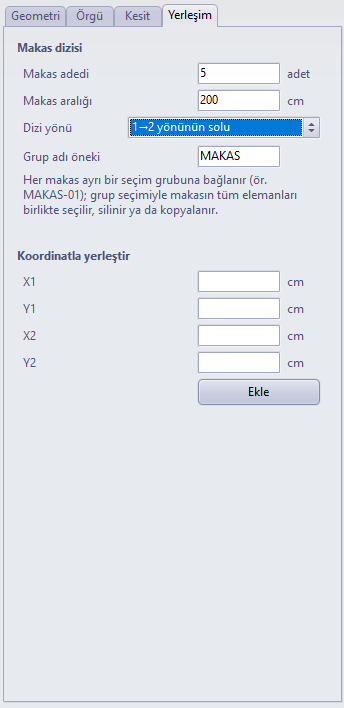
The explanation is based on an example: five Howe trusses with an 8 m span, a 30% slope and 40 cm eaves on both sides are placed 2 m apart on a single-storey building of 10 × 8 m with 24 cm walls. Adding purlins between the trusses is described in Automatic Purlins Between Trusses.
Edition: The truss wizard is available in all editions of StatiCAD. The screenshots were taken with StatiCAD Ultimate V.10.0.1.0.
2. The previous method and how the wizard differs
Previously, a truss was modeled in StatiCAD as follows: the elevation of the truss was drawn in plan (in the XY plane) with beams, and then rotated by 90° about the X axis with the Rotate command to bring it into the vertical plane. After the rotation, the beams that remained vertical were converted into posts with convert beam to column.
The wizard produces the same data structure parametrically. The difference is that the geometry is defined in a single window, the member axes meet at the nodes, and the support and hinge arrangement suitable for the analysis model is set up automatically.
| Rotation method | Truss wizard | |
|---|---|---|
| Geometry | Drawn by hand; again for each span and slope | 13 templates; span, slope, ridge and eave parameters; the slope is kept when the span changes |
| Member axes | Beam node on the top face, axis h/2 below (eccentric) | Axis on the node line: the members meet concentrically at the node |
| Hinges | By hand | Chords continuous, web member ends hinged in the truss plane (selectable) |
| Support | Bottom chord directly at the storey elevation | Pinned + roller bearing post (recommended) or direct bearing |
| Array | By copying | Number and spacing; each truss is a separate selection group (MAKAS-01 ...) |
| Editing | Member by member | Rebuild the selected truss with the wizard |
Projects drawn with the old method: Trusses drawn with the rotation method are also supported; the recommendations for these models are in Section 9.
3. Opening the wizard
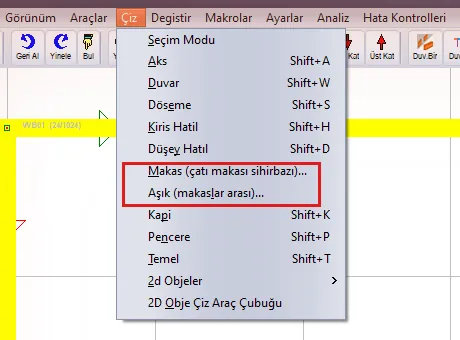
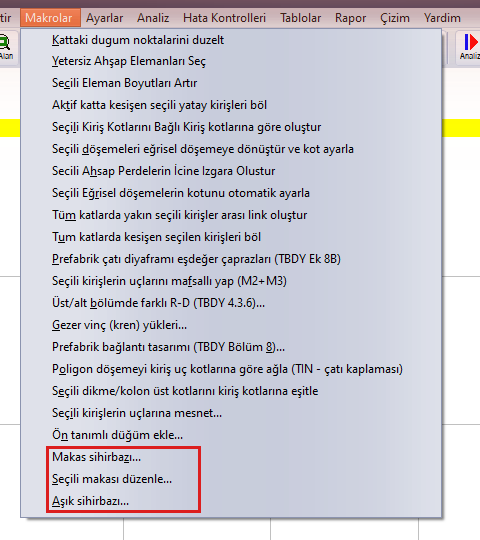
The wizard opens from three places: Draw › Truss (roof truss wizard)..., Macros › Truss wizard... and the Truss button on the left toolbar. All three open the same window. The truss is built as an element of the active storey; a warning is given on the foundation storey.

4. The wizard window
On the left of the window is the truss type gallery, in the middle the dimensioned preview, and on the right the settings in four tabs. The preview is refreshed after every change: the top chord is drawn in red, the bottom chord in blue, the verticals in green and the diagonals in orange; the span, ridge height, eaves and slopes are dimensioned, and the support symbols are shown. When you hover the mouse over a member, its length and section appear. The line below the preview gives the numbers of nodes and members, the number and total length of each group of members, and the section volume per truss.
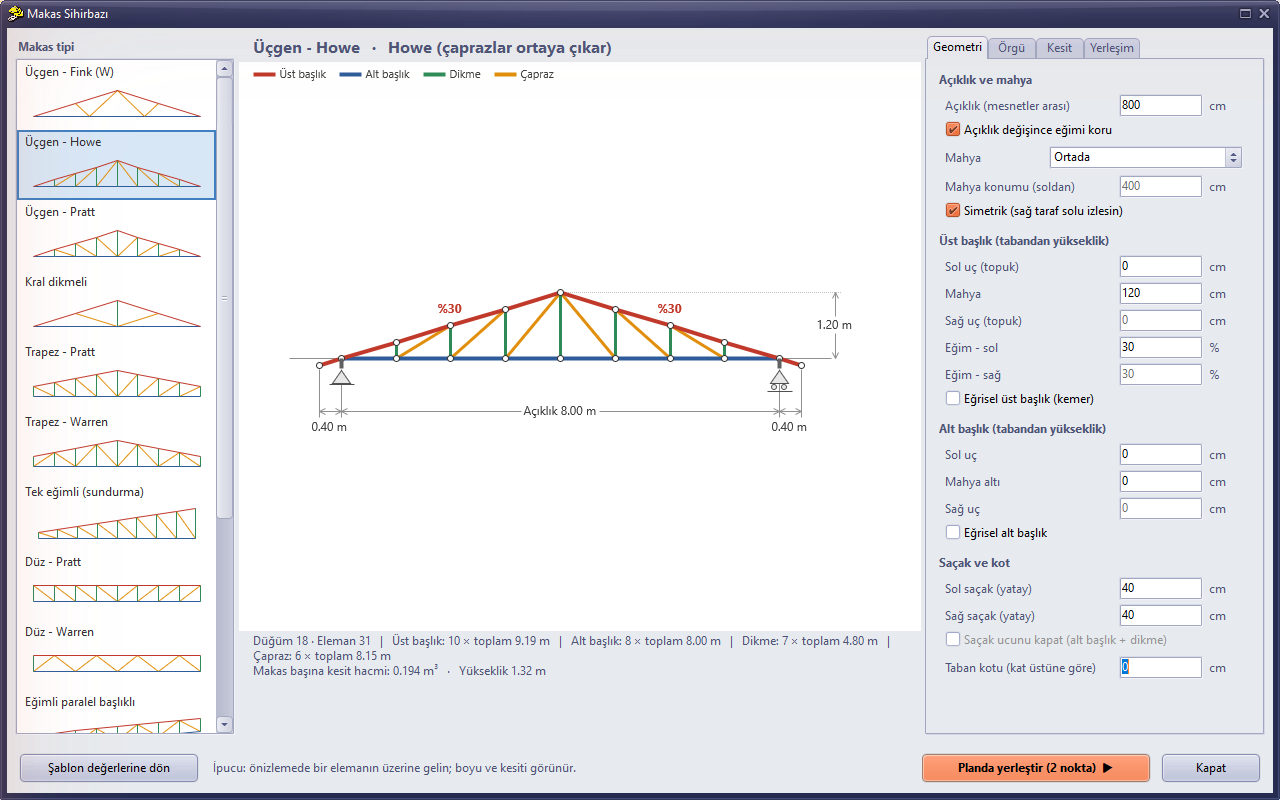
Figure 4 – Truss wizard: Triangular – Howe, span 8.00 m, 30% slope, 0.40 m eaves
4.1. Truss types
The gallery has 13 templates. When a template is selected, the geometry and the web are filled with the recommended values of that type; every value in the tabs can then be changed. The Return to template values button restores the values of the selected template.
| Template | Use |
|---|---|
| Triangular – Fink (W) | Symmetric triangle; W-shaped diagonals. The most common type in houses |
| Triangular – Howe | Diagonals rise toward the ridge (compression), verticals carry tension |
| Triangular – Pratt | Diagonals slope down from the ridge (tension), verticals carry compression |
| King post | A single post in the middle and two struts; short spans |
| Trapezoidal – Pratt / Warren | Flat-topped (truncated) truss |
| Mono-pitch (lean-to) | Sloping in one direction; lean-tos and half roofs |
| Flat – Pratt / Warren | Flat lattice girder with parallel chords |
| Sloped parallel chord | Sloping lattice with parallel chords |
| Scissor truss | Truss whose bottom chord is also sloped (raised ceiling) |
| Arch / Crescent | Curved top chord (in the crescent, the bottom chord too); the curve is divided into parabola segments |
4.2. Geometry tab
| Field | Description |
|---|---|
| Span (between supports) | The horizontal distance between the two supports. If Keep slope when span changes is checked, the ridge and heel heights are adapted so that the slope stays the same (the same rule applies when placing in plan). Intermediate values while typing (e.g. "8" while typing 800) are ignored. |
| Ridge | In the center, on the left, on the right or enter position; the position is given in cm from the left. If Symmetric is checked, the right side follows the left. |
| Top chord | Left/right end (heel) and ridge height in cm from the base; the slopes can also be entered as %. Curved top chord gives the arch shape. |
| Bottom chord | Left/right end and the height under the ridge (for the scissor truss). Curved bottom chord gives the crescent shape. |
| Eave and elevation | The left/right eave is the horizontal extension of the top chord beyond the support. Close eave end adds a bottom chord and a vertical to the end. Base elevation is the height of the truss base relative to the storey top elevation. |
4.3. Web tab
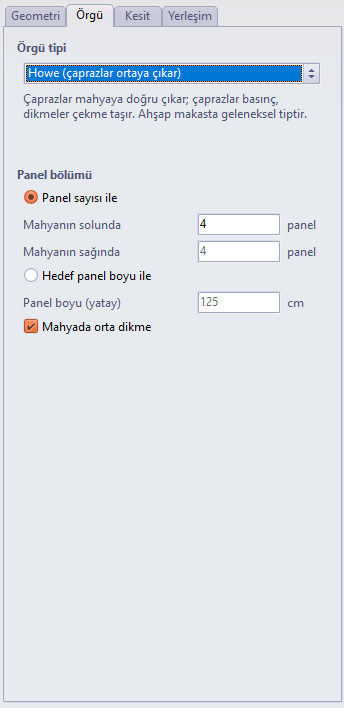
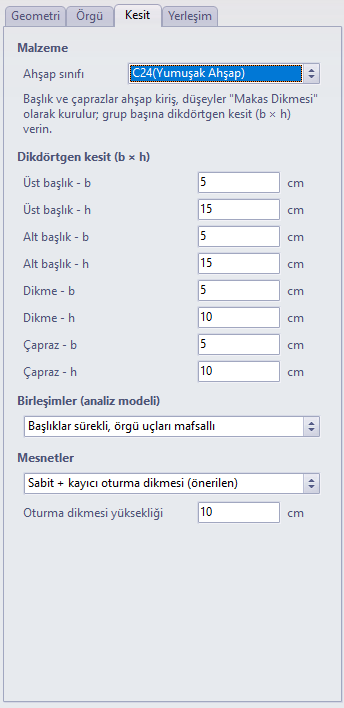
4.4. Section tab
4.5. Layout tab
5. Placement in plan
The Place in plan (2 points) button hides the window and switches to the plan selection mode. The program's snap options (end point, grid line intersection, object intersection) apply; while Shift is held down, the second point is locked to the orthogonal direction relative to the first.
- Click the first support point (in the example, on the lower wall at x = 1.00 m).
- Move the mouse to the second support. The rubber band shows all the truss lines of the array; the Truss preview window updates the span live (the slope is kept).
- Click the second support point. The trusses are built and a summary is written in the status bar.
- The tool stays active; two points can be clicked again for a new truss array. Right-click or selecting another tool ends the tool.
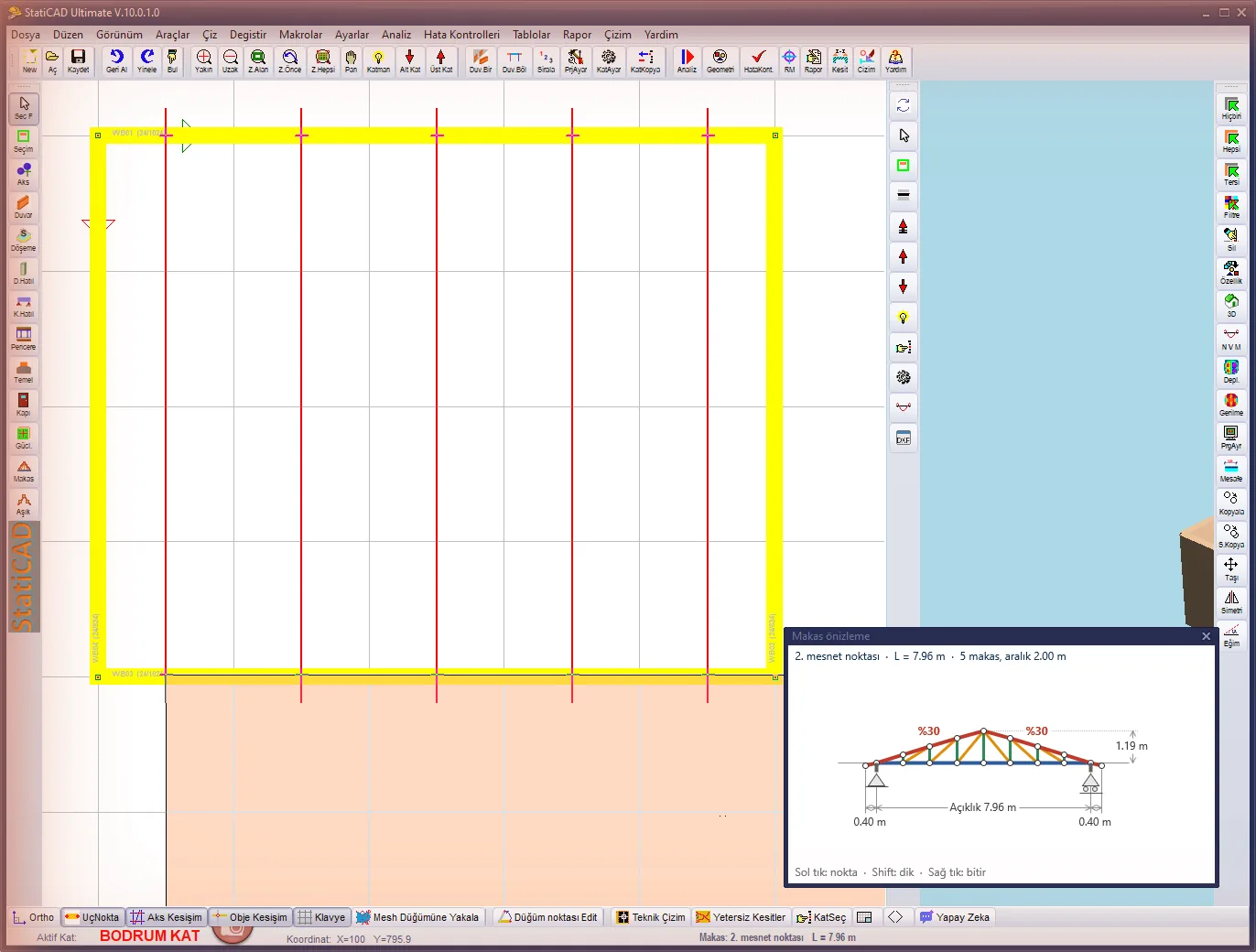
Figure 8 – While waiting for the second point: the rubber band shows the five truss lines and the preview window shows the live span (7.96 m)
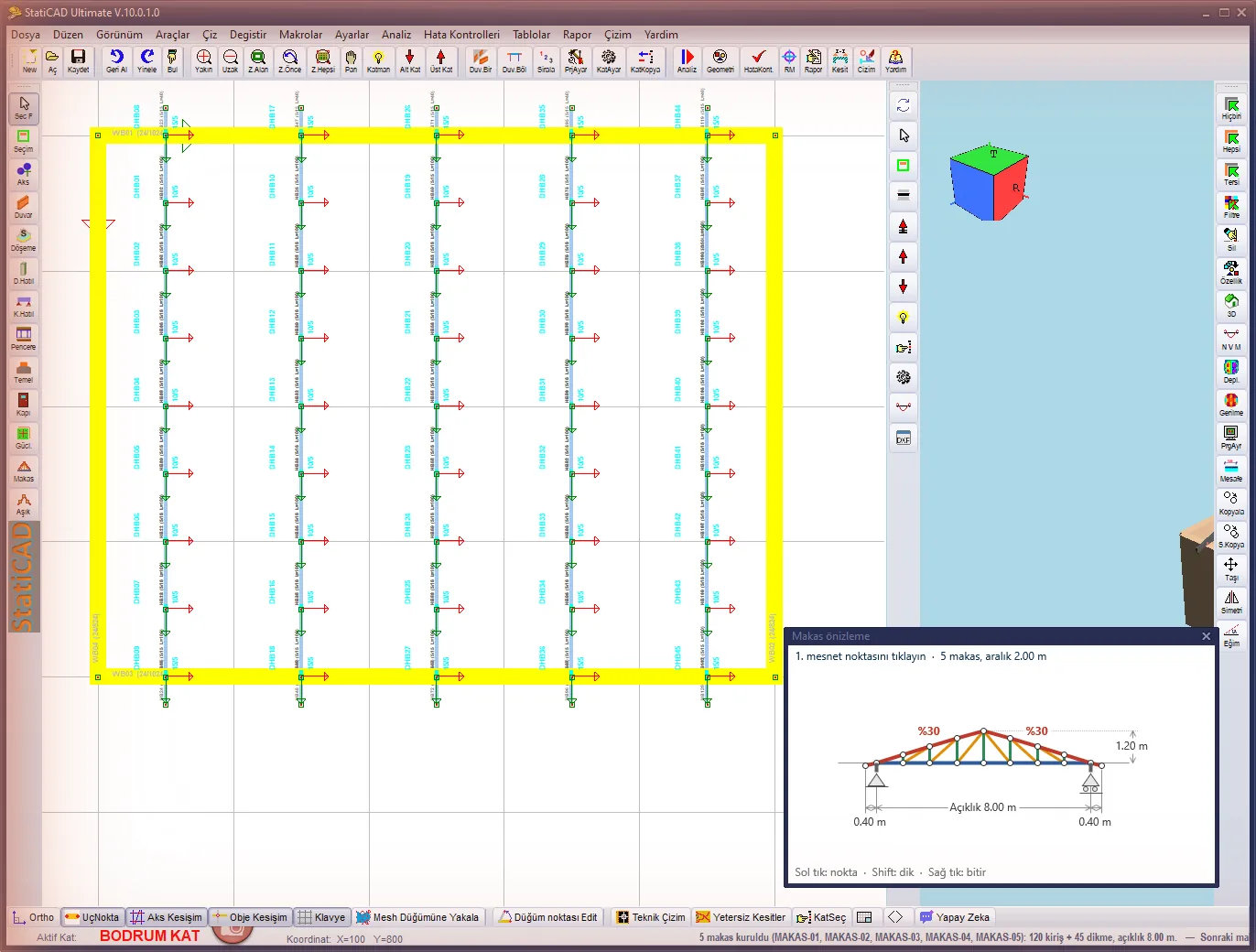
Figure 9 – After the second click, five trusses (MAKAS-01 … MAKAS-05) have been built; summary in the status bar
6. The resulting model
The wizard produces the same element types as the previous rotation method. The chords and diagonals are timber beams with different end elevations. The verticals are of the Truss Post type; this type does not receive automatic supports, and its hinges are taken into account. The member axes are on the node line (beam offset h/2); the members meet concentrically at the nodes.
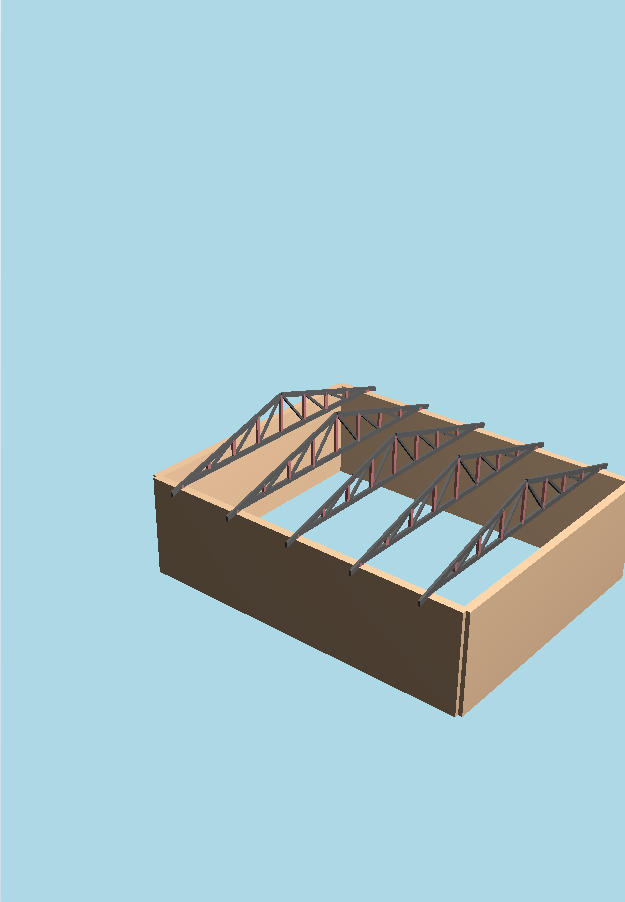
Figure 10 – The trusses that were built, in the 3D view
| Group | Member type | End condition |
|---|---|---|
| Top chord | Timber beam | Continuous (in the recommended connection) |
| Bottom chord | Timber beam | Continuous |
| Diagonal | Timber beam | Both ends hinged in the truss plane (M3) |
| Vertical | Truss post | Both ends hinged in the truss plane (M3) |
| Bearing post | Truss post | Hinged at the top at the 1st support (pinned), hinged at both ends at the 2nd support (roller) |
7. Editing a truss
Select any member of a truss that has been built; open the wizard from the plan right-click menu or with Macros › Edit selected truss.... The window opens with the title Edit truss. With Update truss, the old members of the group are deleted and the truss is rebuilt with the new values from the same first support in the same direction (the span can also be changed).
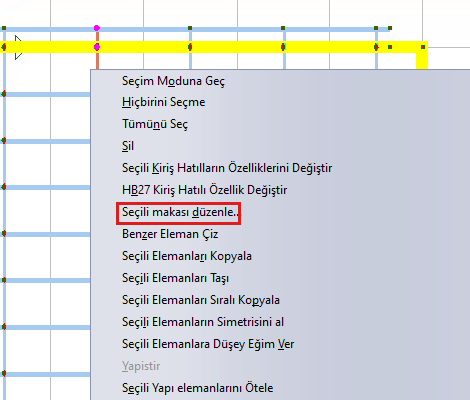
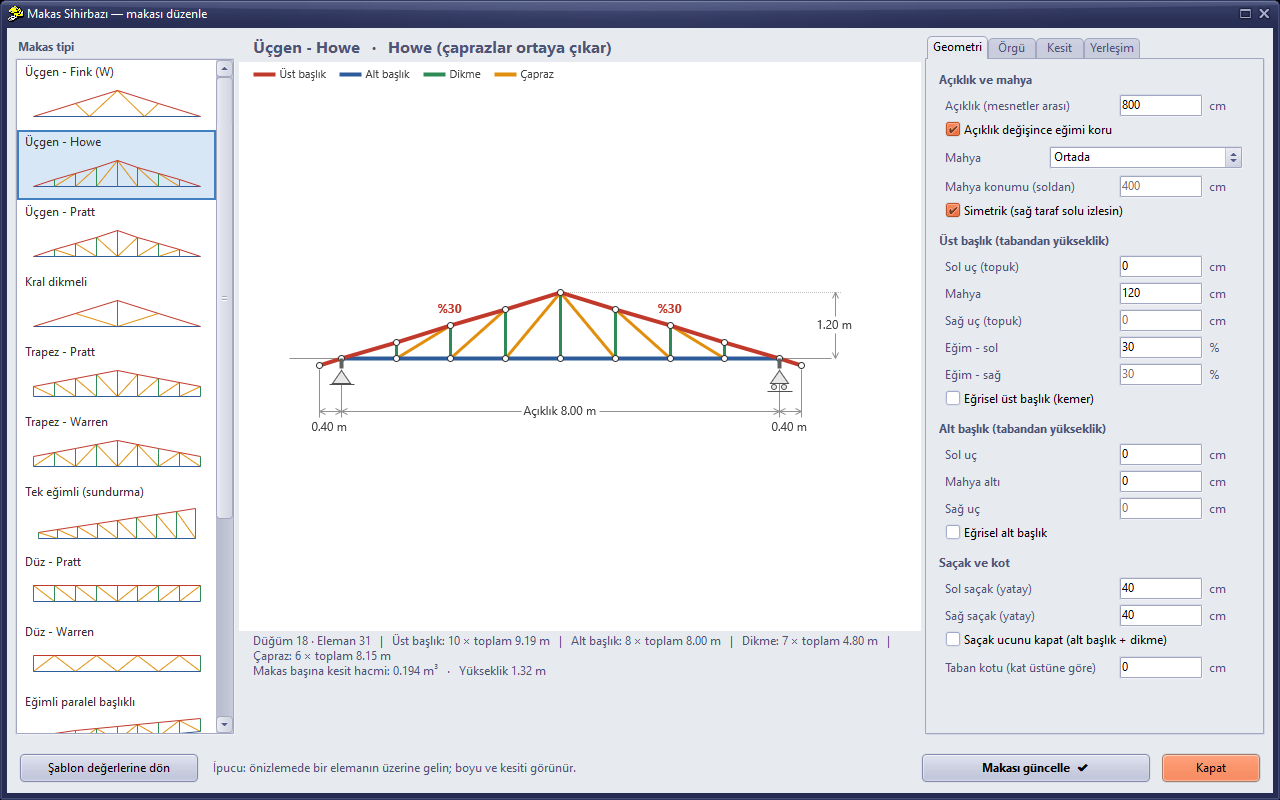
Figure 12 – Edit mode: the parameters of a truss built in the same session are loaded; Update truss
Parameters are not stored in the file: In this version the truss parameters are not written to the project file. All the settings of a truss built in the same session are remembered. For a truss in a file that has been opened, the axis, span, base elevation and bearing posts are found from the members; the other settings come with the template values.
8. Support model and analysis
When the bottom chord sits directly on the wall at the storey top elevation and the diaphragm in vertical loadings option is on, the rigid diaphragm locks the supports and the bottom chord nodes to each other in the plane. In this case no tension develops in the bottom chord under vertical loads; the force goes to the diaphragm constraint. The situation was the same in the previous rotation method.
The pinned + roller bearing post (recommended) removes this problem. The truss is built higher by the bearing height (default 10 cm). The short post at the first support is hinged at the top in the truss plane (pinned support). The post at the second support is hinged at both ends (pendulum, roller support). The truss is restrained out of plane at both ends. In this way the truss behaves like a true pin-jointed truss.
Direct bearing option: When Direct bearing is selected, the wizard gives a warning about the diaphragm situation. To solve the truss with this option, turn off the "Create a diaphragm in vertical loadings (G and Q) as well" option in Project General Settings › Member Forces.
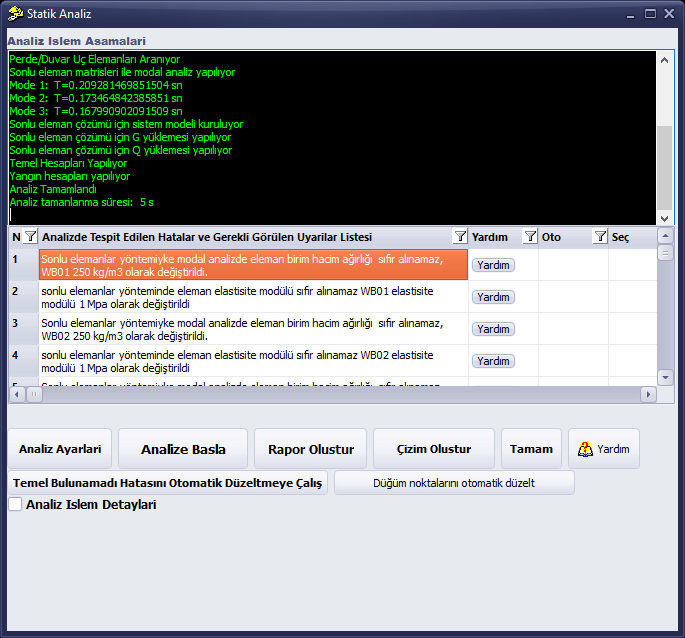
Figure 13 – Analysis of the example model: no floating member warning (the warnings in the list relate to the unit weight of the example wall material)
9. Trusses drawn with the old method
Trusses drawn by rotating about the X axis are analyzed in the same way as those built with the wizard. In beams created by mirroring or rotation, the end elevations, the support type and length, the overhang, the end hinges and the fixed support reinforcement are carried along with the end; the truss geometry does not change in the analysis.
The connection of the trusses to the support beams is made by the beam contact module (Geometry Check › automatically connect intersecting/touching beams): a bottom chord that touches an eave beam or a wall beam is connected with a contact link; a vertical member whose lower end rests on a beam (e.g. the king post of a truss) is not treated as resting on the ground.
Project recommendations:
- Draw the truss bottom chord at an elevation where it touches the support beam or the column top; if the gap in between is larger than the contact tolerance (5 cm), no link is established.
- A stray post with no truss below it, a column drawn twice at the same place and a column that is not connected to anything appear in the analysis warning list as a floating member group; delete them.
- The ends of the king post and the struts must lie on the chord line; a deviation of a few cm may leave the web unconnected to the chord.
- Use the wizard for new trusses; the axes meet at the node and the support model comes ready.
10. Selection in the 3D window
The truss top chord is hard to select in plan, because the top chords, the bottom chord and the web fall on top of one another in plan. In the 3D window, a member is selected by clicking it with the selection mode button. The selection is made from the viewing angle shown on the screen; the view does not change on clicking. The truss members selected in 3D are used in the purlin wizard with Take from selection (see Automatic Purlins Between Trusses).
11. Limits and tips
- The truss is built only with a timber rectangular section (b × h); there is no steel truss in this version.
- The truss parameters are not saved to the file (Section 7); the members are saved as ordinary beams and posts.
- The truss is built on the active storey; the support points are the points clicked in plan, and no wall or column is searched for.
- There is no separate symbol for a truss in plan; the members are drawn as beams and posts.
- To delete a truss, select one of its members, then select the selection group (MAKAS-nn) and delete it. Undo reverses a wizard operation in a single step.
The model and sections in the example are for illustration purposes only; the accuracy of the section selection, connections and support conditions is the responsibility of the engineer in charge of the project.