Automatic Purlins Between Trusses
This article describes how timber purlins are placed between the top chords of the selected trusses with the purlin wizard in StatiCAD. To build the trusses, see Roof Truss Wizard.
1. About this article
The wizard finds the top chord profile of the selected trusses, calculates the purlin positions on the reference truss and builds a separate timber beam (purlin) for each span between trusses.
The explanation is based on the example in the Roof Truss Wizard article: five Howe trusses placed 2 m apart on a 10 × 8 m building (8 m span, 30% slope, 40 cm eaves).
Edition: The purlin wizard is available in all editions of StatiCAD. The screenshots were taken with StatiCAD Ultimate V.10.0.1.0.
2. How does it work?
2.1. Recognizing the trusses
The wizard recognizes a truss by its geometry, not by name or group. Beams that lie in the same vertical plane (a common line in plan) and are connected to each other are counted as one group. A group that contains at least one sloping member enters the list as a truss (or a sloping beam, rafter). For this reason it works both on trusses built with the truss wizard and on trusses drawn with the old method (drawn in plan and rotated about the X axis).
The top chord profile is the upper envelope of the members in the plane. The envelope is simplified with a tolerance of 2 cm; drawing deviations such as a strut protruding a cm or two above the chord do not distort the profile. Members that are in line but not connected to the truss (e.g. a lean-to rafter that starts 10 cm below the truss) are counted as a separate group.
2.2. Positions
The purlin positions are calculated along the top chord of the first truss (the reference) that is checked in the list. In the other trusses, the point corresponding to the same proportion of the same slope segment is used. With identical trusses the purlins are horizontal and perpendicular to the trusses; with different trusses the purlin ends lie on each truss's own chord.
2.3. Analysis model
In StatiCAD the purlins are not merely load-transferring elements: they are timber beams that take part in the analysis model and are designed. Each span between trusses is a separate beam. Their ends lie on the truss top chord line and join the chord at the same node in the finite element model.
3. Opening the wizard
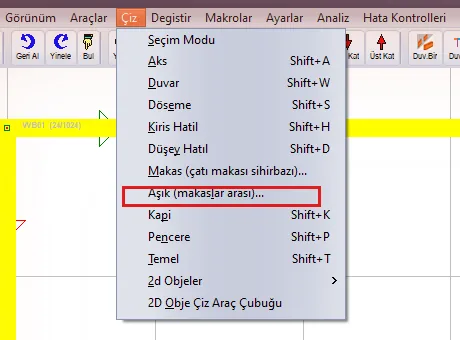
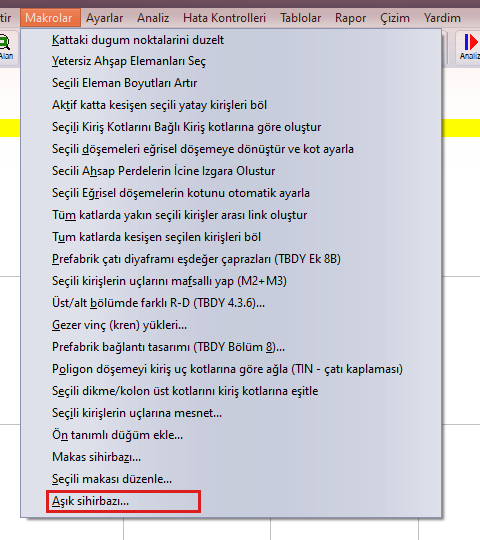
The wizard opens with Draw › Purlin (between trusses)..., Macros › Purlin wizard... or the Purlin button on the left toolbar. A warning is given if there are not at least two parallel trusses on the active storey.

4. Selecting the trusses
The trusses that will receive purlins can be selected before the wizard is opened. It is hard to select a truss top chord in plan, because the top chords, the bottom chord and the web fall on top of one another in plan. Use the 3D window instead:
- Press the selection mode button on the 3D toolbar (framed in red in Figure 4).
- Click one member (e.g. the top chord) of each truss that will receive purlins; the selected member appears yellow. The view stays fixed between clicks.
- Open the purlin wizard. The trusses that contain a selected member come checked in the list.
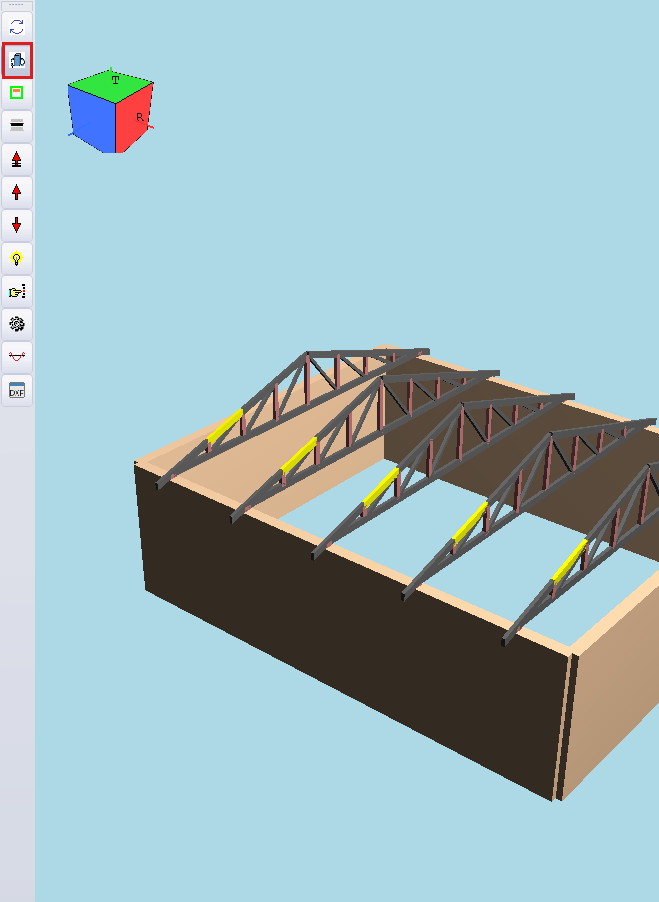
Figure 4 – Selection mode in the 3D window: the top chords of five trusses are selected (yellow)
The Trusses list on the left of the wizard window contains all the trusses and sloping beams on the storey. Each row gives the position of the truss (x or y), its length (L, including eaves), its ridge elevation and its type (truss: double-pitched; sloping beam: single slope). The check marks can be changed by hand. The Take from selection button checks the trusses that contain the elements currently selected in the plan or in 3D. There are also All and None buttons.
If there is no selection: If no element is selected when the wizard opens, the largest group from the same profile family comes checked (trusses whose s ranges overlap and which have the same number of slope segments; the family with the greatest total length). For example, in a user project 12 main trusses come checked, while the 18 lean-to rafters in the same direction stay unchecked.
5. Layout tab
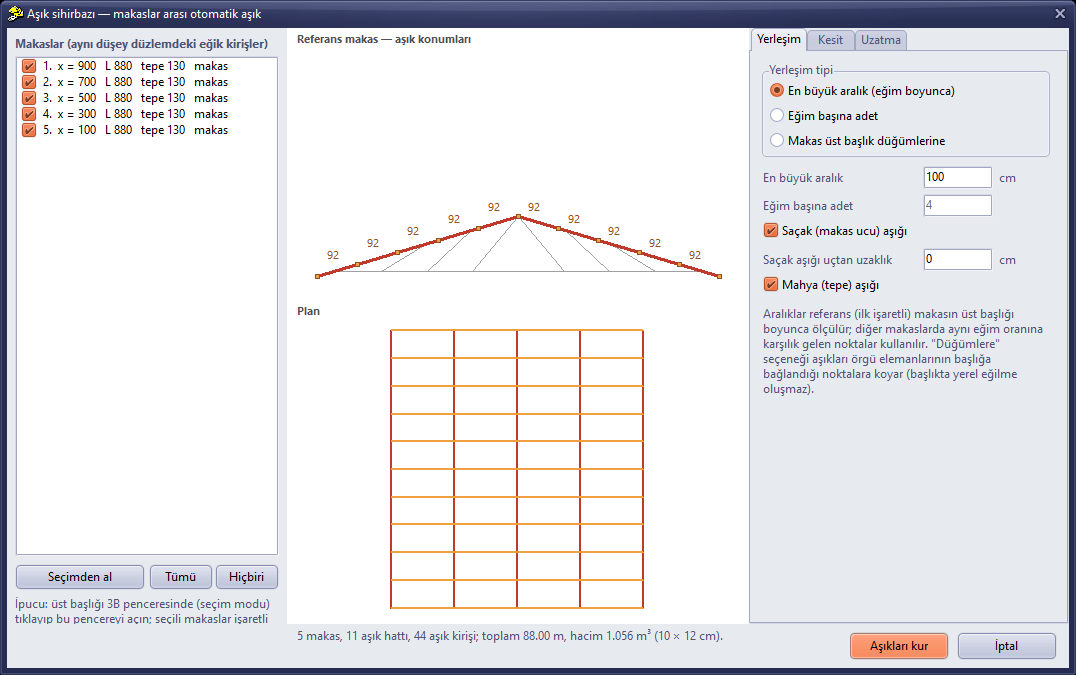
Figure 5 – Layout: maximum spacing 100 cm → 5 spacings per slope (92 cm), 11 purlin lines
Above the preview in the middle, the elevation of the reference truss is drawn: the top chord profile in red, the other members in gray, the purlin sections in orange; the distances between the purlins (along the slope, in cm) are written. Below it, the plan is drawn: the checked trusses in red, the others in gray, the purlins in orange, the extensions in dark orange. At the very bottom, the number of trusses, purlin lines and purlin beams, the total length and the volume are written.
5.1. Layout type
| Option | Description |
|---|---|
| Maximum spacing (along the slope) | Each slope segment is divided equally so that the given value is not exceeded (in the example 459 cm → 5 × 92 cm). |
| Number per slope | The given number of purlins is placed on each slope segment at equal spacing (ends included). |
| At truss top chord nodes | The purlins are placed at the points where the web members connect to the top chord (with a tolerance of 5 cm). No local bending occurs in the chord; it is structurally the most suitable layout for a lattice girder. |
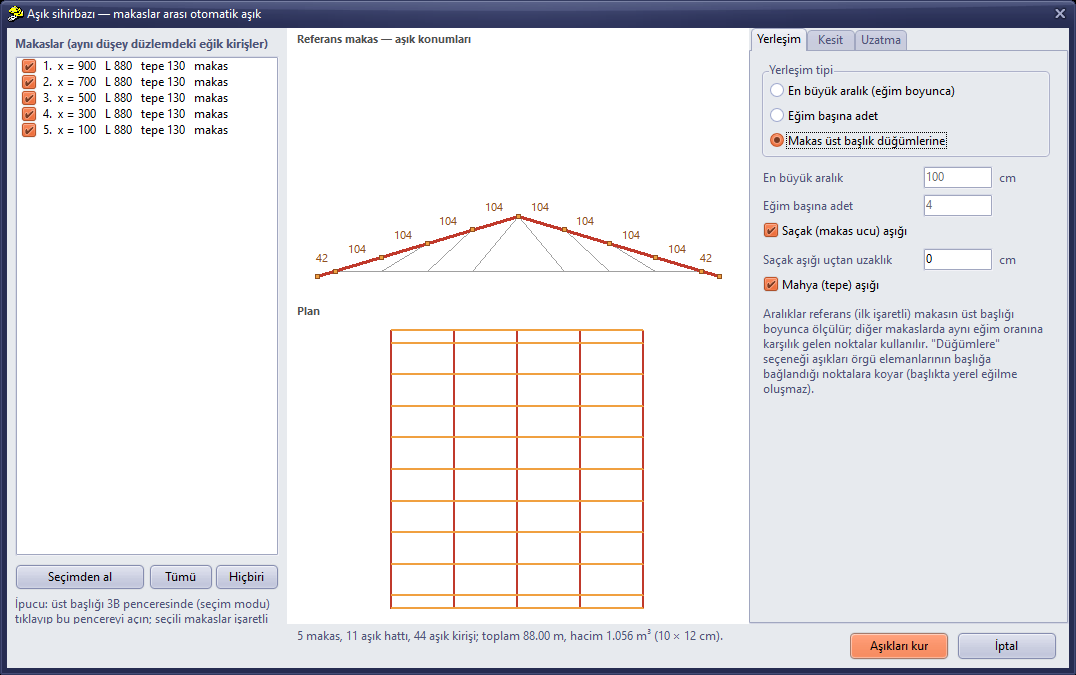
Figure 6 – Layout at the nodes: the purlins are at the panel points of the Howe truss (104 cm); one purlin at the eave end and one above the support
5.2. End purlins
If Eave (truss end) purlin is checked, a purlin is placed at the ends of the top chord. If Eave purlin distance from end is given, this purlin is moved in from the end by that amount along the slope. If Ridge (apex) purlin is checked, a single purlin is placed at the apex where the two slopes meet.
6. Section tab
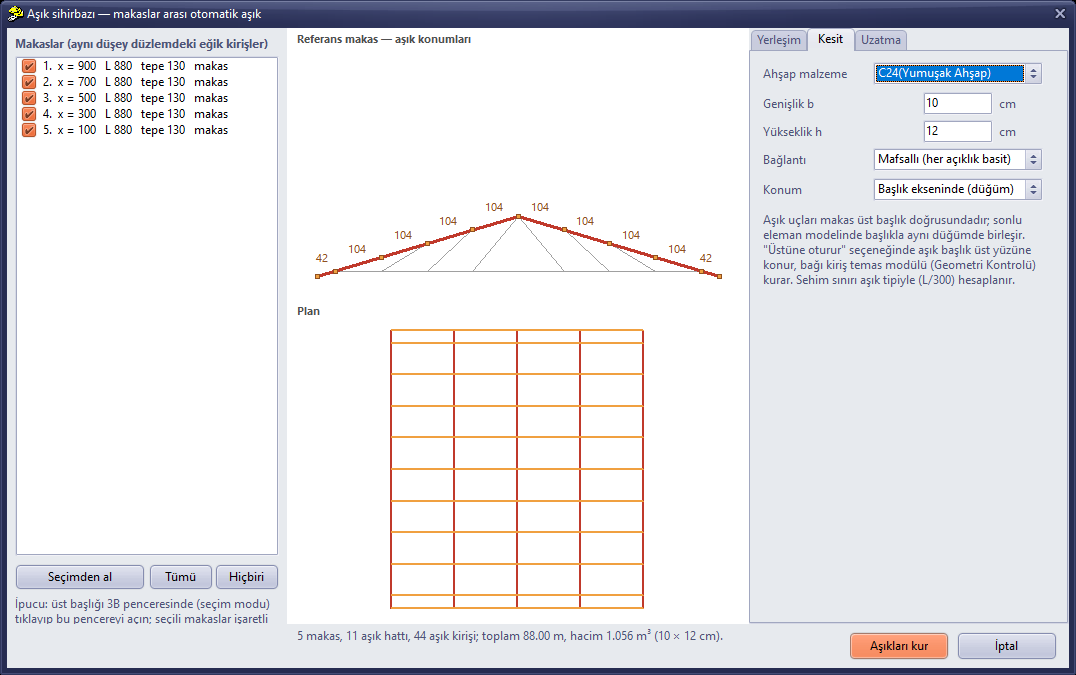
Figure 7 – Section: C24, 10 × 12 cm, hinged, on the chord axis
| Field | Description |
|---|---|
| Timber material | The timber classes in the project and in the library; if it is not in the project, it is added from the library. |
| Width b, Height h | Rectangular purlin section (cm). |
| Connection | Hinged: each span is a simple beam (M2 and M3 released at the ends). Continuous: the purlin runs continuously over the trusses. |
| Position | On the chord axis (node): the purlin axis is on the node line of the top chord and shares the same node with the chord in the finite element model. Sits on the chord: the purlin is placed on the top face of the chord (eccentric); the link is made by the beam contact module, so the "automatically connect intersecting/touching beams" option in Geometry Check must be on. |
In the deflection check, the purlins are marked with the purlin member type.
7. Extension tab
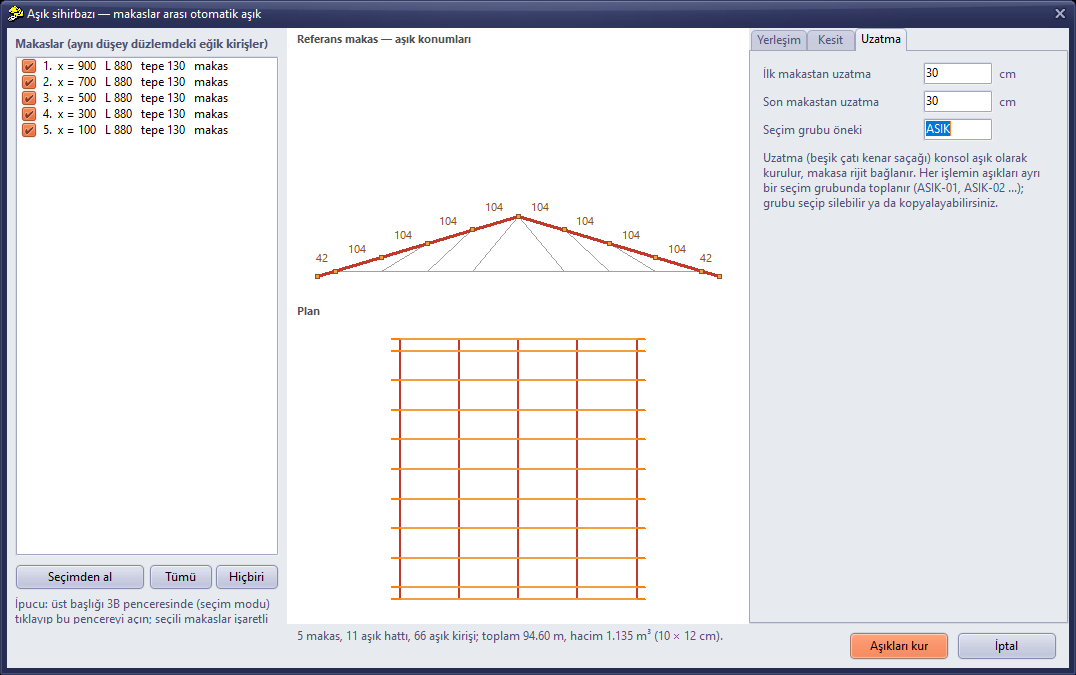
Figure 8 – Extension: 30 cm outward from the first and last truss (side eave of a gable roof); 66 purlin beams
Extension from first/last truss extends the purlins beyond the first and last truss as cantilevers (the side eave of a gable roof). The cantilever parts are rigidly connected to the truss; even if Hinged is selected, no mechanism forms because the end of the cantilever is free.
The purlins of each operation are collected in a separate selection group (selection group prefix + serial number: ASIK-01, ASIK-02 ...). By selecting the group, all the purlins of that operation are selected, deleted or copied together.
8. Building the purlins and the result
With Build purlins, the purlins are added to the active storey and a summary message is shown. The operation can be reversed in a single step with Undo. The wizard remembers the last used settings throughout the session.

Figure 9 – Result: 11 purlin lines, 66 purlin beams between 5 trusses (ASIK-01), total 94.60 m, volume 1.135 m³
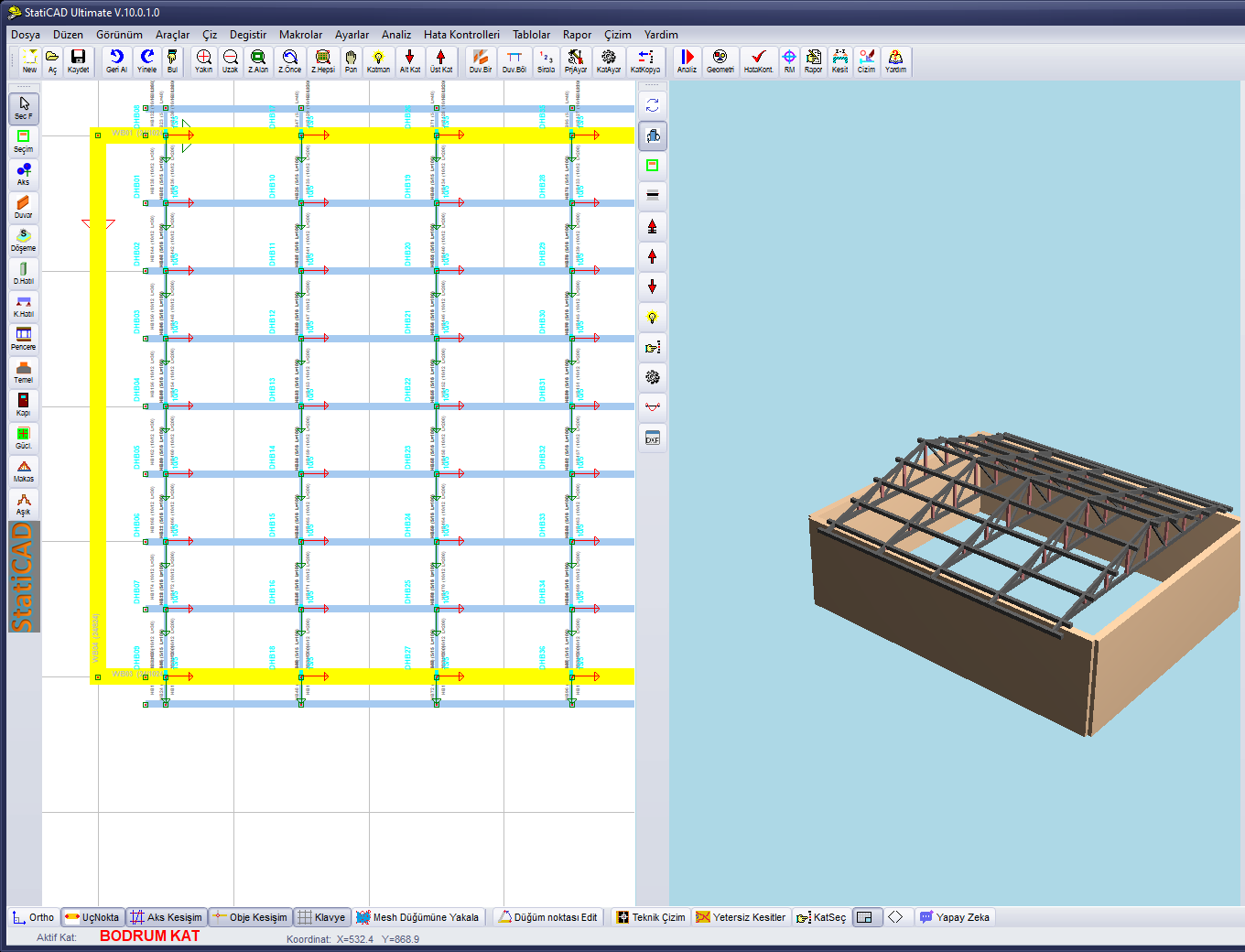
Figure 10 – The purlins that were built, in plan (blue beams perpendicular to the trusses) and in the 3D view
9. Analysis
In the analysis, the purlins are solved and designed as ordinary timber beams. Their ends share a node with the truss top chord; a purlin end arriving at an interior point of the chord splits the chord at that point. There is no floating member in the analysis of the example model.
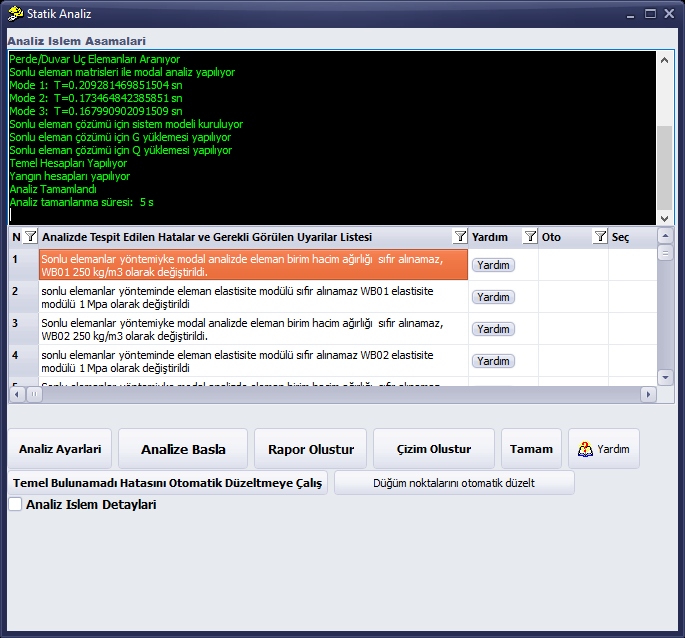
Figure 11 – Analysis of the model with purlins (the warnings in the list relate to the unit weight of the example wall material)
Loads: The wizard cannot assign loads to the purlins. Roof covering and snow loads are given with the program's roof/slab load tools or with the extra loads on the beams. The self-weight of the purlins is calculated from the material.
10. Limits and tips
- The purlin is built only with a timber rectangular section. The section axes are vertical; the purlin is not rotated to the roof slope (oblique bending is not taken into account).
- Only trusses that are parallel to one another (in the same direction) are used together; on a hip roof each direction is handled separately.
- The trusses are searched for on the active storey; the purlins become elements of the same storey.
- The purlin settings are not saved to the file; the purlins are saved as ordinary beams. To change the layout, delete the ASIK-nn group and run the wizard again, or use Undo.
- If the web connections on the truss top chord deviate more than 5 cm from the chord line, the layout "at nodes" skips those points.
- With very close double trusses (e.g. two trusses 10 cm apart that flank a column on both sides), the short span between them is also built as a separate purlin piece.
The model and sections in the example are for illustration purposes only; the accuracy of the purlin spacing, the section and the connections is the responsibility of the engineer in charge of the project.