Saving the Drawing as DXF and Printing with AutoCAD
If you want the hatch patterns of drawing objects to appear in AutoCAD-compatible programs after DXF export, select the entire drawing in the StatiCAD drawing editor and apply Explode.
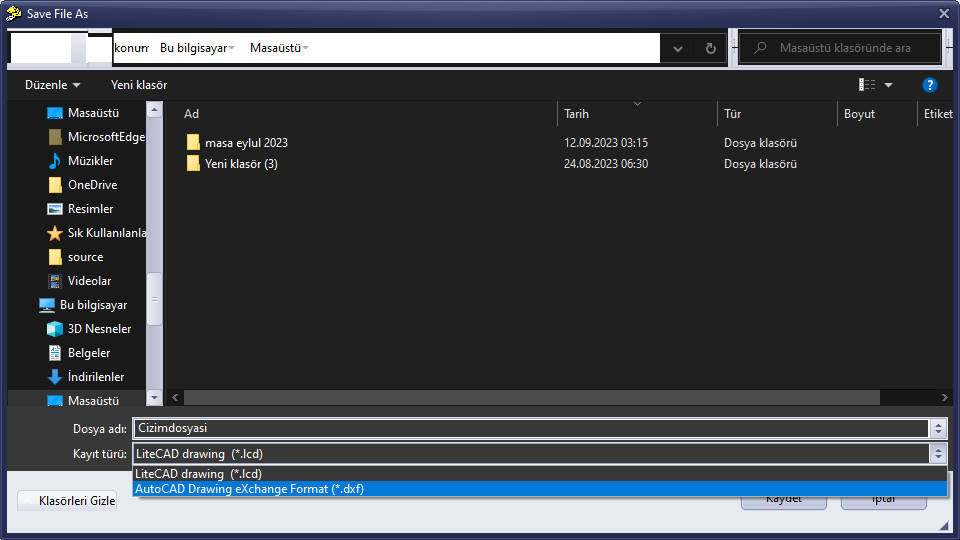
In the drawing editor, click the Save As command from the File menu.
In the dialog that appears, set the file name and path for the saved file.
In the Save As Type drop-down list, select the AutoCAD Drawing eXchange Format (*.dxf) option. Click the Save button.
The DXF export process is now complete.
If the drawing does not appear on screen when you open it in AutoCAD:
The drawing may be displayed at a blank area.
Press z Enter e Enter. (This runs the Zoom Extents command.)
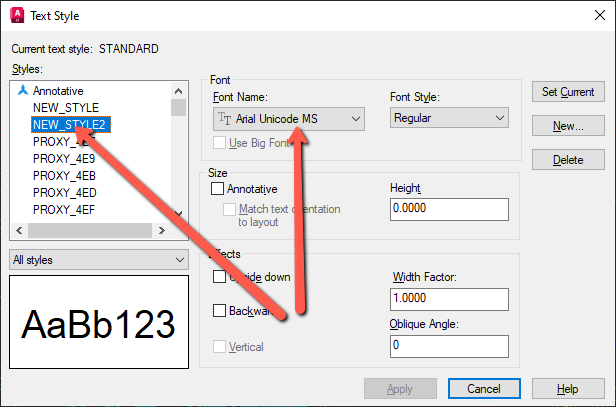
To display Turkish characters and the φ reinforcement diameter symbols in AutoCAD text, type st and press Enter. In the Text Style dialog that appears, change the NEW_STYLE and NEW_STYLE2 font types to Times New Roman and Arial Unicode MS respectively.
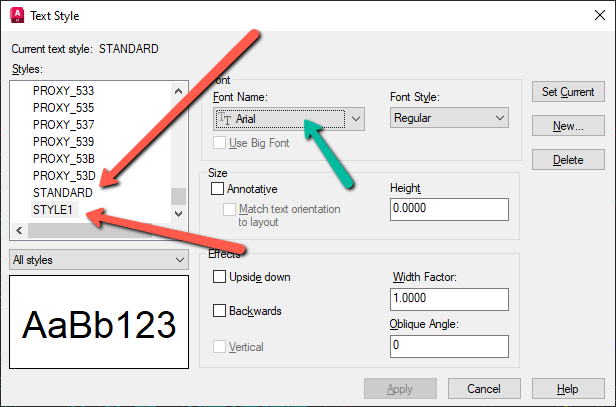
Also change the STANDARD and STYLE1 styles at the bottom of the list to Arial using the Font Name field. Click the Apply button. Turkish character issues will be resolved.
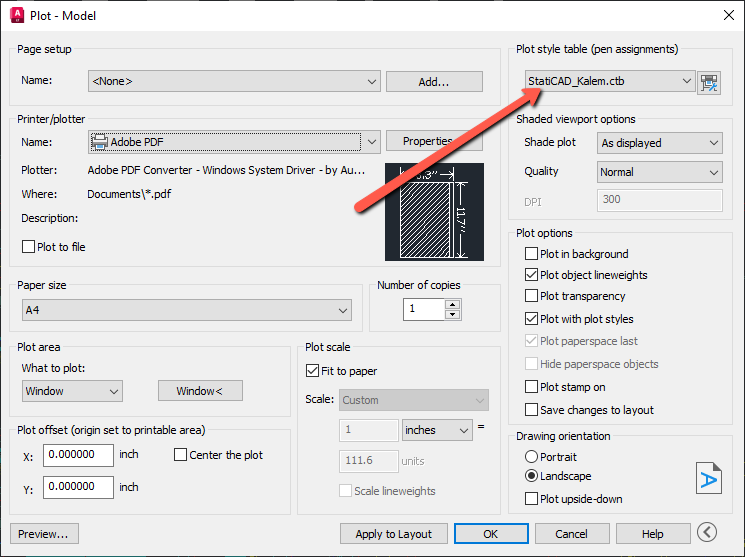
To have pen widths set automatically when printing from AutoCAD, copy the StatiCAD_Kalem.ctb (https://www.staticad.com/download/StatiCAD_Kalem.rar) file provided in the link (after extracting the file inside using WinRAR) into the folder that opens when you click Control Panel / Hardware and Sound / Autodesk Plot Style Manager.
When printing from AutoCAD (Ctrl+P), select the StatiCAD_Kalem.ctb option in the Plot Style Table section of the dialog that appears.