Printing a Drawing from the StatiCAD Drawing Editor
1- If you will print from your own computer, click the Print command from the File menu in the Drawing Editor.
2- If you will print at a copy shop, save the drawing in LCD format (File – Save As), then send the drawing file along with the Program Installation Link (or the installation setup file) to the copy shop. The StatiCAD-TechnicDraw drawing editor can run without a license key. Open the StatiCAD-TechnicDraw Drawing Editor and click the Print command from the File menu.
3- In the dialog that appears, you can select the printer/plotter using the Change button.
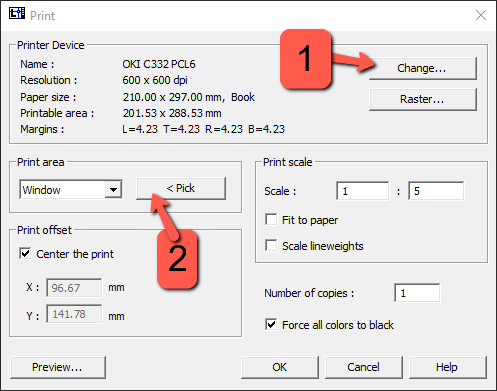
In the Print area section, select the Window option and enclose the portion of the drawing you want to print within the window.
Under Print Scale, entering Scale 1 : 5 sets the drawing scale to 1/50. (Similarly, entering 1:2 corresponds to a 1/20 scale.)
The Force all colors to black option allows you to print the drawing in black and white.
Clicking the OK button starts the printing process.