Menus, Toolbars and the Command Line
1. Menu Bar
Menus are opened by clicking with the mouse. While a menu is open, the Right/Left arrow keys move to the neighbouring menus and the Up/Down arrow keys move between the menu rows; Enter runs the selected command and Esc closes the menu. For commands that have a shortcut, the shortcut is written at the right of the row. All menus are shown open below; the windows opened by the commands are listed in the article Menu Commands and Keyboard Shortcuts.
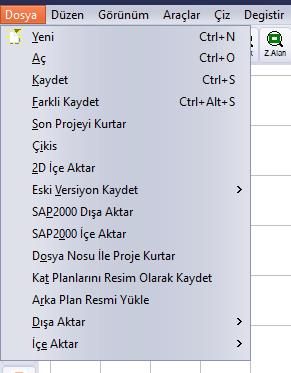
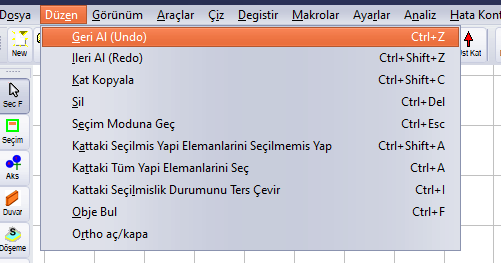
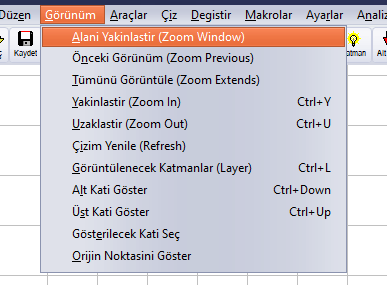
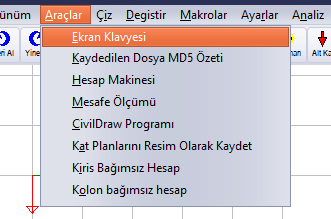
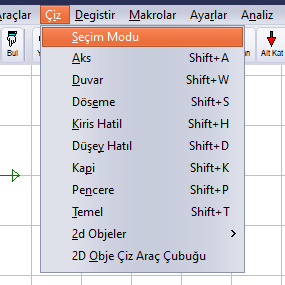
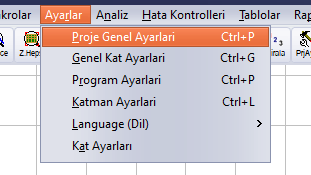
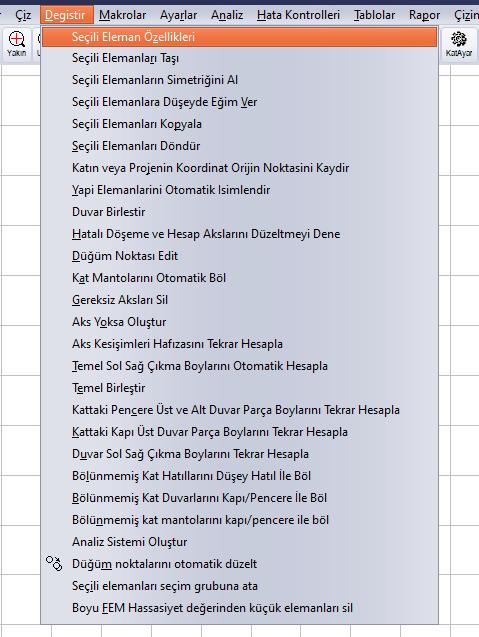
Modify menu
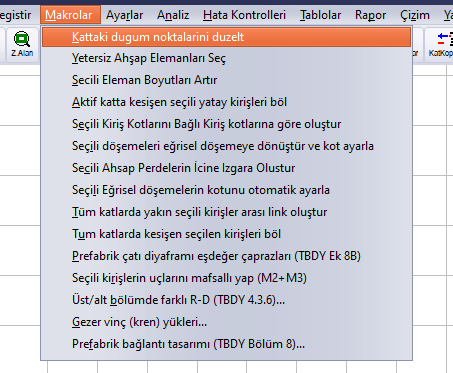
Macros menu
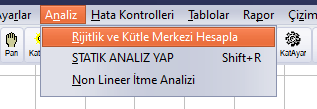
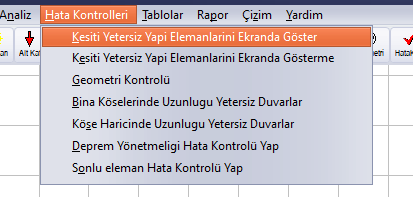
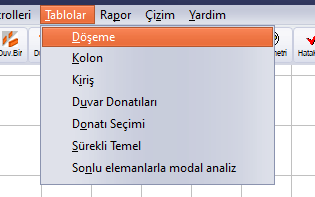
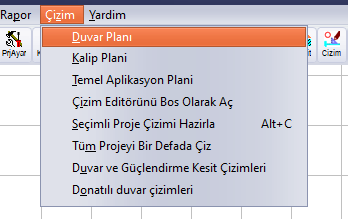
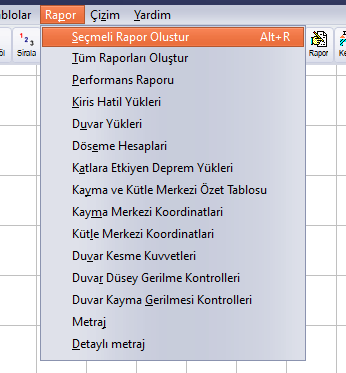
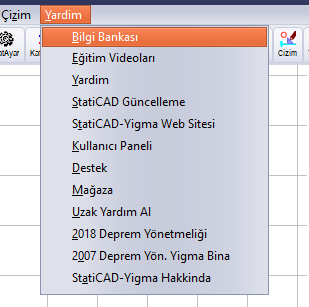
Note: In the Settings menu, the Ctrl+P shortcut appears for both Project General Settings and Program Settings. When Ctrl+P is pressed, Project General Settings opens; for Program Settings, use the PrgAyr button on the right toolbar or the menu.
2. Top Toolbar

Top toolbar
| Button | Function |
|---|---|
| New | New project. Clears the open model without asking whether to save (Ctrl+N). |
| Aç / Kaydet (Open / Save) | Opens a saved project (Ctrl+O) / saves the project (Ctrl+S). |
| Geri Al / Yinele (Undo / Redo) | Undoes the last operation (Ctrl+Z) / redoes the undone operation (Ctrl+Shift+Z). |
| Bul (Find) | Find Structural Element window (Ctrl+F). |
| Yakın / Uzak (Zoom In / Zoom Out) | Zooms in (Ctrl+Y) / zooms out (Ctrl+U). |
| Z.Alan / Z.Önce / Z.Hepsi (Zoom Window / Zoom Previous / Zoom All) | Zoom by window (two corners are marked) / previous view / fit the whole model. |
| Pan | Panning mode: while on, the view is panned by dragging with the left button; it is turned off by clicking the button again. |
| Katman (Layer) | Layer Settings (Ctrl+L). |
| Alt Kat / Üst Kat (Lower Storey / Upper Storey) | Moves to the storey below / above (Ctrl+Down Arrow / Ctrl+Up Arrow). |
| Duv.Bir / Duv.Böl (Merge Walls / Split Walls) | Merges walls in the same direction / splits the storey walls at room intersections. |
| Sırala (Sort) | Automatically names the structural elements (Rename Name Indices). |
| PrjAyar / KatAyar / KatKopya (Project Settings / Storey Settings / Copy Storey) | Project General Settings / the window for adding and deleting storeys / Copy Storey. |
| Analiz (Analysis) | Static Analysis window (Shift+R). |
| Geometri / HataKont. (Geometry / Error Checks) | Geometry Check / Seismic Code Checks. |
| RM | Calculates the shear (stiffness) centre and the mass centre. |
| Rapor (Report) | Report Selection window (Alt+R). |
| Kesit (Section) | Section Line Definition Tool (location of the section for drawings). |
| Çizim / Yardım (Drawing / Help) | Drawing Selection window (Alt+C) / help. |
3. Left Drawing Toolbar
Only one of the buttons on the left bar can be pressed at a time; the pressed button shows the active mode. The default mode is Seç F.

Left drawing toolbar
| Button | Function |
|---|---|
| Seç F (Select F) | Selection by mouse click. The selection of the clicked element is toggled; clicks are added to the selection. |
| Seçim (Selection) | Selection by enclosing elements in a frame. |
| Aks (Grid Line) | Grid Line Drawing tool window and grid line drawing mode. |
| Duvar (Wall) | Wall Properties dialog (modal); wall drawing mode after OK. |
| Döşeme (Slab) | Slab Drawing tool window and slab mode. |
| D.Hatıl (Tie Column) | Tie Column Drawing tool window; tie column / column mode. |
| K.Hatıl (Bond Beam) | Bond Beam Properties (beam) dialog (modal) and beam–bond beam mode. |
| Pencere / Kapı (Window / Door) | Window Drawing / Door Drawing tool windows and the corresponding modes. |
| Temel (Foundation) | Foundation Properties and foundation mode. Works only on the TEMEL (foundation) storey. |
| Gücl. (Strengthening) | Wall Strengthening Jacket Properties and jacket mode (performance editions). |
4. Right Toolbar

Right layout and view toolbar
| Button | Function |
|---|---|
| Hiçbiri / Hepsi / Tersi (None / All / Invert) | Clears the selection / selects all elements on the active storey / inverts the selection. |
| Filtre (Filter) | Selection Filter window (selection by type and selection groups). |
| Sil (Delete) | Deletes the selected elements (same as the Delete key). |
| Özellik (Properties) | Window for changing the properties of the selected elements. |
| 3D | 3D View window. |
| N V M | Finite element section force (N, V, M) diagrams; the analysis must have been run. |
| Depl. (Displacement) | Displacement/contour view (StatiCAD FEM Kontur 3D). |
| Gerilme (Stress) | Display options for shell stress results. |
| PrgAyr (Program Settings) | Program Settings. |
| Mesafe (Distance) | Measures the distance between two points. |
| Kopyala / S.Kopya / Taşı (Copy / Sequential Copy / Move) | Copies the selected elements / makes sequential (multiple) copies / moves them; the reference and target points are marked. |
| Simetri / Eğim (Mirror / Slope) | Mirrors the selected elements / applies a vertical slope to the selected elements. |
5. 3D Panel Toolbar

Toolbar of the 3D panel on the split screen
From top to bottom: Refresh, Select with Mouse, Select with Frame, Show Active Storey Only, Add Upper Storey to View, Upper Storey, Lower Storey, Layers, Select Storey, Options, FEA (shows/hides the finite element model and its results) and Export 3D View to DXF.
Tip: The 3D panel may not be updated after the model changes, or the text “Çizimi görmek için buraya tıklayınız” (Click here to see the drawing) may appear; in that case press the Refresh button. If the panel keeps showing the finite element model of the previous project after another project is opened, turn off the finite element view with the FEA button.
6. Bottom Toolbar and Status Line

Bottom toolbar and status line
| Button / Field | Function |
|---|---|
| Ortho | Orthogonal drawing. It is also activated temporarily for clicks made while holding Shift. |
| UçNokta / Aks Kesişim / Obje Kesişim (Endpoint / Grid Intersection / Object Intersection) | Snapping to element endpoints, grid line intersections and object intersections (on by default). |
| Klavye | Grid display and snapping to the grid. Although the label reads “Klavye” (Keyboard), its function is the grid. |
| Mesh Düğümüne Yakala (Snap to Mesh Node) | Snapping to slab mesh nodes. |
| Düğüm noktası Edit (Node Edit) | Node shifting options. |
| Teknik Çizim (Technical Drawing) | Opens the StatiCAD-TechnicDraw drawing editor. |
| Yetersiz Kesitler (Insufficient Sections) | Shows elements with insufficient sections in colour and opens the colour code window. |
| KatSeç (Select Storey) | Select Storey to Display window. |
| Split screen icon | Opens/closes the split screen (2D plan + 3D). |
| Command line icon | Shows/hides the command line (see “Command Line”). |
| Yapay Zeka (Artificial Intelligence) | AI Console (AI assistant) window (Hybrid/Ultimate). |
| Active Story / Coordinates / hint | The active storey, the pointer coordinates and the hint text of the active command. |
Tip: When snapping is on, it is enough to click approximately near the target; the snap distance is set with Program Settings › View 1 › Snap Distance. If the targets are small, zoom in first; when an exact dimension is required, use the command line (see “Command Line”).
7. Right-Click Menus
In selection mode, right-clicking on an element opens the element menu, and right-clicking on an empty area opens the general menu. While a drawing command is active, right-clicking does not open a menu; it finishes the command, closes the open tool windows and returns to selection mode.
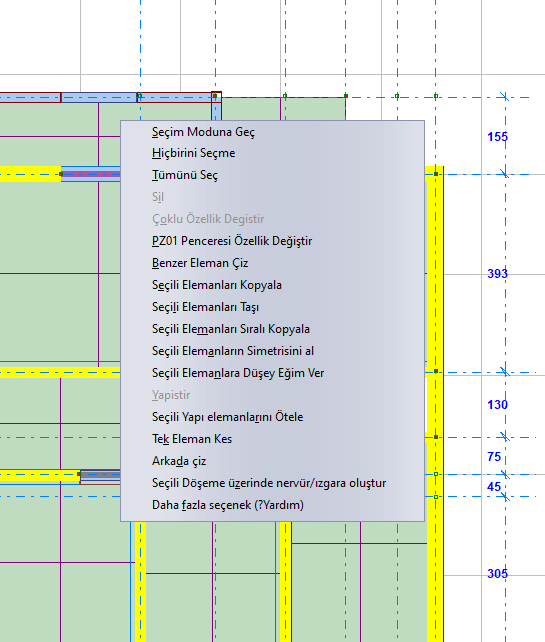
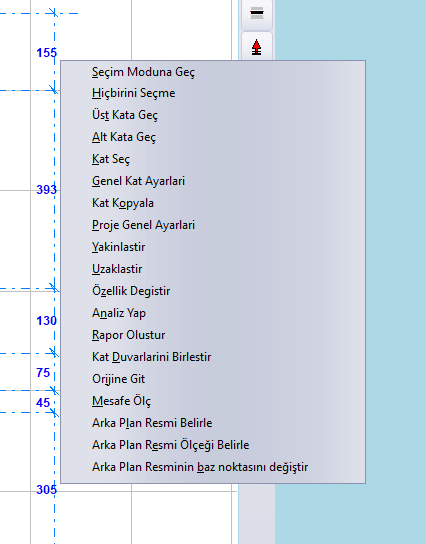
The Change … Properties row in the element menu contains the name and type of the clicked element (for example Change Properties of PZ01 Window). When several elements are selected, the Change Multiple Properties row is named according to the selected type (for example Change Properties of Selected Tie Columns). The menu shows only the commands that are valid for that selection.
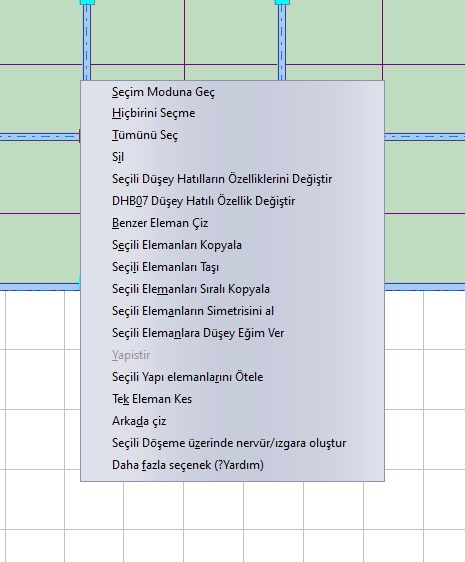
Right-click menu on a selected column (tie column)
- Switch to Selection Mode, Deselect All, Select All, Delete
- Change Multiple / Single Properties, Draw Similar Element (drawing a new element with the properties of the clicked element)
- Copy / Move / Sequential Copy / Mirror / Apply Vertical Slope to Selected Elements
- Offset Selected Structural Elements, Cut Single Element, Draw at Back
- Additional rows depending on the selection: Intersect 2 Elements, Move Selected Elements onto the Selected Grid Line, Create Grid Line on Selected Elements, Select Elements Attached to the Grid Line on All Storeys, Convert to Curved Slab, Create Ribs/Grid on Selected Slab
- General menu: Go to Upper/Lower Storey, Select Storey, General Storey Settings, Copy Storey, Project General Settings, Run Analysis, Create Report, Merge Storey Walls, Go to Origin, Measure Distance and the background image commands
Details: Mouse Right-Click Menu.
8. Keyboard Shortcuts and Mouse
Main keyboard shortcuts (full list: Menu Commands and Keyboard Shortcuts)
| Key | Function |
|---|---|
| Ctrl+N / Ctrl+O / Ctrl+S | New / Open / Save |
| Ctrl+Alt+S | Save As |
| Ctrl+Z / Ctrl+Shift+Z | Undo / Redo |
| Esc | Switches to selection mode and clears all selections. |
| Delete / Ctrl+Del | Deletes the selected elements. |
| Ctrl+A / Ctrl+Shift+A / Ctrl+I | Select all on the storey / deselect all / invert the selection |
| Ctrl+F | Find Structural Element |
| Ctrl+Y / Ctrl+U | Zoom in / zoom out |
| Ctrl+Up / Ctrl+Down | Go to the upper storey / lower storey |
| Ctrl+P / Ctrl+G / Ctrl+L | Project General Settings / General Storey Settings / Layer Settings |
| Shift+A, W, S, H, D, K, P, T | Draw: Grid Line, Wall, Slab, Beam / Bond Beam, Tie Column, Door, Window, Foundation |
| Shift+R | Static Analysis window |
| Alt+R / Alt+C | Create Selective Report / Prepare Selective Project Drawing |
| Ctrl+Tab (in a dialog) | Moves to the next tab in tabbed dialogs. |
Mouse use
| Action | Effect |
|---|---|
| Wheel | Zooms in/out about the pointer position. The steps are large; for fine adjustment use the Zoom In/Zoom Out buttons. |
| Dragging with the middle button | Pans the view. |
| Left click (Select F mode) | Toggles the selection of the element. |
| Left drag (Selection mode) | Selects the elements inside the frame. |
| Left click (drawing modes) | Marks a point: the first/second point for walls, beams, foundations and grid lines; for doors, windows and tie columns, the 1st click is the reference point and the 2nd click is the direction. |
| Right click | Finishes the drawing command; in selection mode it opens the right-click menu. |
| Holding the right button (wall mode) | Discrete drawing mode / Continuous drawing mode / cancel menu. |
Warning: Typing a capital letter (Shift+letter) while the main window has focus triggers drawing commands (Shift+W wall, Shift+R analysis, etc.). Before typing in text boxes, click the box to make sure the focus is in the box; use lower-case letters in the command line.
9. Command Line
The command line consists of a history box that opens below the drawing area and a single-line input box. It is opened with the command line icon on the bottom toolbar or with the Program Settings › Automatic Operations › Show Command Line option. It allows walls, inclined grid lines and strengthening jackets to be drawn with coordinates from the keyboard.
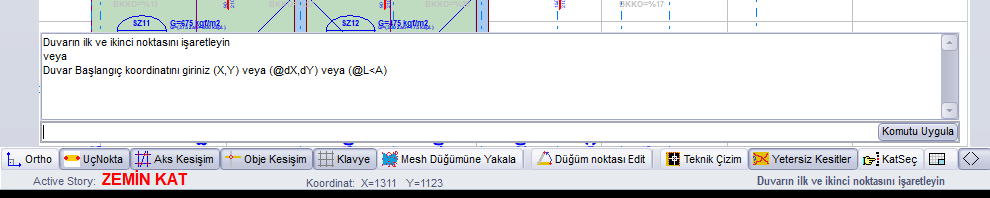
Command line: prompt for the wall start coordinate after the w command
Command line syntax
| Typed | Effect |
|---|---|
w, duvar, perde | Opens the Wall Properties dialog; after OK, the wall coordinates are requested. |
ea | Inclined grid line drawing (the Grid Line Drawing tool opens). |
m or j | Strengthening jacket properties and jacket drawing mode. |
X,Y | Absolute point (cm). Example: 600,450 |
@dX,dY | Point relative to the previous point. Example: @300,0 |
@L<A | Point at length L and angle A (degrees) from the previous point. Example: @500<90 |
Note: In the coordinate system, the X axis points to the right and the Y axis points downward on the screen. In continuous drawing mode, the end point of each wall becomes the start point of the next one. To finish the command, right-click in the drawing area. Unrecognized text is ignored.
Tip: The easiest way to draw walls with exact dimensions is the command line: type w in the input box and press Enter, click OK in the window that opens, then type the X,Y values for each corner and press Enter. The rx1=... ry1=... lines that appear in the history box show that the input was accepted. For a practical example, see the article End-to-End Example: A Simple Masonry Building.
Details: Command Line.