Project and File Operations
1. New Project
File › New (Ctrl+N) or the New button on the top bar creates a new, empty project. A new project starts with two storeys: TEMEL (foundation, storey 0) and BODRUM KAT (basement storey, 300 cm). There is no project wizard; the settings are made afterwards.
Warning: The New command does not ask about unsaved changes in the open project; the model is deleted directly. If necessary, use Save (Ctrl+S) first.
The recommended working order after a new project:
- Project General Settings (Ctrl+P): building type, code, seismic and soil parameters, materials (see Project General Settings).
- General Storey Settings (Ctrl+G) and the storey adding window: number of storeys, their names and heights (see Project, Storey and Program Settings).
- Modelling: grid lines, walls/columns, beams/bond beams, slabs, doors/windows and foundations (see Modelling Tools).
- Analysis and checks (see Analysis and Checks), results (see Results and Tables), report (see Reporting) and drawings (see Drawing (Sheet) Production).
2. Opening a Project
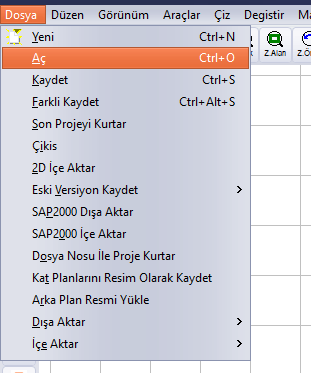
Location of the File › Open command
- Run the File › Open command (Ctrl+O). If there are changes in the open project, the save prompt comes first (see the “Proje Değişti Kaydedilsin mi?” Question).
- In the Open dialog, select the file format from the File type list.
- Go to the folder, select the file and click the Open button.
- The project is loaded; the full path of the file will appear in the title bar.

Open dialog and the File type list
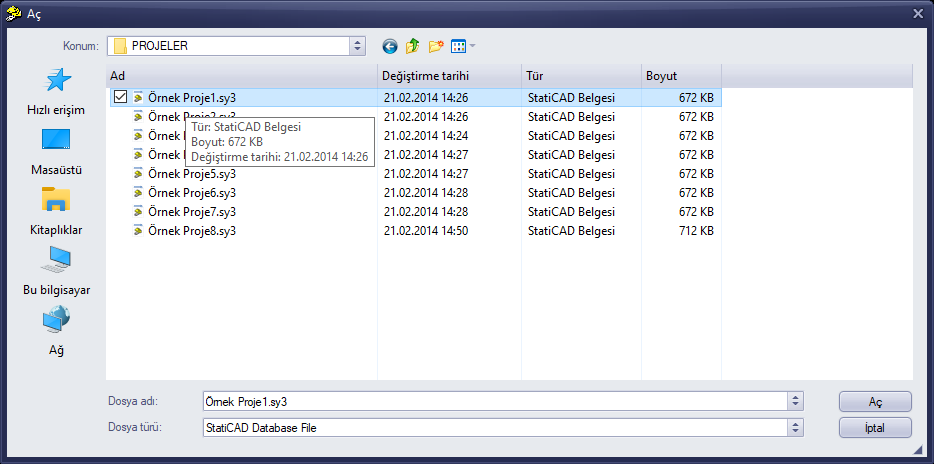
Sample projects supplied with the program (C:\StatiCAD\Ultimatex64\PROJELER)
Tip: In the Open window, typing the full path in the file name box and pressing Enter is faster than browsing through folders. Before typing, select the text in the box with Ctrl+A; otherwise the path you type is appended to the end of the old text and you get the “Dosya adı geçerli değil” (File name is not valid) warning. When a full path is typed, the file is opened even if the file type filter does not match the extension.
3. Save and Save As
File › Save (Ctrl+S) saves the project to its existing file; if the project has not been saved yet, the Save As dialog opens. File › Save As (Ctrl+Alt+S) saves the project with a new name or in a new folder. The default format is StatiCAD Binary Data (.sbd); in the full edition, a .sy4 text copy with the same name is also written.
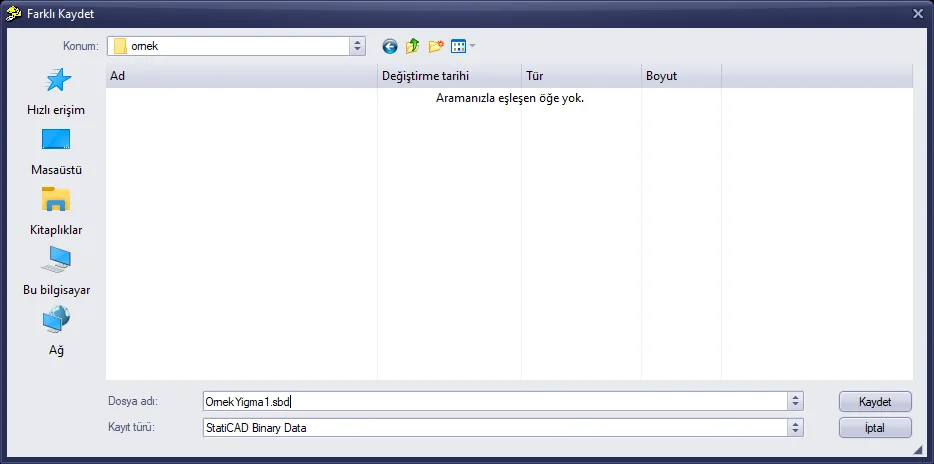
Save As dialog
When the save is successful, the path of the file appears in the title bar and Data Kaydedildi (Data Saved) is written in the hint line (see End-to-End Example: A Simple Masonry Building).
4. The “Proje Değişti Kaydedilsin mi?” Question
When another project is to be opened while a modified project is open, or when the program is being closed, the following question is asked (“Proje Değişti Kaydedilsin mi?” – The project has changed, save it?):
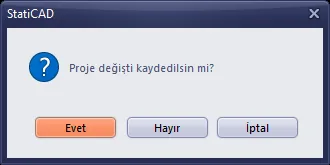
Save prompt
- Evet (Yes): saves the project and continues with the operation.
- Hayır (No): continues without saving; the changes are lost.
- İptal (Cancel): abandons the operation; the project stays open.
Tip: When closing after examining the sample projects supplied with the program, answer Hayır (No) to the save prompt; store the projects you work on under a new name with Save As.
5. Project Recovery
The program keeps an undo record after every operation (C:\StatiCAD\<sürüm>\gerial\undoN.sy4). File › Recover Last Project loads the project from the last undo record; File › Recover Project by File No. lets you select a particular undo number. The Last Project item on the start screen does the same job.