AI Assistant and Ways of Controlling the Program
1. Channels for Controlling the Program
Ways of controlling StatiCAD
| Channel | Who uses it | Editions | How to start it |
|---|---|---|---|
| Graphical interface | Users | All editions | The menus, buttons and windows described in this guide |
| Command line | Users (coordinate input for walls, inclined grid lines and jackets) | All editions | Command line icon on the bottom bar (see Command Line) |
| AI Assistant (AI Console) | Users; in natural language, typed or spoken | Hybrid, Ultimate (including demo) | Yapay Zeka (Artificial Intelligence) button on the bottom bar (see “AI Assistant (AI Console)”) |
2. AI Assistant (AI Console)
The Yapay Zeka (Artificial Intelligence) button on the bottom bar opens the AI Console window at the bottom right corner of the screen. The assistant translates requests given in natural language into program commands; it can draw elements, add storeys, change project settings, start an analysis and perform IFC/DXF exchange. An internet connection and an API key for the selected AI service are required.
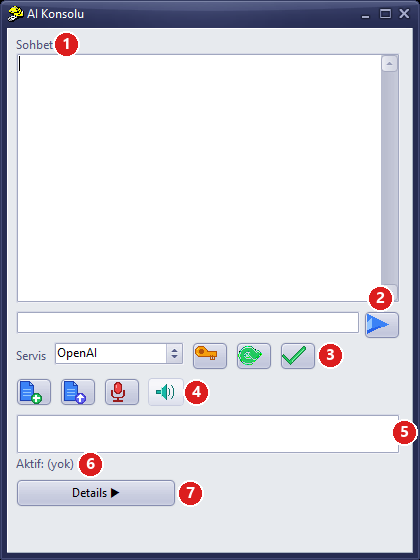
AI Console (compact view)
| No | Part | Description |
|---|---|---|
| 1 | Chat | History of requests and responses. |
| 2 | Message box and send | The request is typed into the box and the blue arrow icon on the right is clicked. The Enter key does not send the message. |
| 3 | Service and model | Service list (OpenAI, Claude, Gemini, Grok, Mistral, DeepSeek, Perplexity); the key icon is API Key Settings, the green arrow is Fetch Models, the tick icon is Use Model. |
| 4 | File and voice | Add File, Send File to AI (e.g. a plan image or PDF) and Push-to-Talk (voice recording while held down). |
| 5 | Model list | After Fetch Models, the models are listed; the selected model is activated with Use Model. |
| 6 | Active | The service and model in use (“Aktif: (yok)” – Active: none – means that no service is selected). |
| 7 | Details | Opens/closes the Commands, Results and Files panels. |
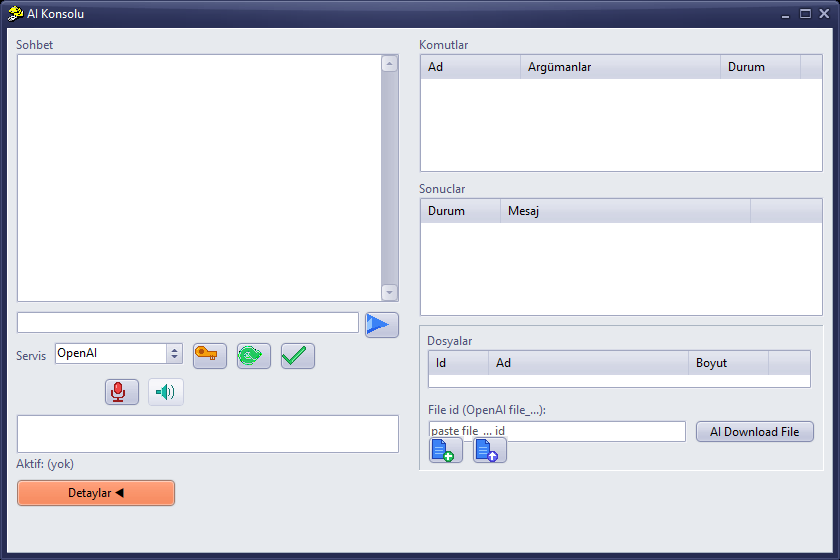
AI Console – details panel open (Commands, Results, Files)
- Click the Yapay Zeka button.
- At first use, open API Key Settings with the key icon; the user enters the key of the relevant service and presses Save.
- Select the service from the Service list, click Fetch Models, select a model from the list and press Use Model; the service and model will appear in the Active line.
- Type the request in the message box and click the send icon. Examples: “Add a 3-metre-high wall to the ground storey”, “Draw a 5×4 m room, walls 30 cm”, “Run the analysis and summarize the result”.
- Read the response in the chat area (it can take up to about 30 seconds) and check the changes in the plan and the 3D view. Undo unwanted changes with Undo (Ctrl+Z).
Note: If no API key has been entered, a key warning appears in the chat area. The model and results produced by the assistant must be subjected to engineering review.
For detailed use, see the article Using the AI Assistant in StatiCAD.