Stair Wizard
This article describes how the stair wizard in StatiCAD builds a reinforced concrete slab stair (single-flight, U, L and three-flight), analyses it, designs its reinforcement to TS500 and transfers the support reactions to the structure.
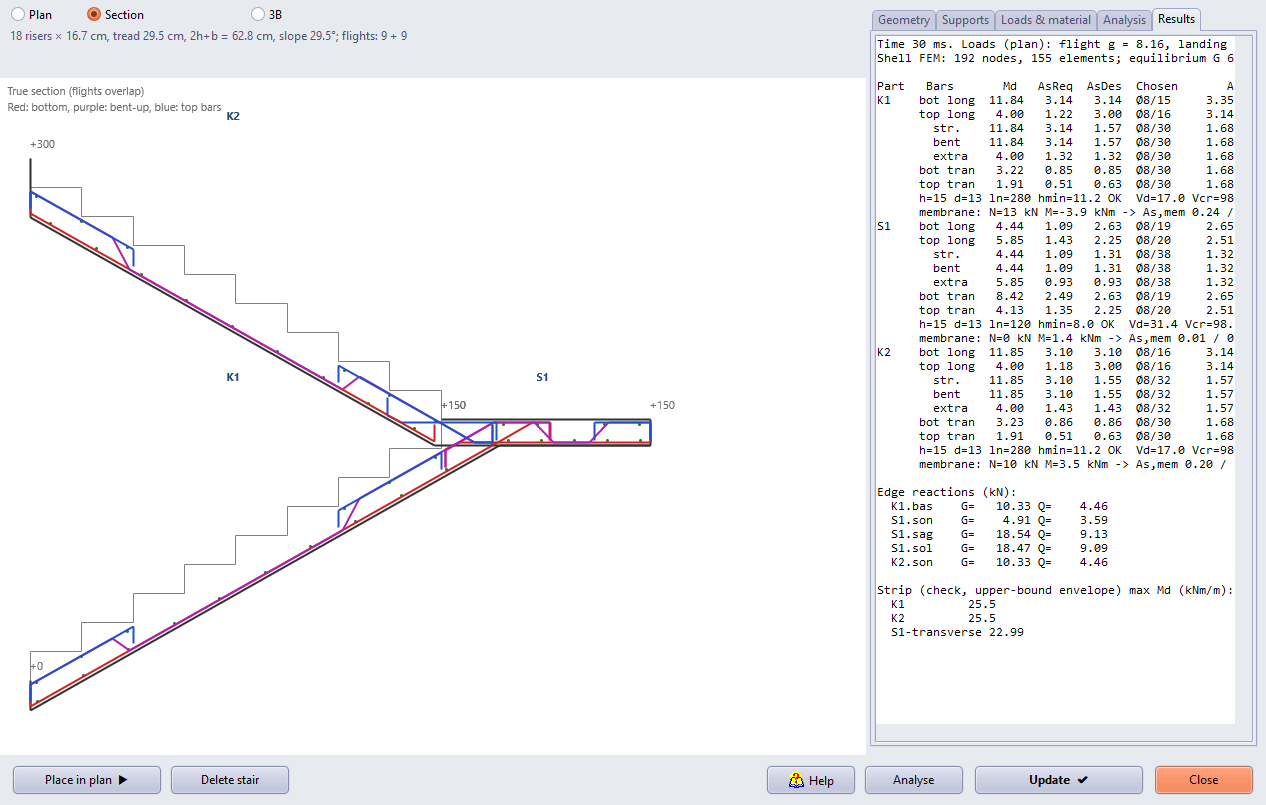
Figure 1 – U stair with bent-up bars: true section, bar marks and TS500 results table
1. About this article
The wizard builds a reinforced concrete slab stair parametrically in reinforced concrete and masonry buildings, analyses it with its own shell and strip models, selects the reinforcement to TS500 and applies the support reactions as loads to the beams, shear walls, walls and columns of the structure. Stairs are selected, copied, moved and deleted in plan and in the 3D views like other elements; the stair outline and bar marks are drawn on the formwork plan together with a section and bar details, and the calculation report gets its own chapter.
Which editions? The stair wizard is available in all editions of StatiCAD.
Architectural details such as balustrades, handrails and stringers are outside the scope of the wizard; their weight can be given as Extra dead load.
2. How it works
2.1. Stair types
| Type | Parts | Default supports (longitudinal spanning) |
|---|---|---|
| T1 Single flight | K1 (optional bottom/top floor landing) | K1 start pinned, end simple |
| T2 U (half-landing) | K1, S1, K2 | Flight ends at floor levels; three edges of the half-landing simple (wall or beam) |
| T3 L (quarter-landing) | K1, S1, K2 | Outer edges of the corner landing simple, inner (left) edge free |
| T4 Three flights | K1, S1, K2, S2, K3 | As T3; two corner landings |
The stair is built along a walking line: a start point, an ascent angle and a turn direction (right/left) are given and the wizard lays out the flights (K) and landings (S) in sequence. Storey height, number of risers and tread depth are distributed automatically with the 2h + b ≈ 63 cm rule; the risers of each flight, flight widths and landing depths can also be given.
2.2. Analysis surface and models
The analysis surface is the top surface of the slab; kinks lie on the landing edges. The flight load is computed on plan (waist γ·t/cos α + step fill γ·h/2 + finishes + plaster/cos α).
- Folded strip (A1): each flight is solved as a plane frame together with the landings at its ends. Because the support behaviour of a half-landing is uncertain, the envelope of two limit models is used: landing edge as support at the flight end / strip running through the landing to the far edge. The landing is solved separately as a transverse strip loaded by the flight reactions. This is an upper-bound check.
- Shell FEM (A2, recommended): flights and landings are meshed with rectangular shell elements (Q6 membrane + MITC4 plate) with shared nodes along the kinks. Plate moments are turned into design moments with Wood–Armer and averaged over the strip width; membrane (in-plane) forces are added to the reinforcement as well (Section 8). The shell model gives the realistic answer for landings supported on three edges, corner landings, landings resting on columns and free-standing stairs.
2.3. Spanning
- Longitudinal (default): the flight spans in the ascent direction; the half-landing edges rest on walls or beams.
- Transverse: the flights are supported on both sides (between two walls).
- Free-standing (landing unsupported): the half-landings rest on no element; the stair is held only at the floor connections (pinned) and works as a folded plate. The load is carried by a horizontal force couple between the two floor connections: one flight is in tension, the other in compression, and both carry in-plane bending. These actions are taken from the membrane forces of the shell model and added to the reinforcement (Figure 10).
2.4. Analysis modes
- Independent: the stair is analysed with its own model only; nothing is written to the structure.
- Independent + reactions applied to structure (recommended, default): edge reactions are written as line loads (G and Q separately, kg/m) on the supporting beam, bond beam or wall, and corner-column reactions as point loads at the node on the column axis. These loads enter the building analysis both as gravity load and as mass.
- Integrated: the stair enters the finite element model of the building as shells. This option is not available yet (disabled in the window).
3. Opening, placing and editing
Open the wizard from Draw → Stair (stair wizard)..., Macros → Stair wizard... or with the stair button on the left toolbar (below the roof button). The preview (Plan / Section / 3D) is on the left of the window, the tabs on the right.
- Press Place in plan ▶; the window hides.
- Click the start point on the storey plan (the outer corner of the first riser of the first flight, depending on the turn direction).
- Move the mouse in the ascent direction; the stair is previewed. The second click sets the ascent angle. A right click cancels.
- The window reopens with the new position; press Analyse to see the results and Add to model ✔ to add the stair.
Tip: Start X/Y and the ascent angle can also be typed on the Geometry tab (cm, degrees). When an existing stair is edited the button becomes Update ✔ and the loads applied by the old stair are removed first. Delete stair removes the stair and its loads.
3.1. Selecting, changing properties, deleting
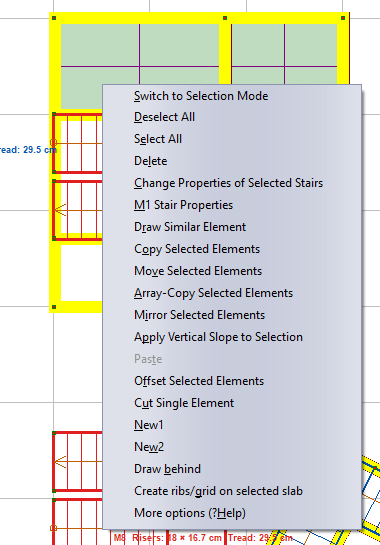
- Left click on a stair selects / deselects it (a selected stair is drawn red and bold).
- Window selection: a window drawn left to right selects only stairs completely inside; a window drawn right to left selects stairs crossing or inside it (same rule as other elements). Select all also selects the stairs on the active storey.
- Right click on a stair: the menu offers “M1 Stair Properties” (no selection needed, opens the wizard of the stair under the cursor), Change Properties of Selected Stairs and Delete.
- Multiple properties: with several stairs selected the wizard opens once; fields whose values differ between the stairs are blank. On OK only the filled fields are applied to every stair; blank fields keep each stair's own value. The same window is reached from the toolbar button Properties of selected elements by choosing Stair.
- Delete (right-click menu or the Delete key) removes the selected stairs and the loads they transferred; Undo restores them.
3.2. Copy, move, mirror, similar element
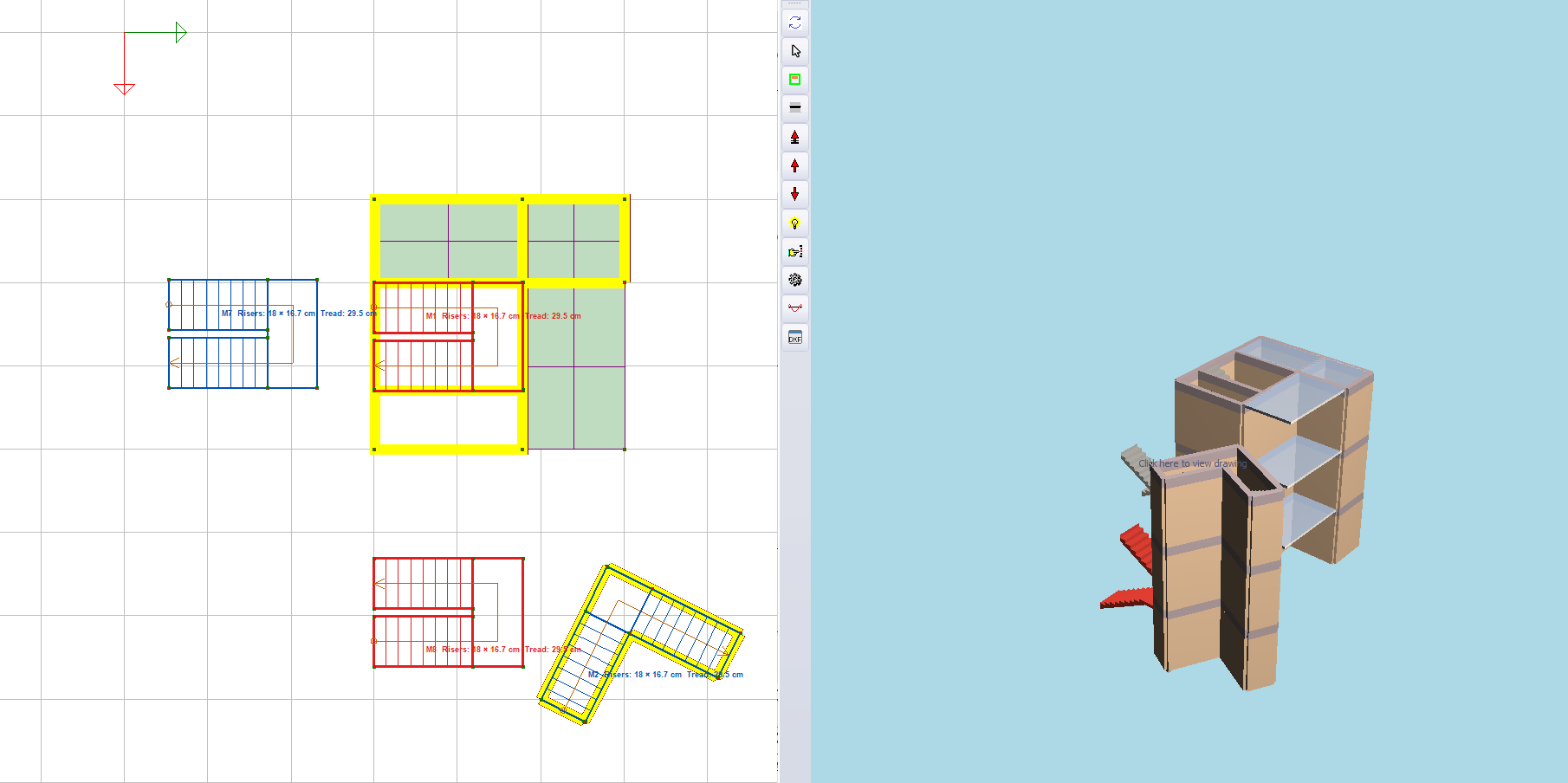
Figure 4 – Copy and mirror image of the selected stair; they also appear in the 3D view
- Copy / Move / Array-Copy Selected Elements: selected stairs are copied or moved with the same reference and target points as the other elements; array copy repeats the same offset the requested number of times.
- Mirror Selected Elements: a mirror copy of the stair is created about the mirror line; the turn direction (right/left) is reversed.
- Draw Similar Element: a new stair with the parameters of the right-clicked stair is placed in plan (two clicks, wizard confirmation).
- Cut Single Element: the right-clicked stair is moved to a new place the same way.
During these operations the stair loads are first removed from the structure; at the end the loads of every stair are transferred again to the beams, walls and columns at its new position, and copied walls and beams carry no orphaned stair load.
3.3. Endpoint snap
The corners of the stair parts and the flight–landing junctions (kink points) are cursor snap points. When the stair is drawn before the structure, beams, walls and columns can be placed on these points so that they fit the stair well.
3.4. 3D view and layer
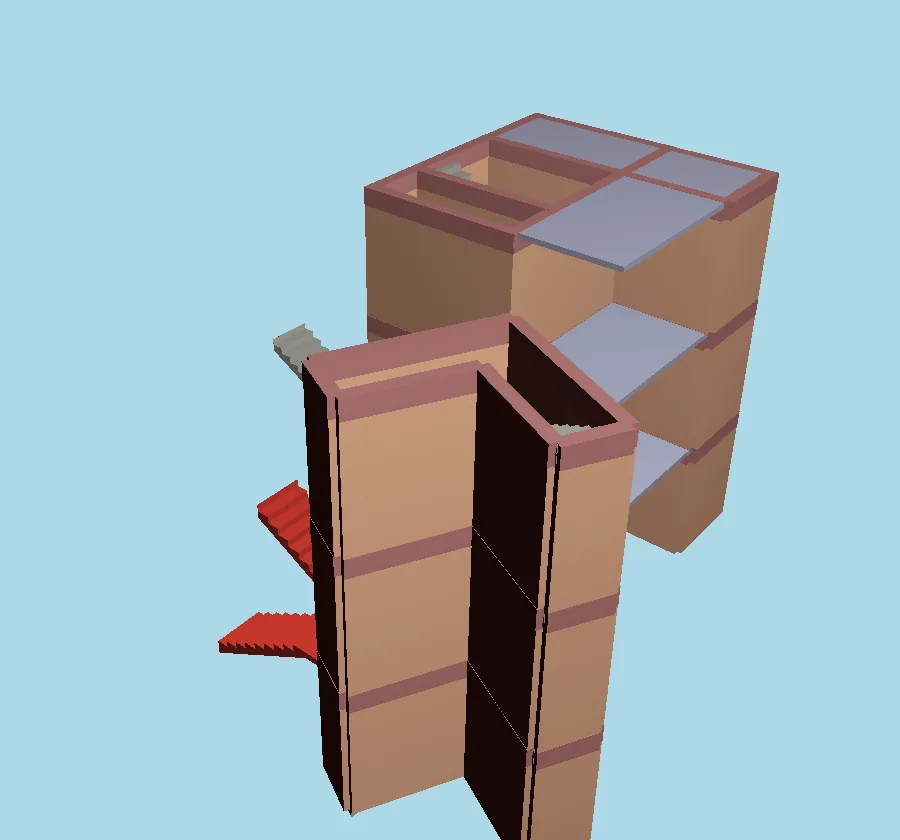
Stairs are shown in the 3D views with their real geometry (landing plates, inclined waist slab and steps); the soffit of the waist slab runs up to the soffit of the upper landing. In the 3D selection window a stair is selected by clicking it or by a window (selected stairs are red); Element properties on the right-click menu opens the properties of the selected stairs (all storeys) and Delete deletes them.
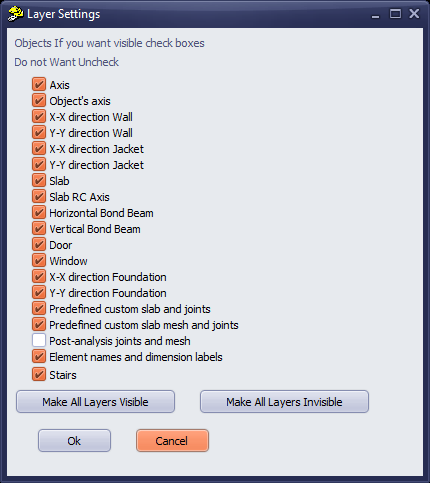
Clearing the Stairs box in the View → Layers (Layer Settings) window hides the stairs in plan and 3D and makes them unselectable (hidden stairs are deselected). A new project ticks the box again.
3.5. New project and floor copy
New project deletes the stairs of the previous project. Floor copy copies the stairs of the source storey (only the selected ones when copying selected elements) to the target storeys; a full copy deletes the old stairs of the target storey. If the target storey height differs, the stair rise changes by the same amount (an offset from the storey height is kept), the risers are redistributed and the loads are transferred with the new geometry. At the end of the copy the storey and stair heights, number of risers and riser height are reported for every stair; a warning is given when flight lengths change or ergonomic limits are exceeded (the stair may not fit its well).
4. Geometry tab
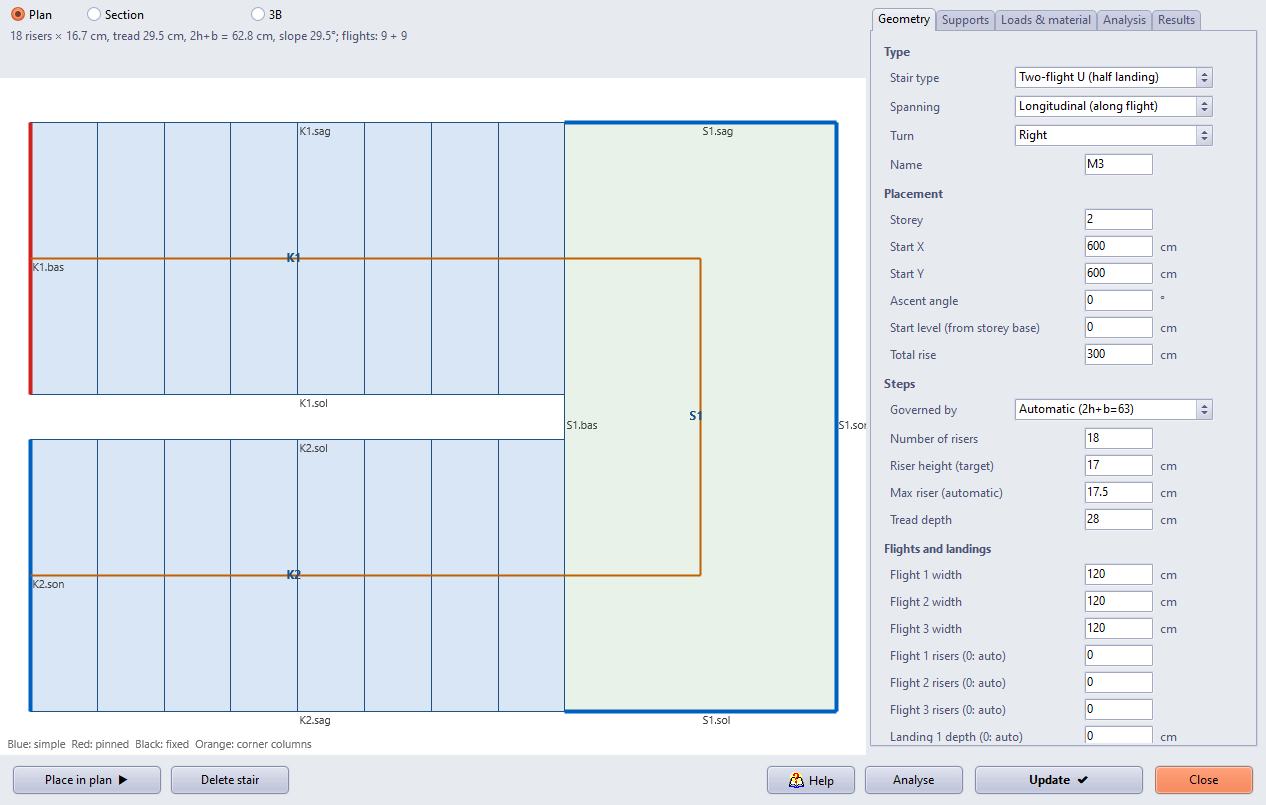
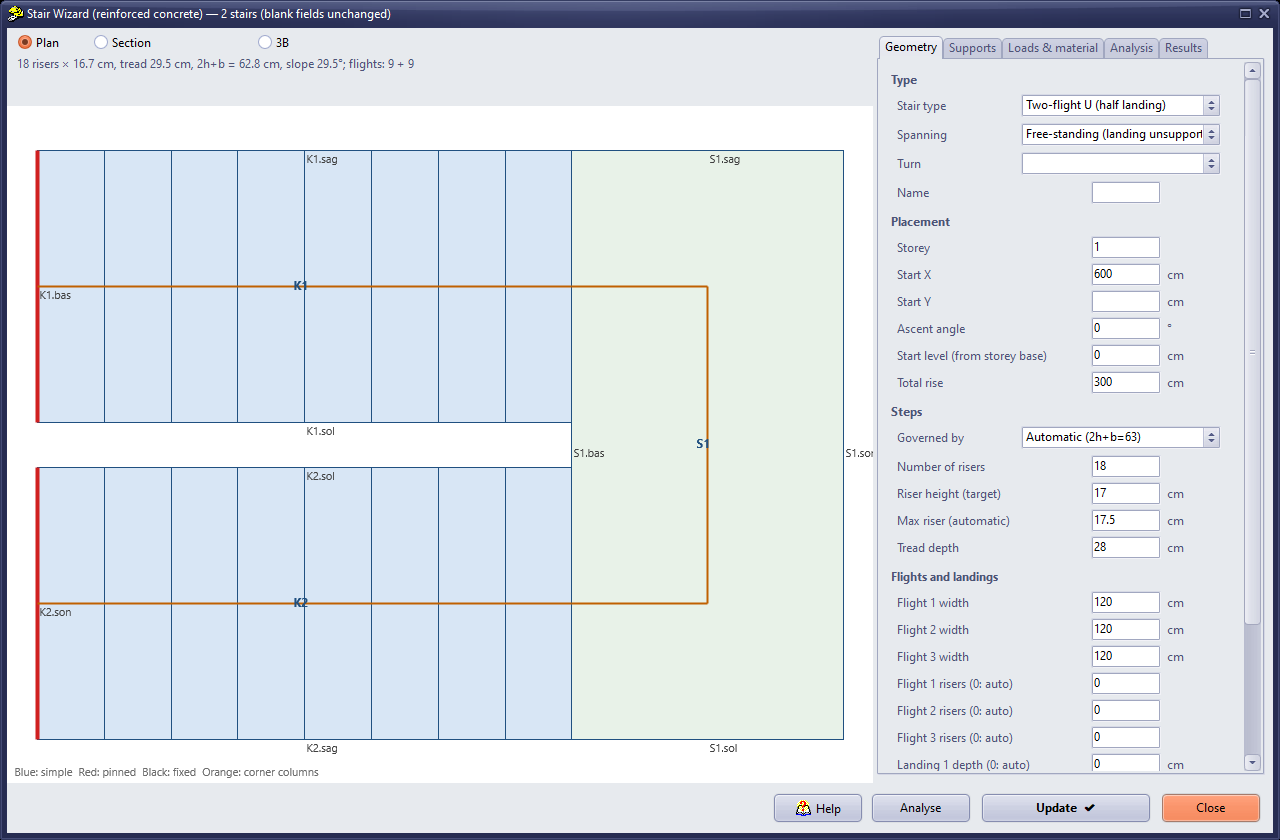
Figure 7 – Geometry tab and plan preview (edge names and support colours)
- Type: stair type; Spanning: longitudinal, transverse or free-standing (Section 2.3); Turn: right / left.
- Placement: storey, start X/Y, ascent angle, start level (from storey base) and total rise (storey height by default).
- Steps: governed by (automatic 2h+b=63 / number of risers / riser height), maximum riser and tread depth.
- Flights and landings: flight widths, risers per flight (0: auto), landing depths (0: auto), gap between flights for U stairs, bottom/top floor landing lengths, waist and landing thicknesses.
Ergonomic checks run instantly and appear as warnings above the preview: 60 ≤ 2h + b ≤ 64 cm, h ≤ 18 cm, b ≥ 27 cm, flight width ≥ 120 cm, landing depth ≥ flight width.
5. Supports tab
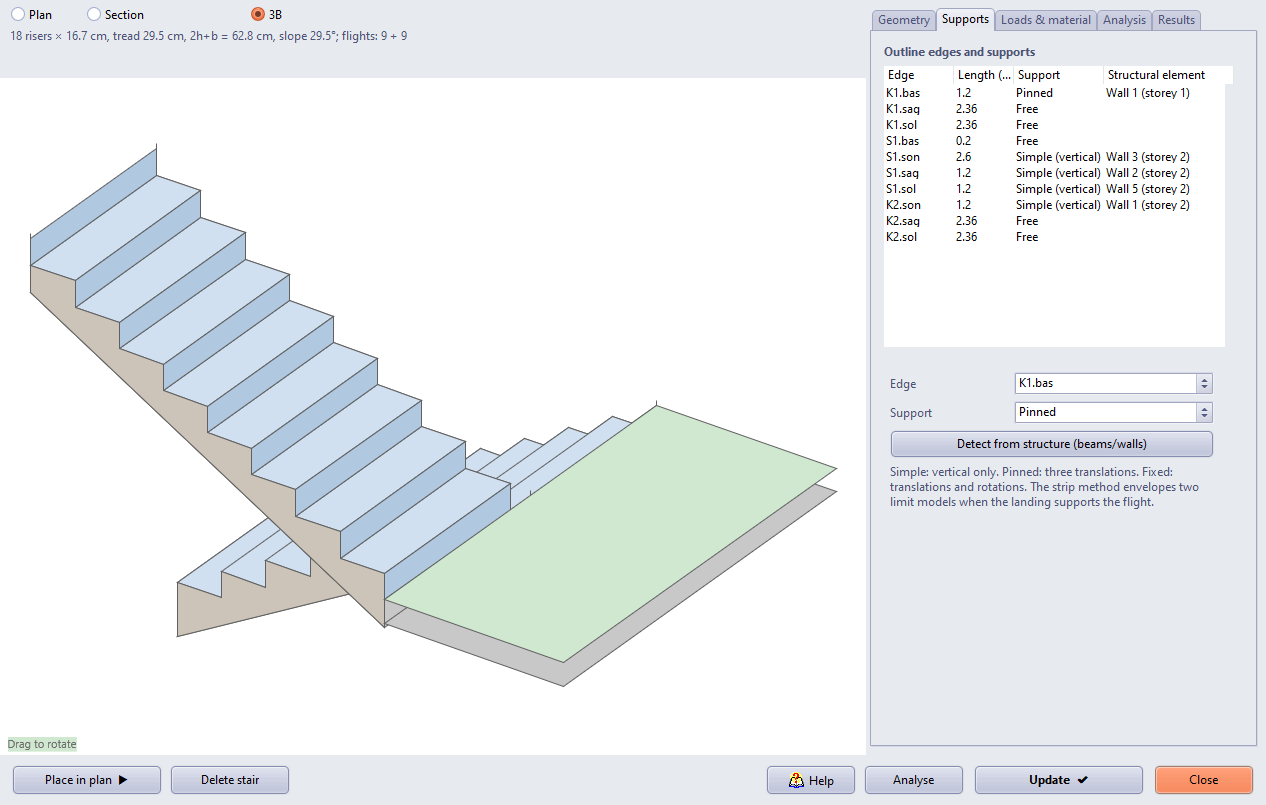
Figure 8 – Supports tab and 3D preview
All outline edges of the stair are listed (for example K1.bas = start, S1.son = end, S1.sag = right, S1.sol = left, K2.son). A support type is chosen for each edge: free, simple (vertical restraint), pinned (vertical + horizontal) or fixed; landing edges can also be columns at corners.
Detect from structure (beams/walls) searches for a supporting element under each supported edge and writes it to the Structural element column:
- Beam / bond beam: on the edge's storey or the adjacent storeys, top level within 40 cm of the edge level, axis within 25 cm of the edge line, overlapping the edge by at least 10 cm and parallel to it (angle difference < 10°).
- Wall: edge level between the wall's bottom and top levels (±20 cm), axis within half the wall thickness + 10 cm of the edge line, overlapping by at least 10 cm. In a masonry building the half-landing thus rests on the walls of the stair well.
- Columns at corners: when the landing is tied directly to columns without a landing beam — a landing edge with no beam / wall under it has a column at both of its ends (column axis closer to the corner than 0.6·max(b, h) + 10 cm) — the edge automatically becomes columns at corners and the other edges of the same landing without a supporting element are left free (supported at the corners only). In the shell model the nodes within 25 cm of the edge ends are restrained vertically; the corner reactions are transferred as point G/Q loads to the node on the column axis at landing level, and a TS500 8.3.1 punching check is made:
Vpd = 1.4G + 1.6Q, corner-column critical perimeterup = (c1 + d/2) + (c2 + d/2),τpd = Vpd / (up · d) ≤ fctd.
Edges set by the user are not touched; automatic assignments are re-evaluated when the structure changes.
Warning: If no element is found under a supported edge, a “no supporting element” warning appears on the results tab and in the report and that edge's reaction is not transferred to the structure. Either add a landing beam/wall or make the edge free. In a reinforced concrete frame a landing beam between columns can create a short column (TBDY 7.3.8).
6. Loads & material tab
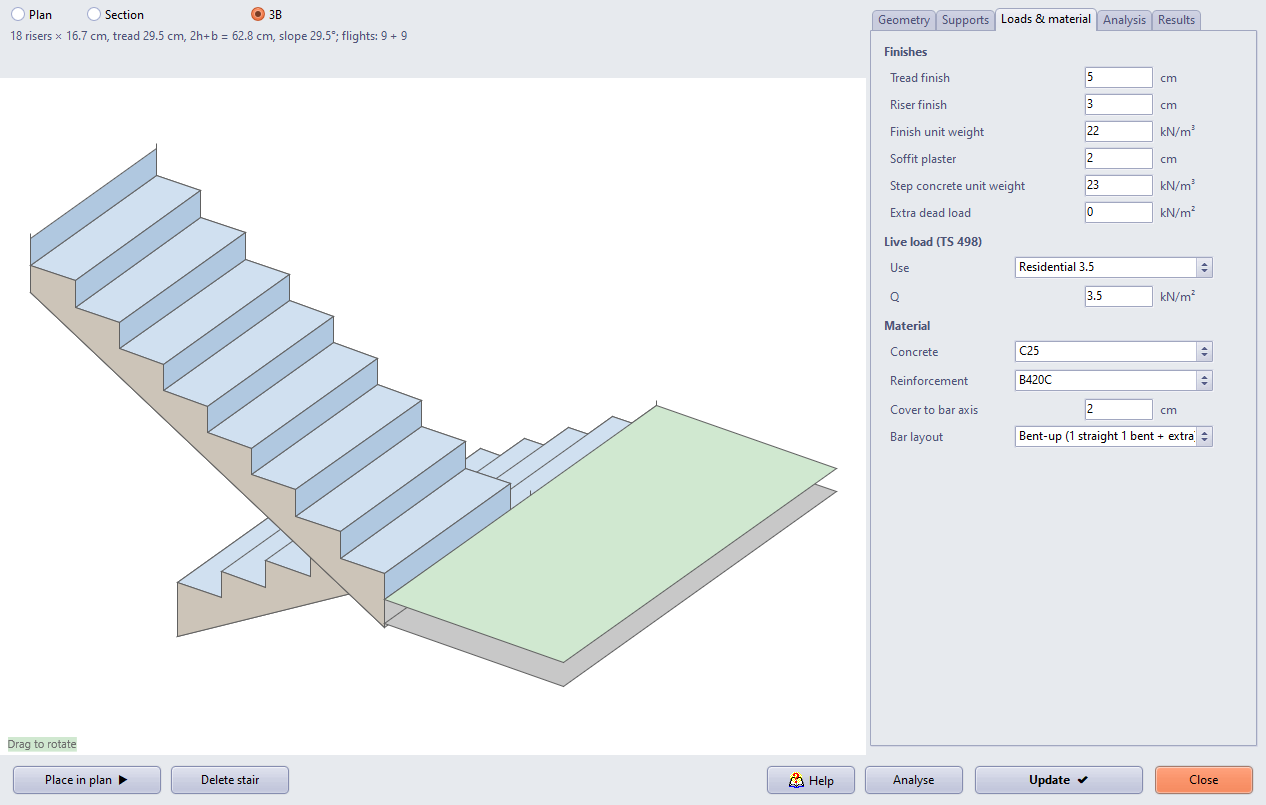
Figure 9 – Loads & material tab; steps, waist slab and landings in the 3D preview
- Finishes: tread and riser finish thickness, finish unit weight, soffit plaster, step concrete unit weight, extra dead load (balustrade etc., on plan).
- Live load (TS 498): residential 3.5 kN/m², public building 5.0 kN/m² or user value.
- Material: concrete class, reinforcing steel, cover to bar axis.
- Bar arrangement: straight (straight bottom and top bars) or bent-up: the longitudinal bottom bars are placed as 1 straight + 1 bent-up bar of the same diameter, each at twice the spacing; the bent-up bars count as top steel at the supports (cranked at L/5, 45°) and any remaining top steel is provided as additional bars.
The available bar diameters come from the Stair lists (bottom, top, additional, bent-up) of the project's Reinforcement selection window.
7. Analysis tab
Choose the Analysis mode (Section 2.4), the Method (folded strip / shell FEM) and the maximum shell mesh size. With the shell method the strip solution is still computed and shown in the results as an upper-bound check. A typical U stair solves in under 50 ms.
8. Results and TS500 design
The Section view of the preview shows the real step geometry: the flight top line passes through the riser roots, the soffit lies t / cos α below it and kinks are at the intersections of neighbouring lines. For U stairs the section is a true vertical section with both flights and the half-landing. After the analysis the bar marks are drawn as well (red bottom, purple bent-up, blue top).
For every part (flight and landing) four reinforcement layers are designed — bottom/top, longitudinal/transverse — for the design combination 1.4G + 1.6Q:
As = Md / (0.86 · fyd · d)(same as the StatiCAD slab design).- Flight:
ρmin = 0.002(0.003 for S220); distribution steel ≥ As/5; spacing ≤ min(1.5h, 20 cm), ≤ 30 cm for distribution steel. - Landing: ≥ 0.0015 each way, ≥ 0.0035 in total (0.004 for S220).
- Shear:
Vd ≤ Vcr = 0.65 · fctd · b · d; thickness:h ≥ ln/25(/30 both ends fixed, /12 cantilever) — when satisfied no deflection calculation is needed;ρ ≤ 0.02. - Spacing is rounded down to whole cm, minimum 10 cm.
- Membrane (in-plane) forces (shell method): at each section the resultants across the width, N (tension +) and the in-plane moment M, are taken; the chord model gives a tension
T = |M| / (0.8 B) + N / 2on the tension edge, spread over the tension half:As,mem = T / (B/2 · fyd)is added equally to both faces. In-plane shearVin ≤ 0.65 fctd t (0.8 B)is checked. The effect is small with longitudinal spanning and governs in free-standing stairs.
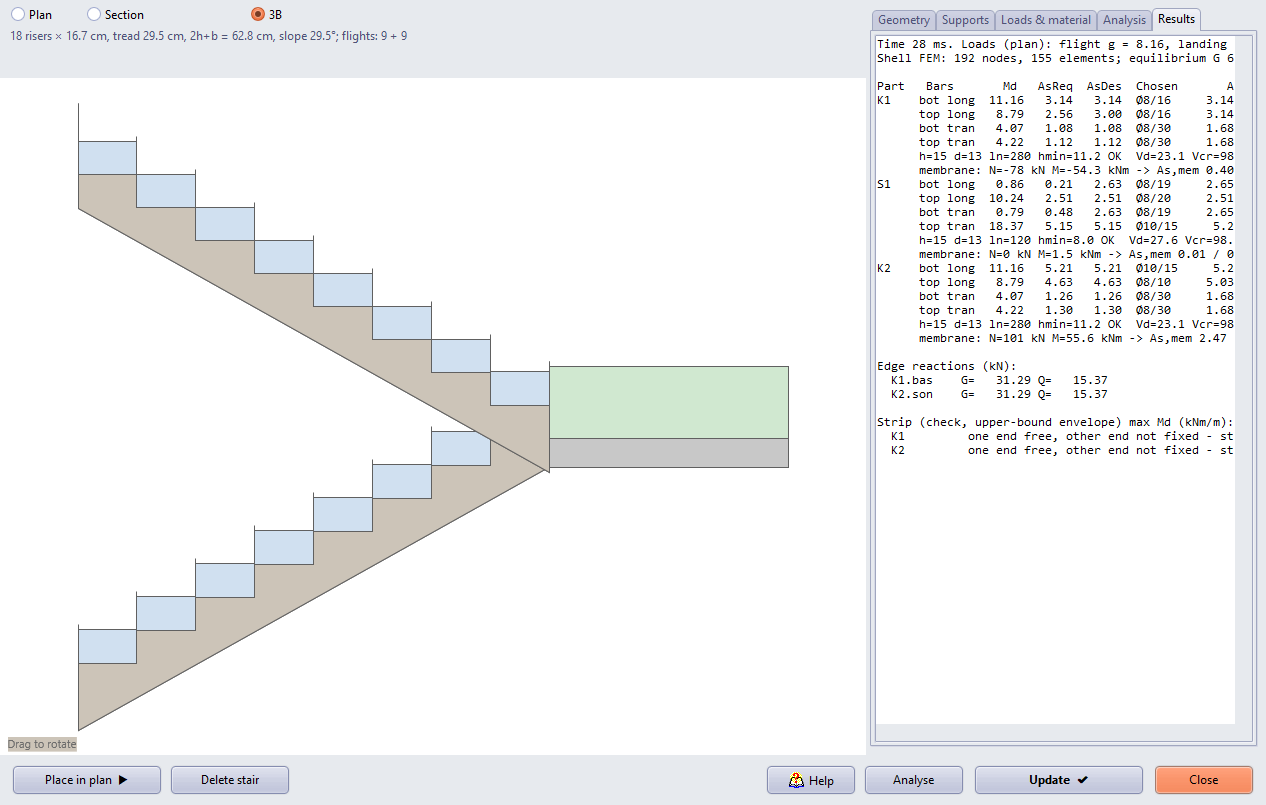
Figure 10 – Free-standing (unsupported landing) U stair: side 3D view and results; membrane force in the tension flight (K2) N = 101 kN, in-plane M = 56 kNm, bottom longitudinal Ø10/15
The results tab also lists the edge reactions (kN), the equilibrium check of the shell model (total load = total reaction) and the upper-bound moments of the strip method.
9. Load transfer to the structure
In the “reactions applied to structure” mode, Add to model spreads the G and Q reaction of each supported edge uniformly over the length of the element found and adds it to the beam/bond beam or wall as extra load (kg/m); for corner-column edges the reaction is written to the column node as a point load (kN). Every transfer is stored with the stair: when the stair is edited or deleted the previous loads are removed and the new ones written, so loads are never doubled. The operation can be undone with Undo.
Refresh at analysis time: the stair may have been drawn before the structure, or the structure may have changed. At the start of every analysis the loads of the load-transferring stairs are removed, the supports are recognised again from the structure (beams, shear walls, walls, corner columns) and the loads are written again; running two analyses in a row gives the same result.
If part of an edge lies over a door or window opening (less than 80% of the edge on supporting elements), the reaction is still given to the elements found and a “only …% of the edge rests on supporting elements” warning is shown; a lintel or landing beam may be needed over the opening.
The stair itself is not an element of the building analysis and creates no new analysis warning. The seismic contribution of the stair (diagonal strut action, short columns) is not taken into account (Section 12).
10. Drawings
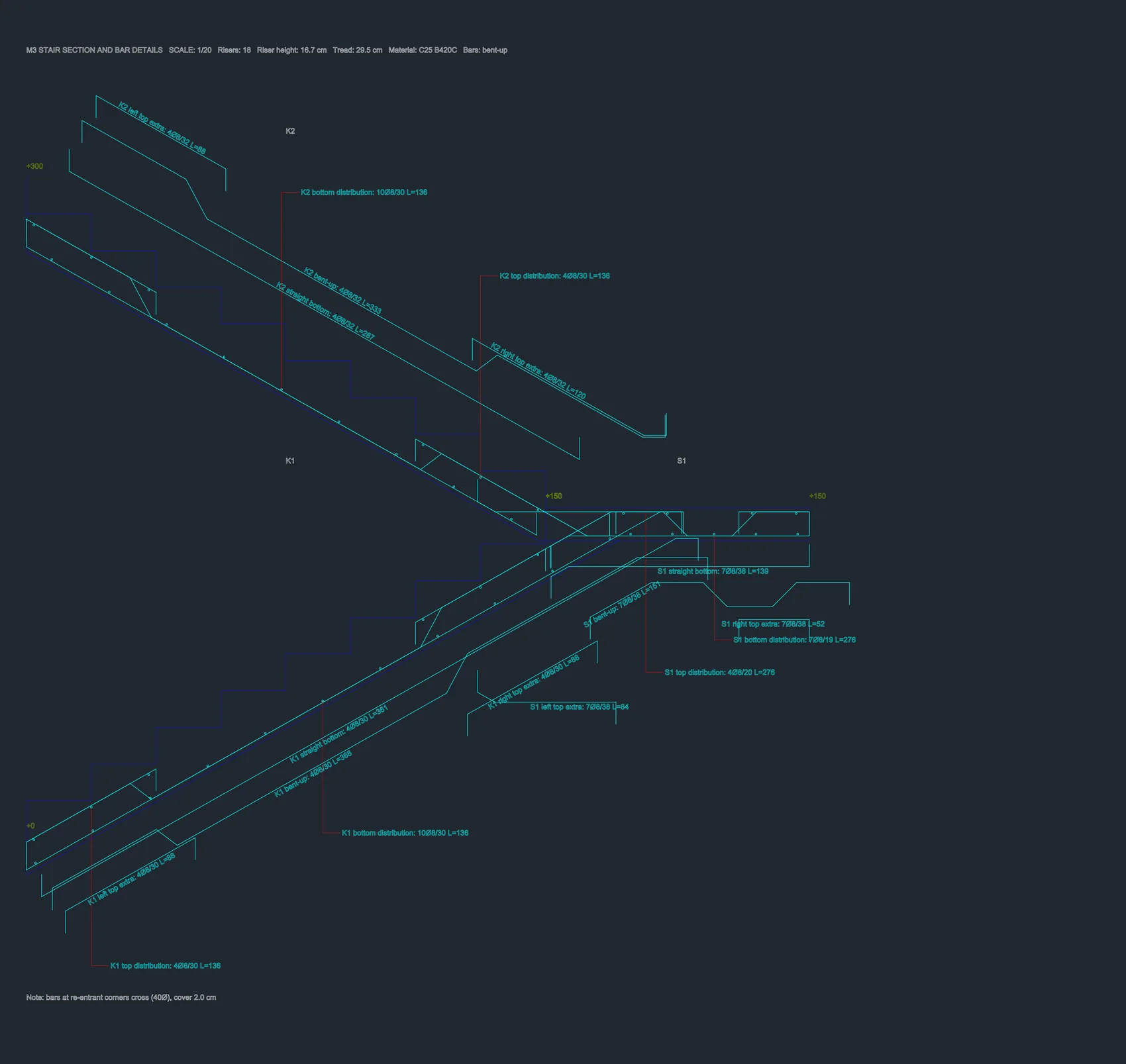
Figure 11 – Section and bar details on the drawing sheet: bars outside the section with their shapes, names and sizes
- Formwork plan: stair outline, riser lines, ascent arrow and label (
M1 Risers: 18 × 16.7 cm Tread: 29.5 cm). Each bar mark is drawn along the axis of its part with its shape turned into the plan (hooks, bent-up crank), a distribution range line and its label. The “top” side of the section comes up on the sheet (to the left for vertical parts): top bars lie on that side with hooks pointing down, bottom bar hooks point up. Labels are aligned on the upper side of the bar line. Stair reinforcement enters the storey bar schedule. - Section and bar details (1/20): title
M1 STAIR SECTION AND BAR DETAILS SCALE: 1/20 Risers … Material …. True section (flights one above the other for U stairs, developed section for the other types) with the step profile, bottom and top bars, bars extended 40Ø into the neighbouring part at kinks (bottom bars where the slope decreases, top bars where it increases; an extension that reaches the cover line of the opposite face continues along it), top bars at the ends (L/4 and anchorage length), distribution bar dots and levels. - Bar details: each longitudinal bar mark is drawn again outside the section, a little beyond the concrete face, with its own shape; its name and size are written along the bar (for example
K1 left top extra: 8Ø8/16 L=88,K1 straight bottom,S1 top distribution). In U stairs the details of the lower flight are below, those of the upper flight and the upper floor landing above and those of the half-landing underneath; distribution bar labels are tied to the bars with a leader line.
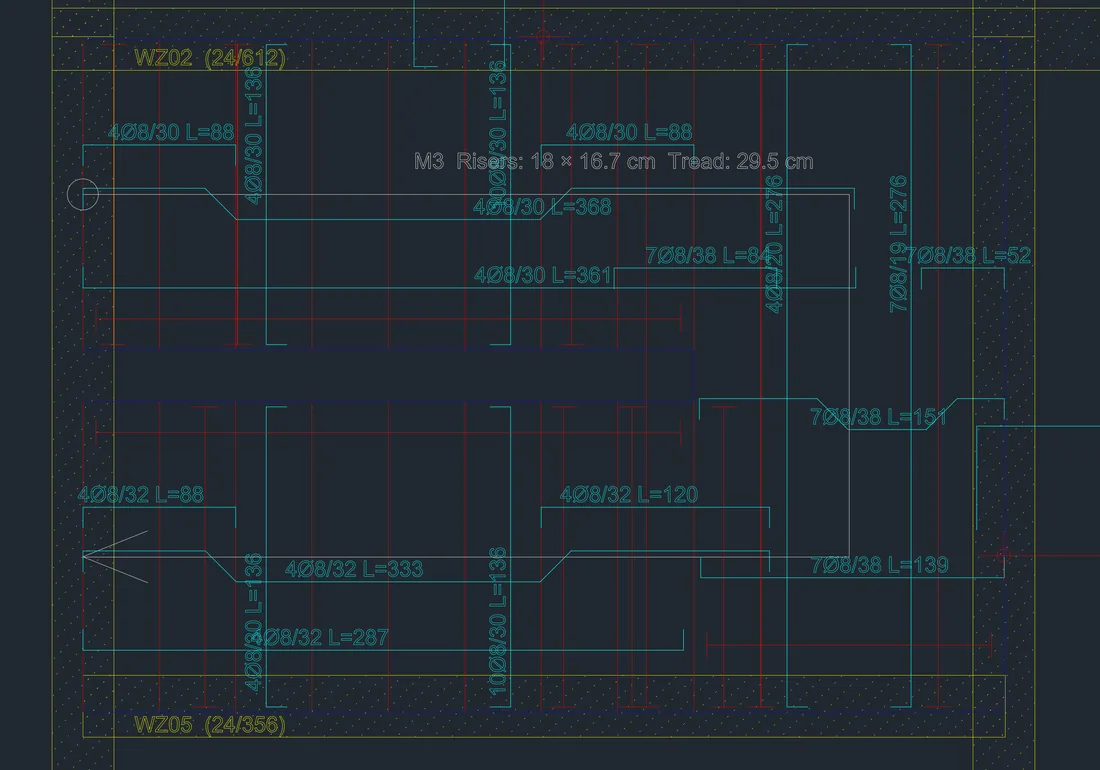
Figure 12 – Stair bar marks on the formwork plan
11. Calculation report
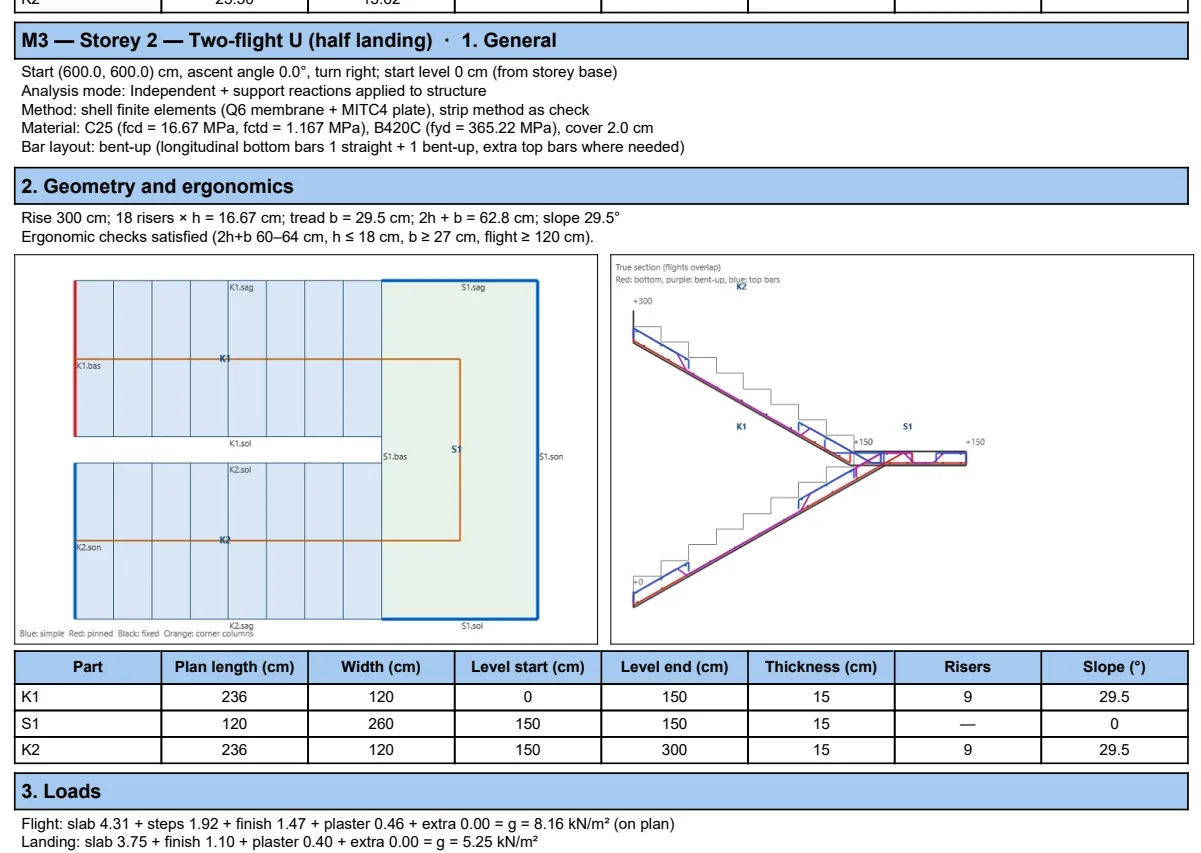
Figure 13 – From the stair calculation report: general data, the wizard's plan and section views in the geometry chapter, part table
When the model contains stairs, the Report selection window shows a Stair Design Report (TS500) node. The report has the same layout as the other design reports: page header with logo (designer, project name, MD5 digest, page), page footer with QR code (program version, licence, analysis no, date, file), blue title band and method note, a light-blue framed heading per block and framed 8-column tables.
Chapters: 1 general; 2 geometry and ergonomics (with the wizard's plan and section views); 3 loads; 4 analysis model, support reactions and loads transferred to the structure; 5 reinforced concrete design (Md, As required/minimum/design and chosen bars per part); 5b membrane (in-plane) forces; 6 shear and thickness checks; 6b corner-column punching check; 7 strip method check; 8 warnings.
12. Limitations
- The integrated analysis (stair as shells in the finite element model of the building) is not available yet.
- Flights and landings are rectangular; there are no circular, winder or cantilevered-tread stairs.
- Seismic action on the stair and the short column check are not automated.
- Unbalanced moment transfer is neglected in the corner-column punching check.
- Architectural details such as balustrades, handrails and stringers are not drawn.