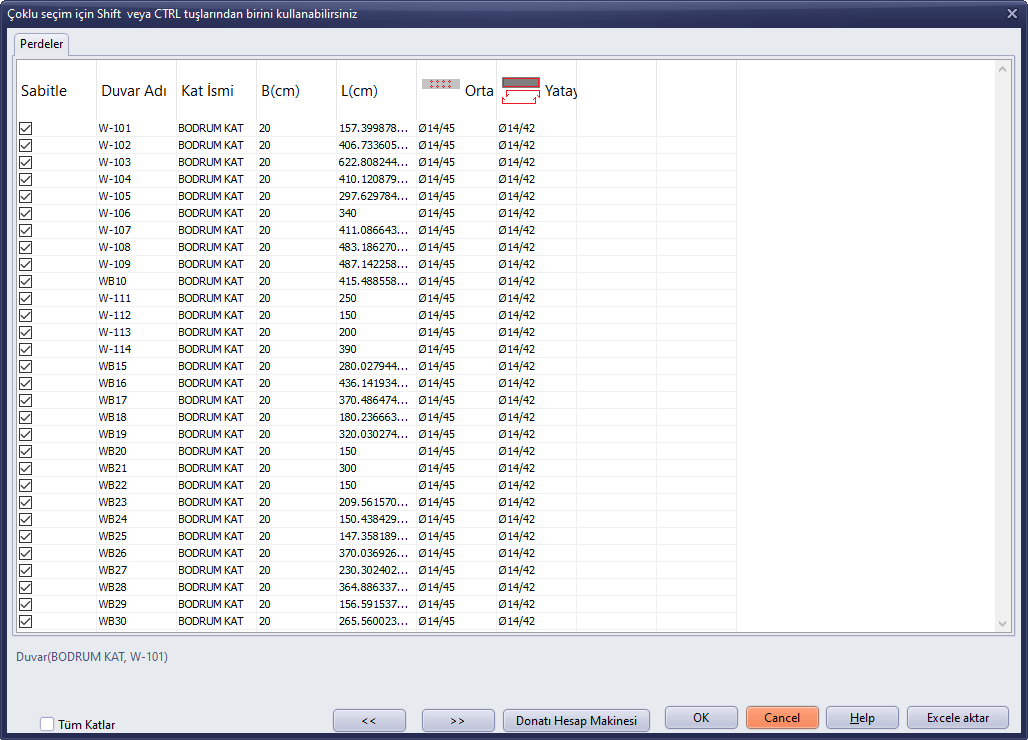
Locking Reinforcement and/or Entering Existing Reinforcement
You can use the reinforcement locking feature in the program to prevent the rebar values you have selected for reinforced concrete elements from changing during analysis, or to examine the adequacy of existing reinforced concrete element reinforcement.
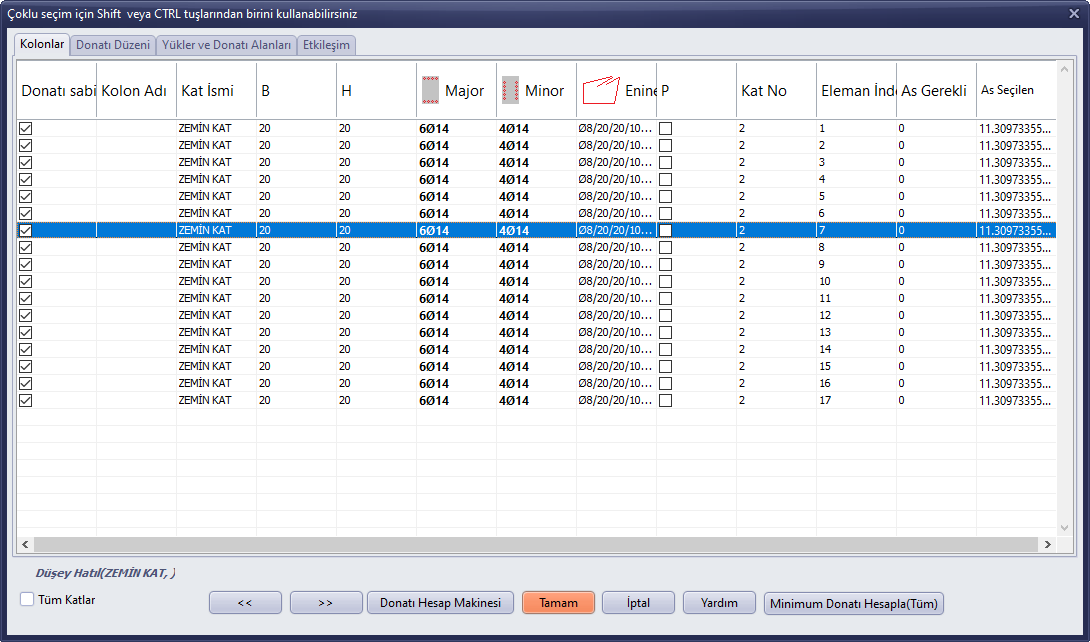
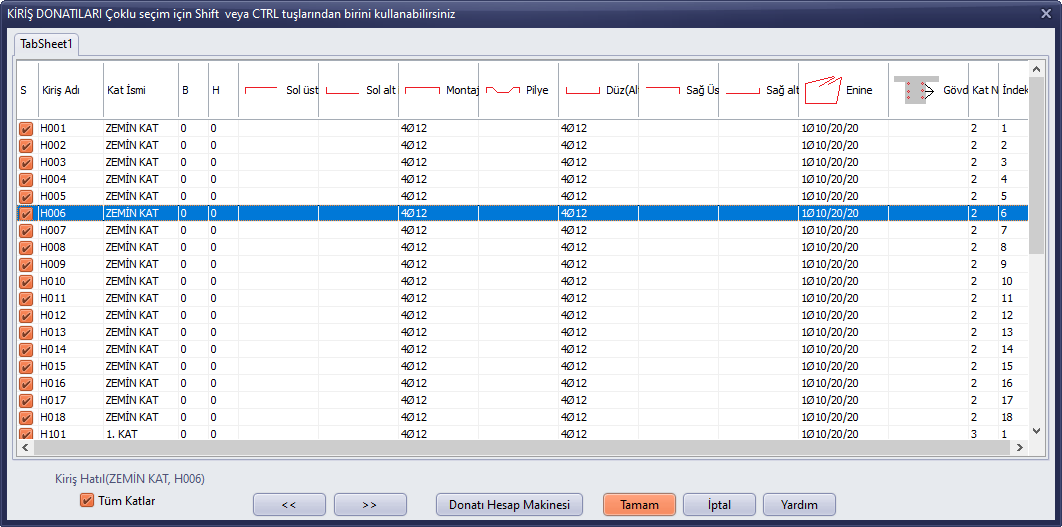
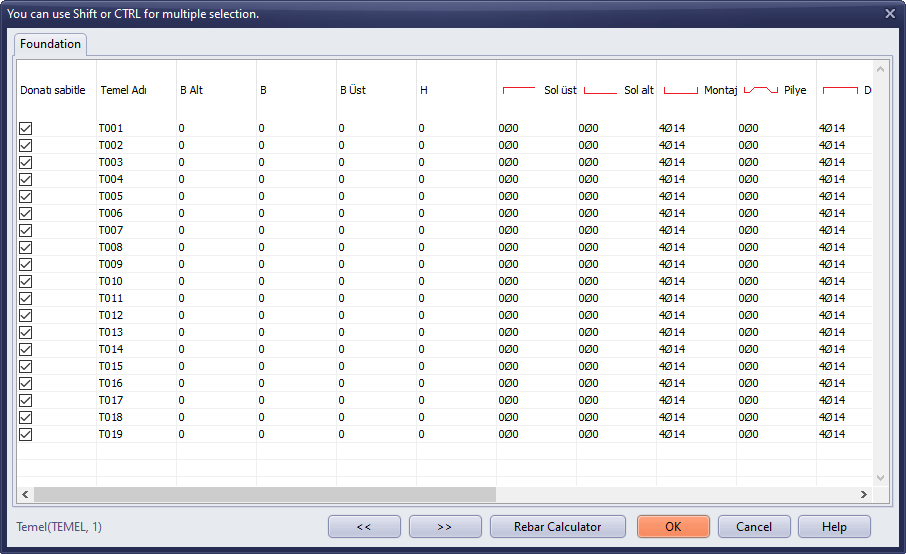
To prevent the reinforcement you have entered from being automatically recalculated during analysis, go to the Modeling screen, click the beam/column/continuous foundation commands under the tables menu, then press the lock reinforcement button for the relevant element and modify the desired reinforcement values to complete the locking process. You can use the Shift and Ctrl keys for multi-selection editing.
For the locking to take effect, calculations must be active for the relevant fields. Therefore, for example, if column reinforcement is to be locked, the "calculate column reinforcement" checkbox must be selected.

Important notes
1- The number of major rebars must not be less than 4. The rebars at the 4 corners of a rectangular column are included in the major rebar count.
2- To prevent the reinforcement you have entered from being deleted and to keep the lock reinforcement checkbox checked, the "calculate column reinforcement" checkbox on the design page of the project general settings must be selected.
3- If necessary, the rebar diameter (due to reasons such as corrosion) can be given as a decimal value.
The shear wall reinforcement locking process must be performed in the wall properties window.