Analysis with Shell Finite Elements
In the finite element model, walls and shear walls can be represented by frame or shell elements. This article describes, step by step, the settings required to solve walls, shear walls and, where present, jacket/cladding panels with shell finite elements.
1. Element Mesh settings
On the Project General Settings › Element Mesh tab, enable the options indicated by arrows in the figure:
- Tick the Calculate shell element internal forces box.
- Tick the Obtain slab internal forces from shell finite element results box.
- Select Shell as the Shear Wall/Wall finite element type.
- Select Shell as the Jacket/Cladding Panel Finite Element Type.
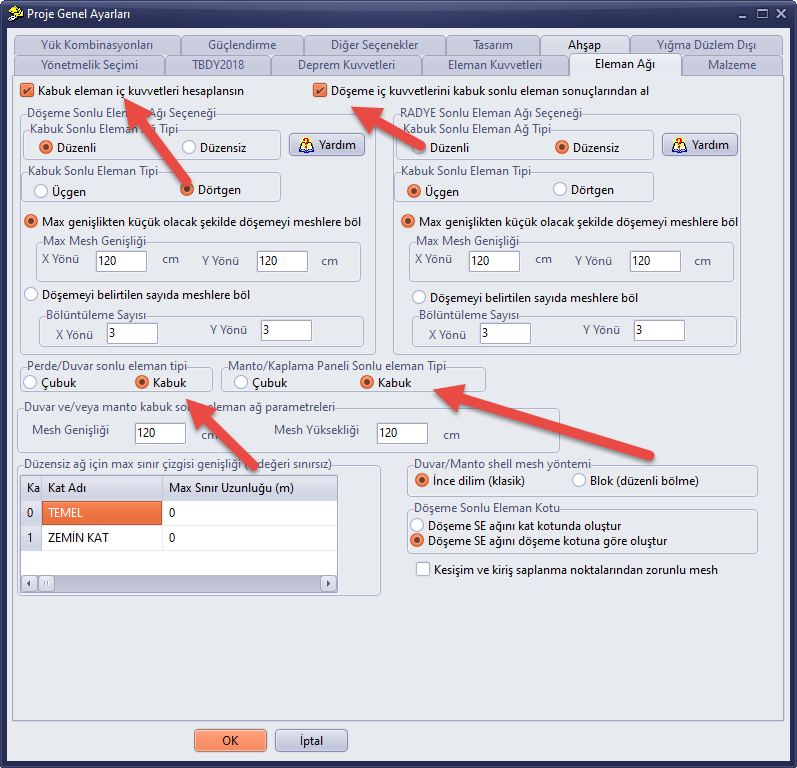
Figure 1 – Project General Settings › Element Mesh: shell element internal forces, slab internal forces and the shell element type for shear walls/walls and jackets
The sizes of the wall and jacket mesh are entered in the Wall and/or jacket shell finite element mesh parameters group on the same tab (Mesh Width, Mesh Height; cm). For the slab mesh options, see the article Slab Finite Element Mesh Option.
2. Element Forces settings
On the Project General Settings › Element Forces tab, set the internal force calculation methods to the finite element method:
- Element Axial Force Calculation Option: Finite Element Method
- Element Shear Force and Moment Calculation Option: Finite Element Method
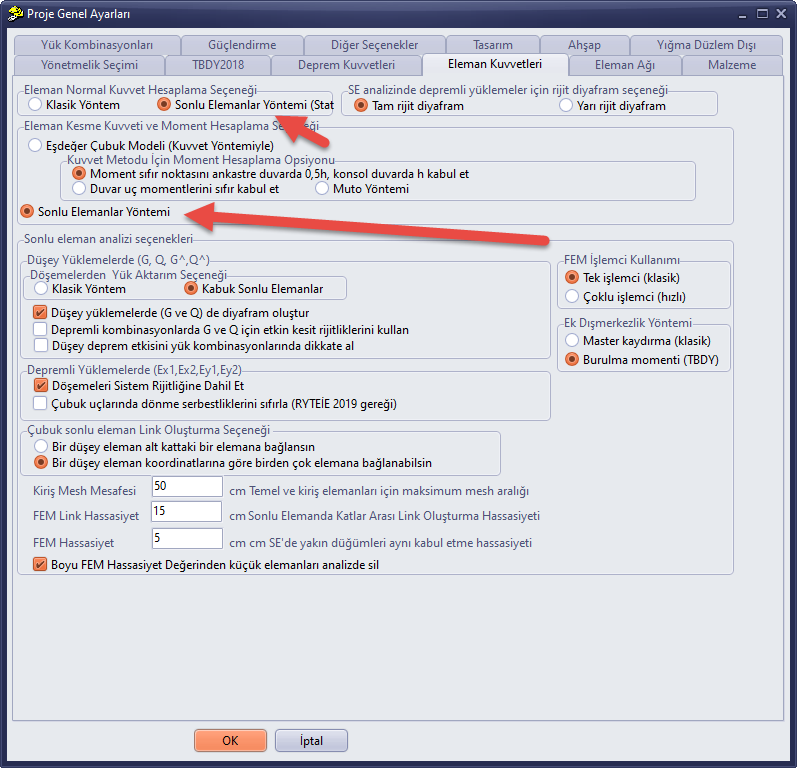
Figure 2 – Project General Settings › Element Forces: the finite element method for the axial force and for the shear force and moment
3. Non-load-bearing partition walls
You can delete the non-load-bearing partition walls that you do not want to include in the structural model, or select the Infill Wall option as the Element Type in the Wall Properties window of the wall concerned.
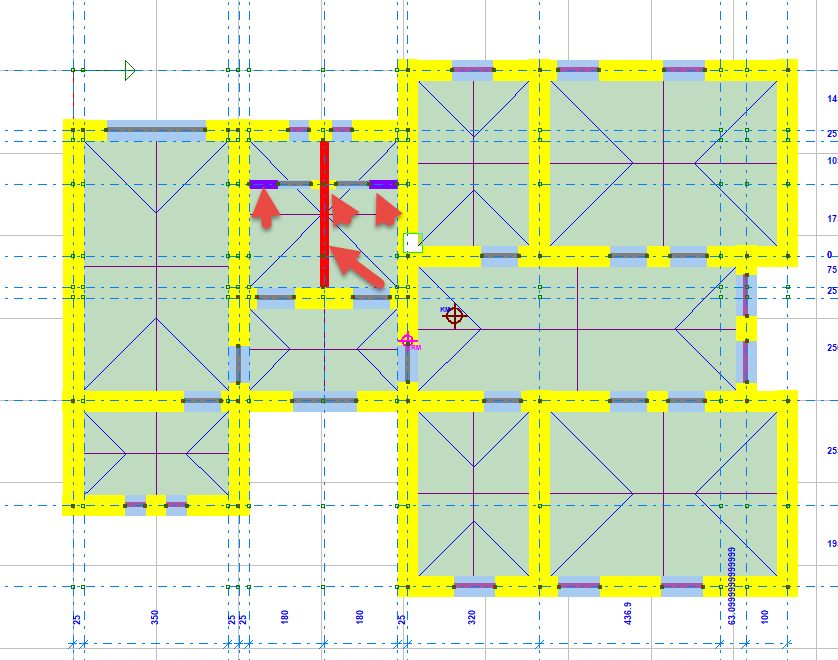
Figure 3 – Non-load-bearing partition walls indicated by arrows on the plan
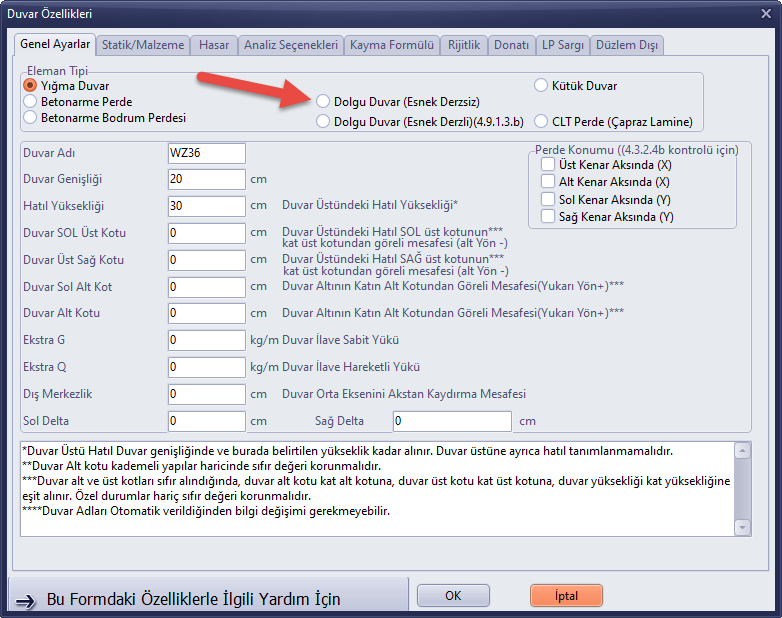
Figure 4 – Wall Properties › General Settings: selecting Infill Wall as the Element Type
4. Displaying the stress distribution
After the analysis is complete, click the Gerilme (Stress) button on the right toolbar to see the colour-coded stress results.
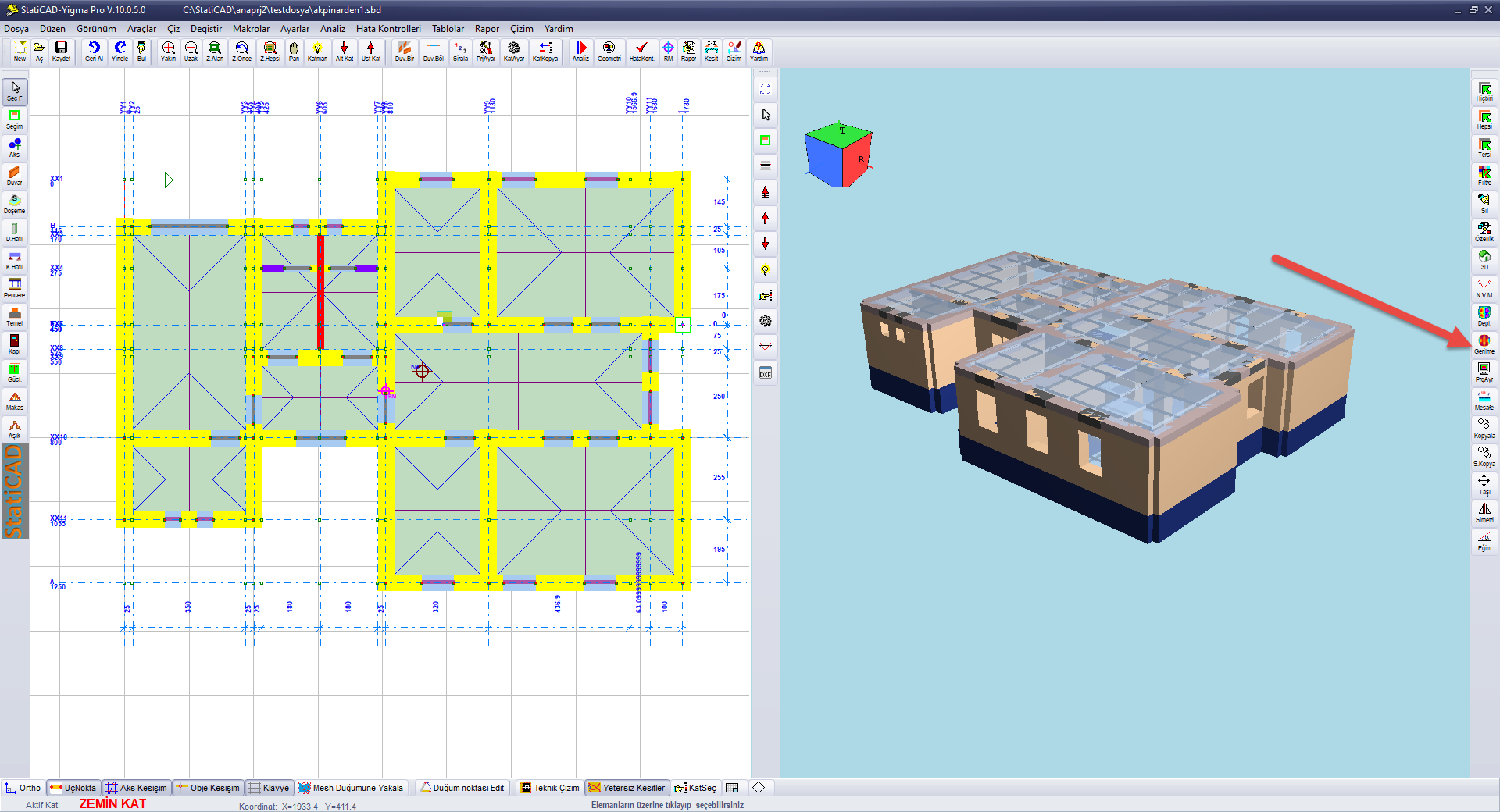
Figure 5 – The Gerilme (Stress) button on the right toolbar
When the button is clicked, the 3D view and the plan view show the stress distribution. On the Shell tab of the Finite Element System Display Options window that opens, you select the result to be shown (F11, F22, F12, M11, M22, M12, σ11, σ22, σ12, σmax, σmin, σvm), the face (Top Face / Bottom Face), the element type (Slab, Raft, Shear Wall/Wall, Jacket), the storeys (All Storeys / Active Storey), the colour scheme and the Loading; Apply updates the view. For how to use the window, see the article Results and Tables.
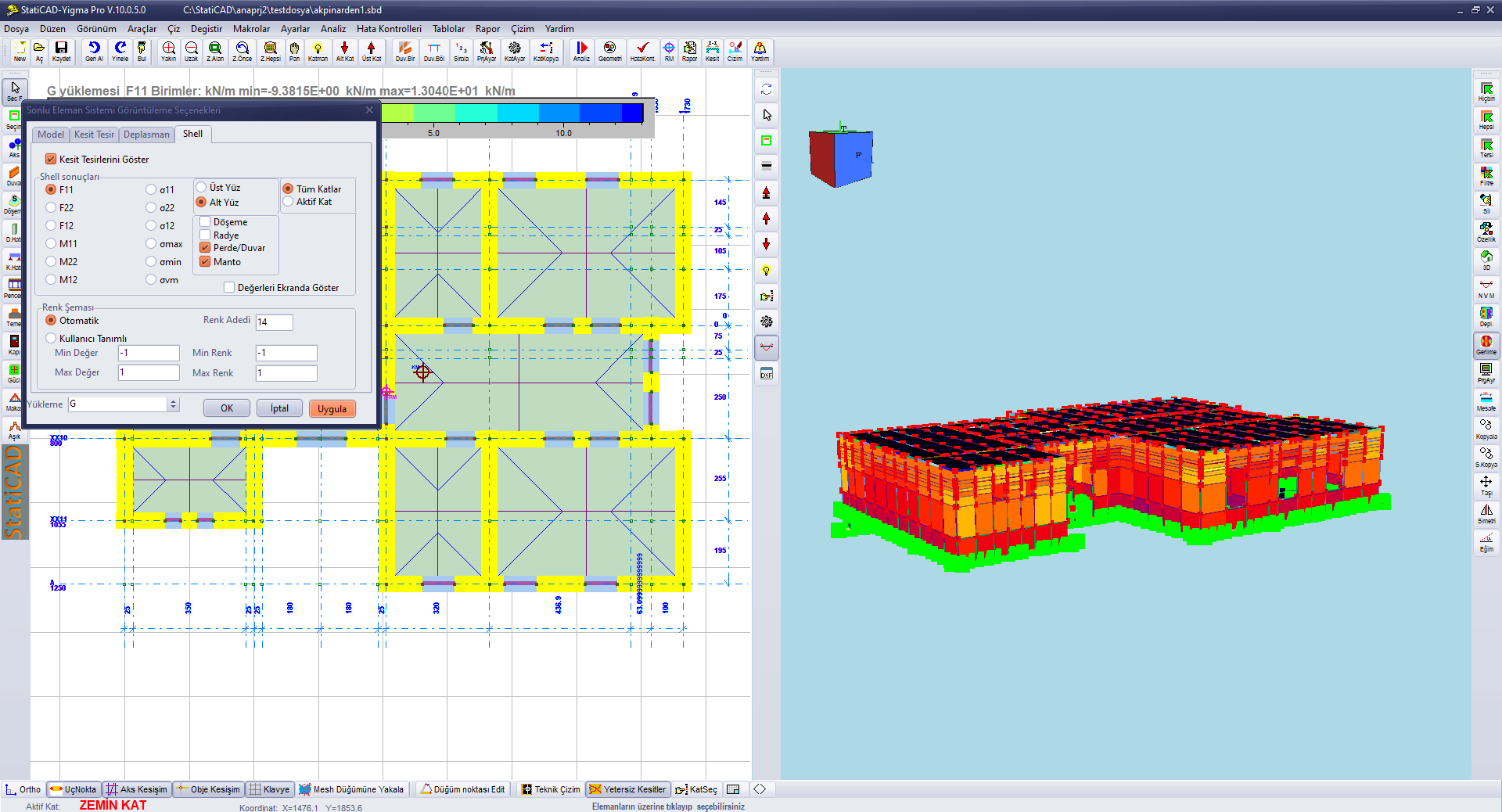
Figure 6 – F11 results under the G loading: the Shell tab and the stress distribution in the plan view and the 3D view
5. Reports
With these settings, all wall results in the calculation reports are based on the shell finite element solution.