Defining Column, Beam and Foundation Elements with Polygon Cross-Sections in StatiCAD V6
Starting from version 6.0.0.0 of the StatiCAD program, columns, beams and foundation elements with polygon cross-sections can be defined in your projects.
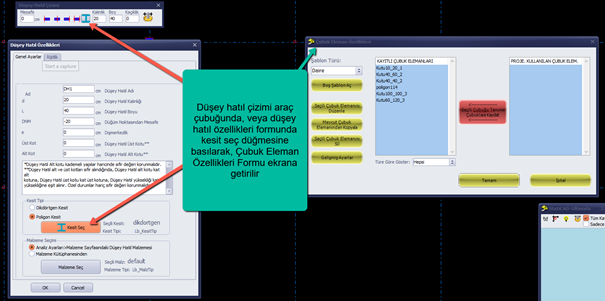
In the vertical bond beam drawing toolbar, or by clicking the Select Section button in the vertical bond beam properties form, the Bar Element Properties Form is displayed on screen.
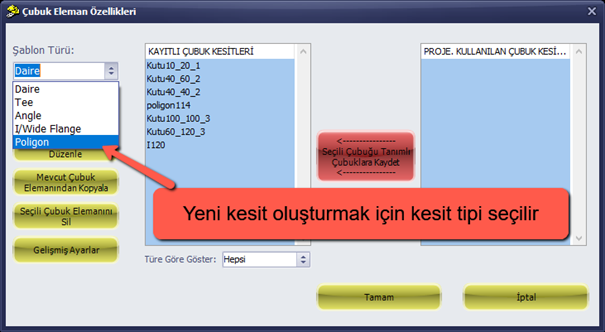
To create a new cross-section, select the section type.
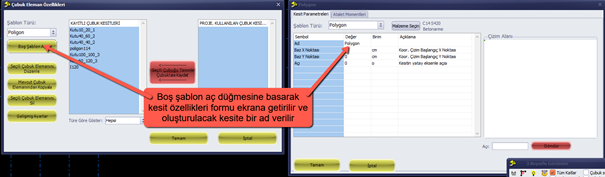
Click the Open Blank Template button to display the section properties form on screen.
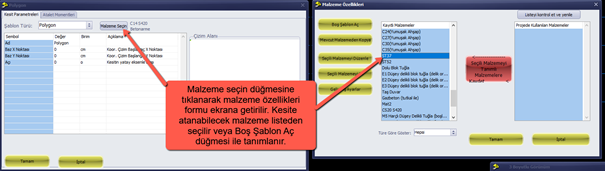
Click the Select Material button to display the material properties form. The material to be assigned to the cross-section is selected from the list, or defined using the Open Blank Template button.
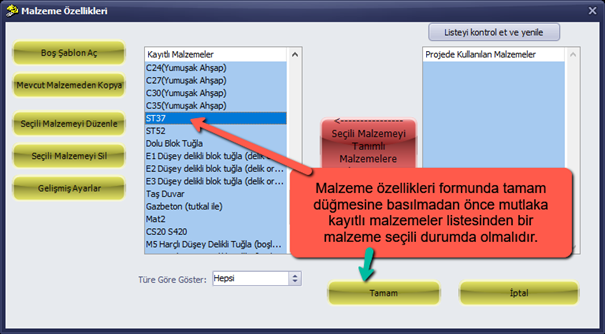
Before clicking the OK button in the material properties form, a material must be selected from the list of saved materials.
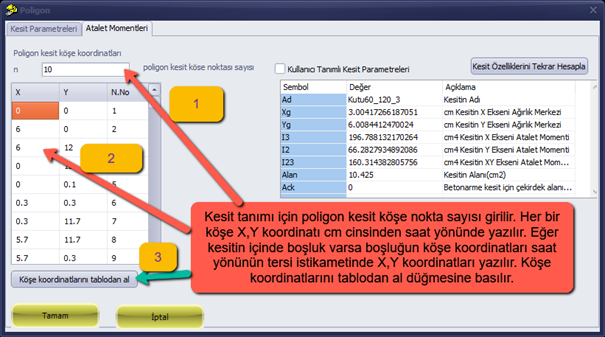
Enter the parameters for the cross-section definition and click the OK button.
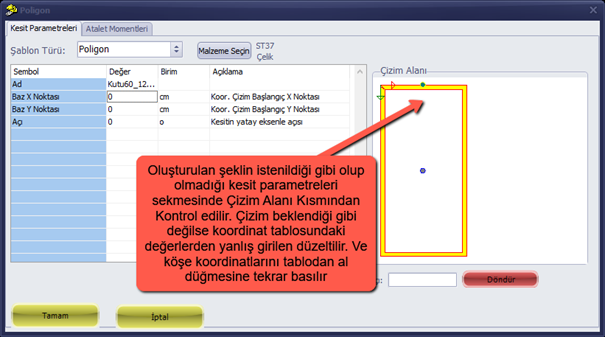
Check whether the created shape is as desired in the Section Parameters tab, in the Drawing Area section. If the drawing is not as expected, correct the incorrectly entered value in the coordinate table and click the Get Corner Coordinates from Table button again.
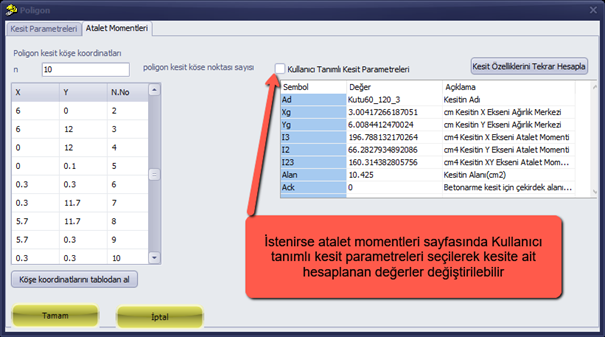
If desired, user-defined section parameters can be selected on the moments of inertia page to modify the calculated values for the cross-section.
Click the OK button to return to the bar element properties form.
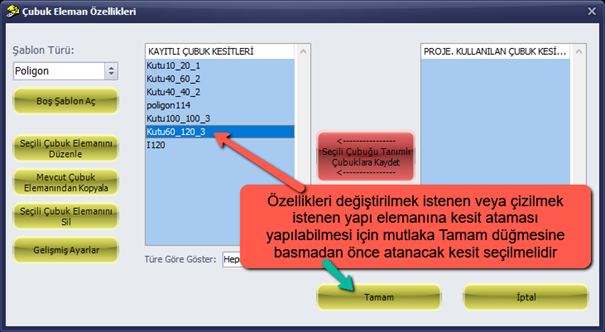
Before clicking the OK button, the section to be assigned must be selected in order to assign a cross-section to the structural element whose properties are to be changed or that is to be drawn.
If desired, user-defined section parameters can be selected on the moments of inertia page to modify the calculated values for the cross-section.
Click the OK button to return to the bar element properties form.
Before clicking the OK button, the section to be assigned must be selected in order to assign a cross-section to the structural element whose properties are to be changed or that is to be drawn.