Worked Example: Precast Industrial Building
This article walks step by step, with the program’s own screenshots, through the precast (pre-manufactured) reinforced concrete features of StatiCAD on the example building in the Turkish Precast Association’s book “Analysis and Design of an Example Precast Reinforced Concrete Industrial Building According to TBDY-2018”: from opening the project to the project settings, from the sections to the pinned connections, from the roof diaphragm to the additional masses, from the different R–D setting to the analysis, and from the connection design to the report. For a detailed description of each feature and the calculation principles, see the articles Modeling Precast Structures, Overhead Crane Loads, Additional Seismic Masses and Different R–D and Precast Connection Design; for comparisons with the book and with SAP2000, see Precast Structures Verification Studies.
Edition: The precast tools (the precast commands in the Macros menu, the precast section templates, the connection design window, the “Precast Reinforced Concrete” building type, the column-based drift option and the connection page in the report) are available in the StatiCAD Ultimate edition. The screenshots were taken with StatiCAD Ultimate V.10.0.1.0 (64-bit, Turkish interface); some buttons and texts may look different depending on your edition.
Example file: The StatiCAD model of the book’s building can be obtained from the support team. In this article a copy of the file is used under the name OrnekPrefabrik.sy4 and saved at the end of the solution as OrnekPrefabrik.sbd; do your own work on a copy as well.
1. The example building
The industrial building in the book is a two-bay, single-storey precast hall with a mezzanine floor in one part. The main data used in the model are below.
| Item | Value |
|---|---|
| Plan | 40 × 75 m; 11 grid lines at 7.5 m spacing in the X direction, grid lines A–E at 10 m spacing in the Y direction; two 20 m bays (A–C and C–E) |
| Storeys | Storey 1: +5.00 (mezzanine between A–C), Storey 2: +10.00 (roof); each storey 500 cm. In the program the storey names appear by default as "BODRUM KAT" and "ZEMİN KAT"; they can be changed from Settings › General Storey Settings. |
| Structural system | Columns fixed at the foundation 60/60 (grid line D 50/50); roof beams (EÇK), gutter beams and purlins pinned to the columns; mezzanine beams moment-resisting (wet on top – welded at the bottom); 200 kN overhead travelling crane in the C–E bay |
| Roof | Sloped roof beam, represented by a prismatic 40×41 section of equivalent mass since its ends are pinned; roof with trapezoidal sheeting, purlins 20/25 and TBDY Annex 8B equivalent braces (1600 pieces) with a semi-rigid diaphragm |
| Material | Concrete 35 MPa (C35), reinforcement B420C |
| Earthquake | DD-2, SS = 1.153, S1 = 0.318, soil class ZC → SDS = 1.384, SD1 = 0.477; I = 1; upper part R = 3, D = 2; lower part (part with the mezzanine) R = 5, D = 2.5 (TBDY 4.3.6) |
| Additional masses | Half of the façade panel mass at the column tops and the crane bridge mass on grid lines C and E, at two points at the crane girder elevation (Z = 800 cm), at 30 points in total as “Additional Seismic Mass” |
The sloped (gable) roof beam is in reality nonprismatic. Since its ends are pinned, its flexural stiffness does not enter the lateral analysis; therefore in the example model it is represented by a prismatic equivalent section of the same mass. How nonprismatic (Nonprismatic) sections and sections from precast templates are defined is shown in Section 6.2.
2. Starting the program and opening the project
- Start StatiCAD. The start screen opens (Figure 1).
- Click the Open (1) button in the left strip.
- In the Open window, go to the folder containing the example file (1). From the File type list, select StatiCAD Text Data (3) —
.sy4files are of this type; for.sbdfiles the default StatiCAD Binary Data remains. Select the file (2) and press Open (4) (Figure 2). - After the project has loaded, click the Main Screen icon (2 in Figure 1) in the bottom dock.
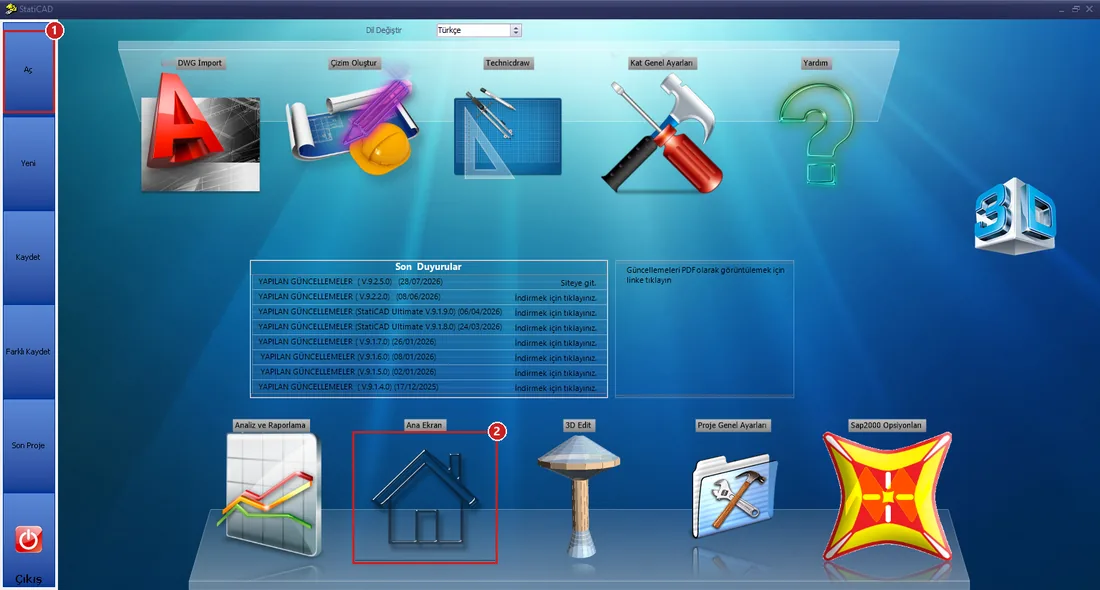
Figure 1 – Start screen: 1 Open, 2 Main Screen
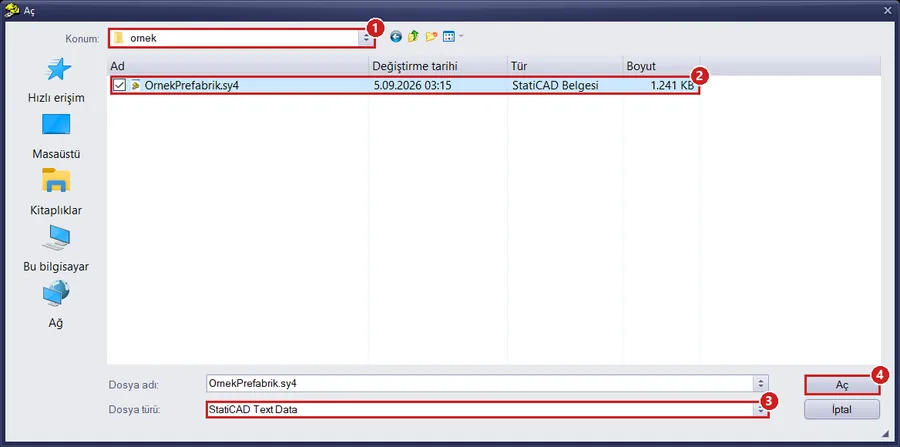
Figure 2 – Open window: 1 folder, 2 example file, 3 file type (StatiCAD Text Data = .sy4), 4 Open
Tip: While the project is opening, a small 3D preview window may appear on the start screen. Wait for the loading to finish (the progress window to close) before clicking the Main Screen icon.
3. The main screen and getting to know the model
On the main screen, the plan of the active storey is on the left and the 3D view of the model is on the right (Figure 3). In the example model the roof storey (Storey 2) is active; in the plan, the A–C bay with the mezzanine is seen in the upper region and the C–E bay in the lower region. Since the plan contains many purlins and equivalent braces, it looks dense; to see details, select a region with Z.Alan (zoom window) to zoom in, and use Z.Hepsi (zoom all) to fit the whole plan.
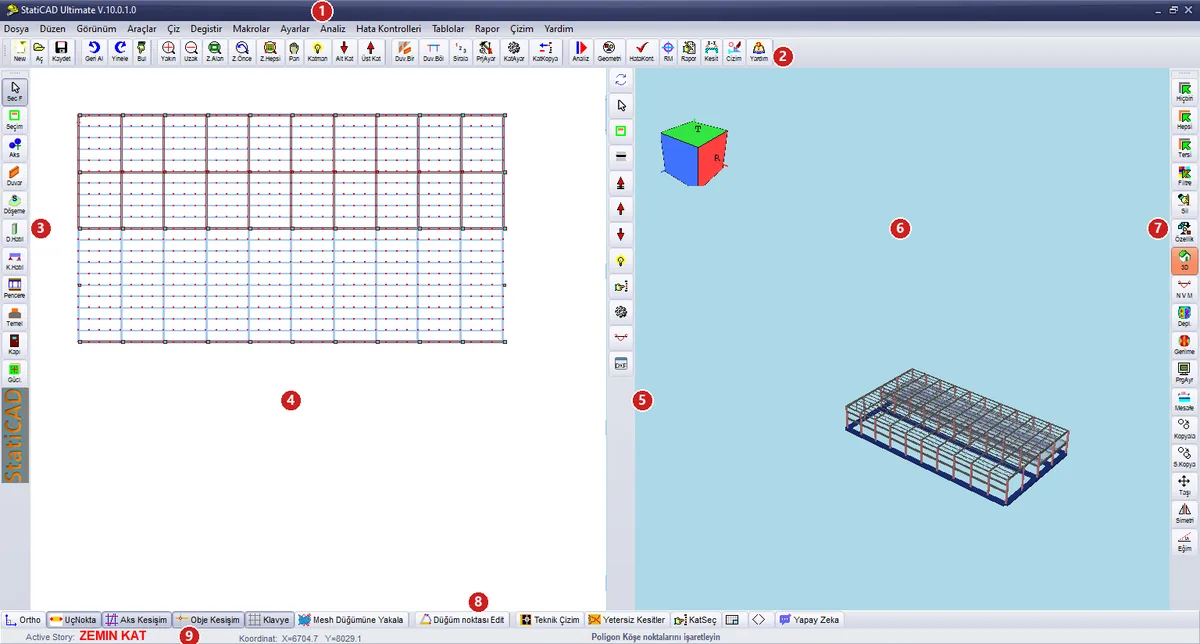
Figure 3 – Main screen
| No | Part | Use in this example |
|---|---|---|
| 1 | Menu bar | The precast tools are at the end of the Macros menu (Section 5). |
| 2 | Top toolbar | PrjAyar (Project General Settings), Analiz (Analysis), Rapor (Report), Z.Alan / Z.Hepsi (zoom), Alt Kat / Üst Kat (lower storey / upper storey). |
| 3 | Left drawing toolbar | Selection modes and member drawing (Seç F, selection with the mouse). |
| 4 | Plan | The plan of the active storey; members are selected here, and their properties are opened with a right click. |
| 5 | 3D panel toolbar | Yenile (refresh), storey and view buttons. |
| 6 | 3D panel | Zoom in/out with the mouse wheel, rotate by dragging. |
| 7 | Right toolbar | Hiçbiri / Hepsi (None / All, selection), Filtre (filter), Özellik (properties), 3D (separate 3D window). |
| 8 | Bottom toolbar | Snap switches, Yetersiz Kesitler (inadequate sections), KatSeç (storey selection). |
| 9 | Active storey | The name of the active storey. |
To see the whole building, open the separate 3D window with the 3D button on the right toolbar, enlarge the window, click inside it and zoom out with the mouse wheel (Figure 4). In large models the wheel may need to be turned several dozen steps.
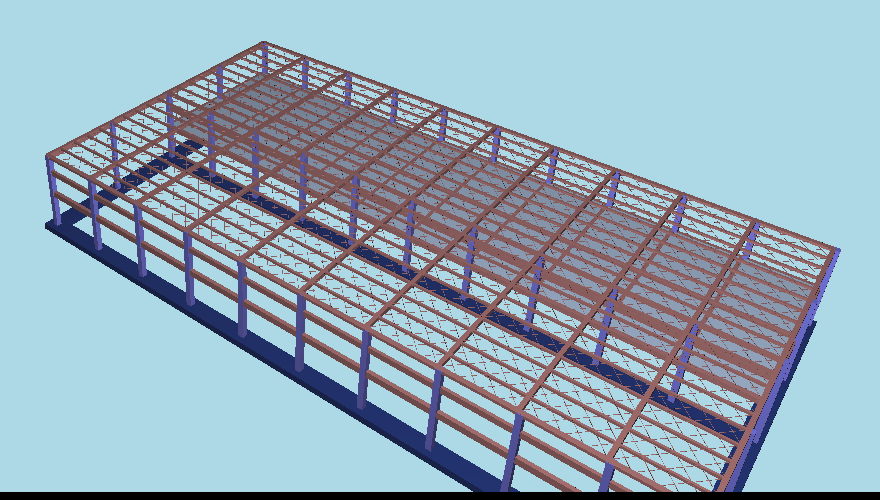
Figure 4 – 3D view of the example building: columns, roof beams, gutter beams, purlins and mezzanine
4. Project General Settings
It is opened with Settings › Project General Settings (Ctrl+P) or with PrjAyar on the top bar. The settings are ready in the example file; below, the tabs that should be checked for a precast project are shown in order.
4.1 Code Selection: building type and ductility
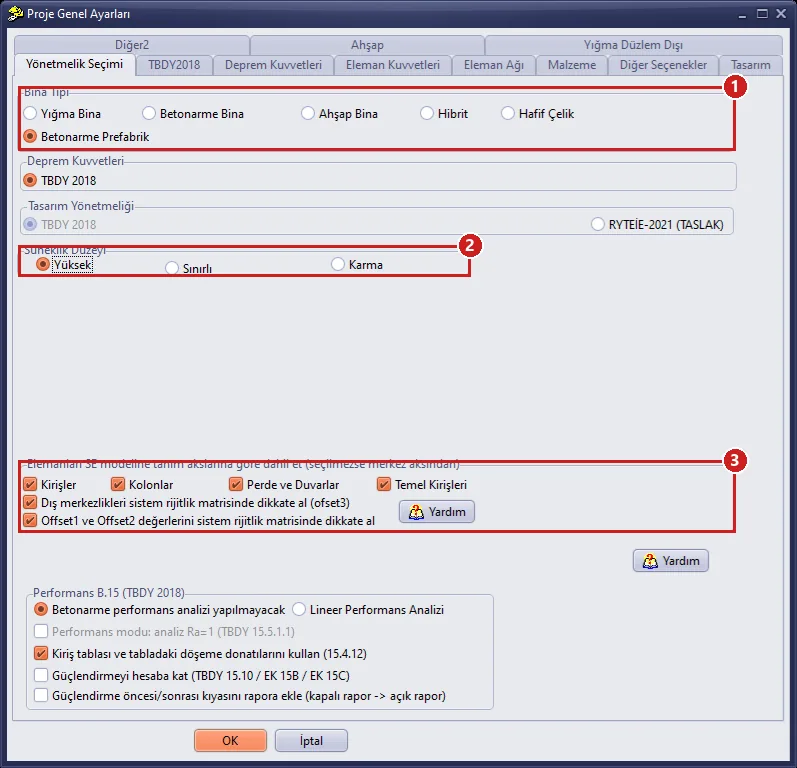
Figure 5 – Code Selection: 1 building type, 2 ductility level, 3 definition axis options for the finite element model
| No | Field | Description |
|---|---|---|
| 1 | Building Type | Select Precast Reinforced Concrete (Ultimate). This selection has the same solution type as Reinforced Concrete Building; in addition, it sets up the reinforced concrete defaults and checks the column-based drift option for the semi-rigid diaphragm (4.4). When the window is reopened, Reinforced Concrete Building appears checked; the settings are preserved. |
| 2 | Ductility Level | The book example was designed for the High ductility level (column shear TBDY 7.3.7, joint shear TBDY 7.5). The example file was saved with Limited; select High for the comparison with the book. |
| 3 | Definition axes / offset | The position of the beams relative to the column faces (axis offset) is transferred to the finite element model; the default settings are kept. |
4.2 TBDY2018: seismic parameters and R, D
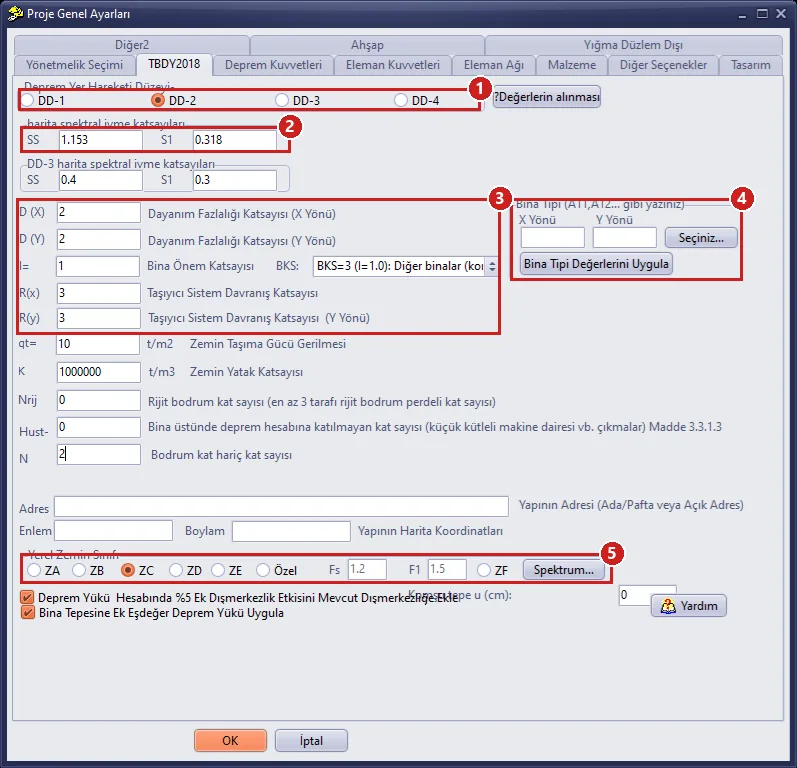
Figure 6 – TBDY2018 tab
| No | Field | Value in the example and description |
|---|---|---|
| 1 | Earthquake Ground Motion Level | DD-2 (design earthquake). |
| 2 | DD-2 map spectral acceleration coefficients | SS = 1.153, S1 = 0.318 (from the AFAD Turkey Earthquake Hazard Map). |
| 3 | D, I, BKS, R | For buildings with a mezzanine, the coefficients of the upper part are entered here: D = 2, R = 3; I = 1 (BKS = 3). The coefficients of the lower part are entered in the window described in Section 10. |
| 4 | Building Type (Table 4.1) | With Seçiniz... (Select...), a system can be chosen from TBDY Table 4.1 and R, D transferred with Bina Tipi Değerlerini Uygula (Apply Building Type Values); precast systems are in rows B11–B34. In the example the values were entered manually. |
| 5 | Local Soil Class | ZC; Fs = 1.2, F1 = 1.5 are calculated by the program. |
The 5% Additional Eccentricity in Earthquake Load Calculation and Apply Additional Equivalent Earthquake Load at the Top of the Building options at the bottom must remain checked.
4.3 Earthquake Forces: modal analysis and diaphragm
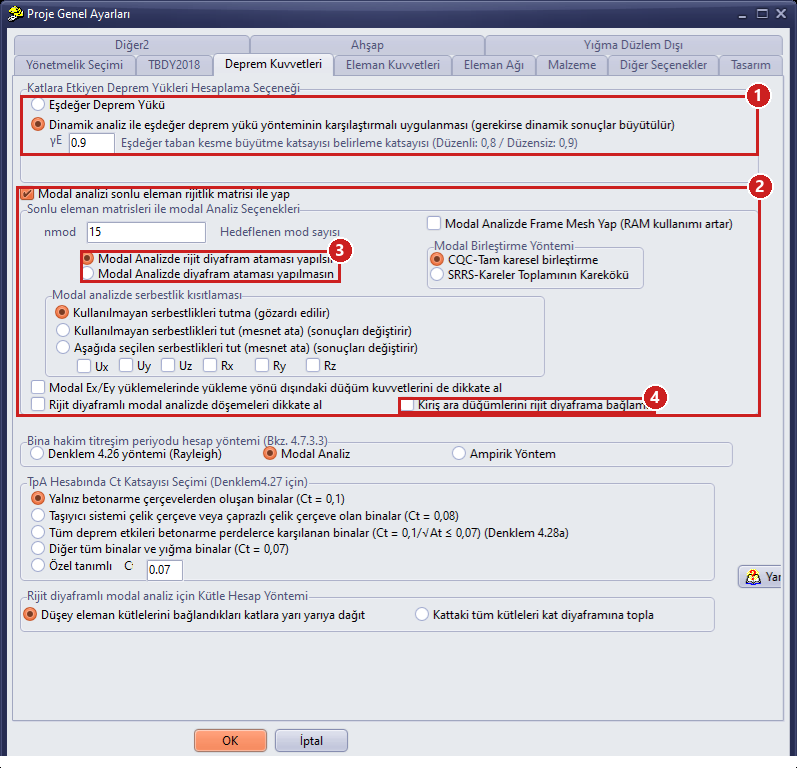
Figure 7 – Earthquake Forces tab
| No | Field | Description |
|---|---|---|
| 1 | Calculation method | Comparative application of dynamic analysis and the equivalent earthquake load method; γE = 0.9 (irregular building; because of the B2 irregularity in the book). |
| 2 | Modal analysis with finite element matrices | Perform modal analysis with the finite element stiffness matrix is checked; number of modes 15. |
| 3 | Rigid diaphragm assignment in modal analysis | performed: a reduced model with three degrees of freedom per storey; even though the roof is semi-rigid, the modal analysis is performed with the storey diaphragms. |
| 4 | Do not connect beam intermediate joints to the rigid diaphragm | Off (default). It can be turned on to eliminate the situation where static drifts come out smaller than the modal model because of the beam axis offset (see Modeling Precast Structures). |
4.4 Member Forces: semi-rigid diaphragm and column-based drift
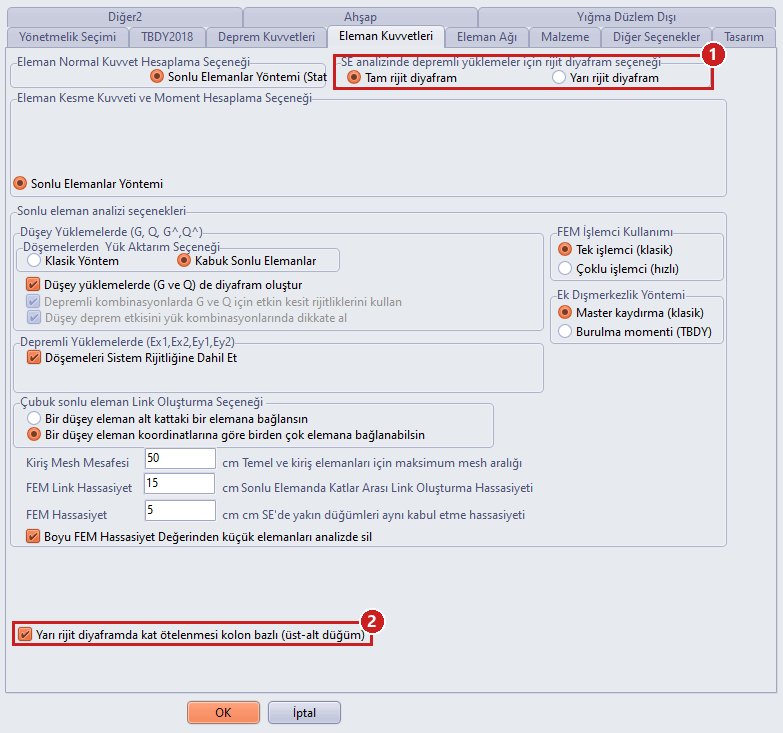
Figure 8 – Member Forces: 1 diaphragm option for earthquake loadings, 2 column-based drift for the semi-rigid diaphragm
Rigid diaphragm option for earthquake loadings in SE analysis (1): When working with a roof with Annex 8B braces, Semi-rigid diaphragm is selected; in this case the option at the bottom of the tab, Storey drift for the semi-rigid diaphragm is column-based (top-bottom node) (2), must be on: the relative storey drift is calculated from the difference between the top and bottom nodes of the same column instead of the difference between the largest and smallest node displacements of the storey, so that flexible roof nodes and gable columns do not distort the result. The option is checked automatically when the Precast Reinforced Concrete building type is selected and is saved with the project.
Choice in this example: Since the book and the verification comparisons were made with the rigid diaphragm solution, Fully rigid diaphragm was selected in this article (the analysis time is also shorter). The braces are modeled in the example file; to see the semi-rigid solution, only change this option to Semi-rigid diaphragm and repeat the analysis. The shear stiffness of the semi-rigid roof has not yet been calibrated to the diaphragm behaviour in the book; it is recommended that you also run the rigid diaphragm solution as the design reference.
4.5 Material
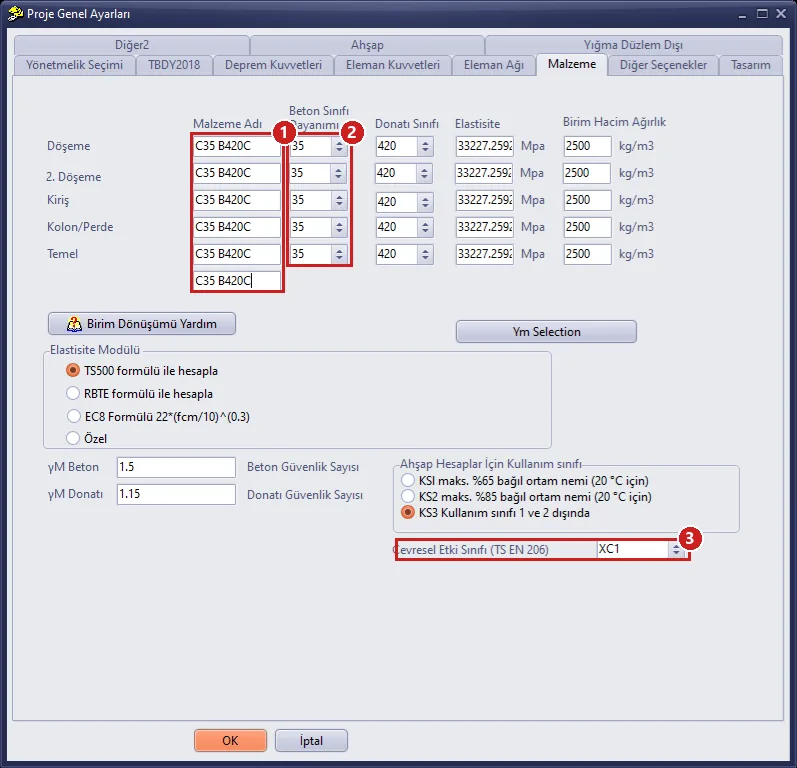
Figure 9 – Material tab: concrete class 35 MPa, reinforcement 420 MPa
For the column/shear wall, beam, slab and foundation, the concrete class 35 MPa and the reinforcement class 420 MPa are selected; the modulus of elasticity is calculated with the TS 500 formula (33 227 MPa). The Material Name column is only a label; the Concrete Class Strength and Reinforcement Class columns are used in the calculations. Save the settings with OK.
If the window does not fit on the screen (for example at 125% display scaling), the OK / Cancel buttons at the bottom may remain below the taskbar; drag the window upward by its title bar.
5. Where the precast tools are: the Macros menu
All the precast commands are at the end of the Macros menu in the main menu (Figure 10, framed):
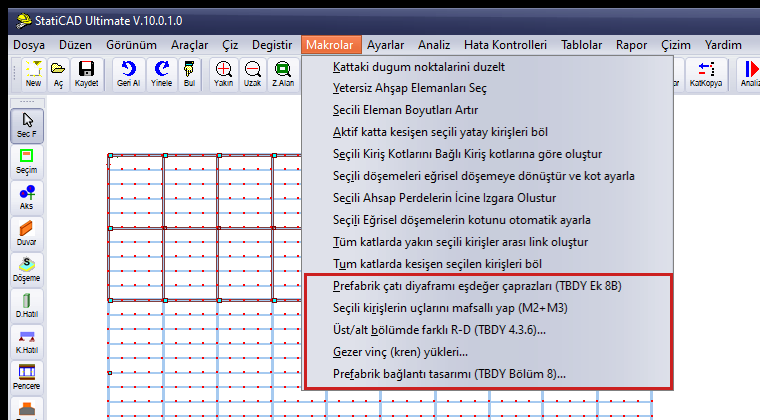
Figure 10 – Macros menu and precast commands
| Command | Function | Section |
|---|---|---|
| Precast roof diaphragm equivalent braces (TBDY Annex 8B) | Annex 8B calculation and generation of equivalent braces between two selected beams | 7 |
| Make ends of selected beams pinned (M2+M3) | Pinned connection assignment (does not open a window) | 6.3 |
| Different R-D in upper/lower part (TBDY 4.3.6)... | Lower part R, D and ν calculation | 10 |
| Overhead travelling crane (crane) loads... | Crane girder design forces; separate crane loadings (KV, KHX, KHY, KG) for the columns and the bridge mass | 9 |
| Precast connection design (TBDY Chapter 8)... | Pinned, wet-welded, purlin/gutter beam, façade panel and foundation sliding calculations | 13 |
The Split selected intersecting beams on all storeys command immediately above is used after the Annex 8B braces (Section 7). The brace, crane and connection windows are non-modal: you can continue selecting members in the plan while the window is open.
6. Beams, sections and pinned connections
6.1 Beam properties
Select a beam in the plan, right-click and run the <name> Beam Bond Beam Properties Change command. In the example, the roof beam (EÇK) is divided into 2 m pieces at the purlin intersections; in Figure 11 the end piece HZ05 seated on the column at grid line A is seen.
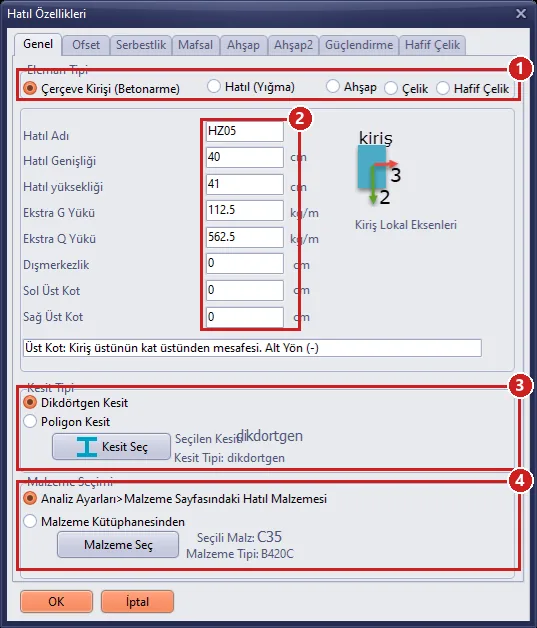
Figure 11 – Beam (Bond Beam) Properties, General tab
| No | Field | Description |
|---|---|---|
| 1 | Member Type | Frame Beam (Reinforced Concrete). |
| 2 | Dimensions and additional loads | 40/41 equivalent section; Extra G Load 112.5 kg/m (cover and purlin), Extra Q Load 562.5 kg/m (snow). |
| 3 | Section Type | Rectangular Section or Polygon Section; a precast/nonprismatic section is assigned with Select Section (6.2). |
| 4 | Material Selection | By default, the beam material on the Project General Settings › Material page (C35 / B420C). |
6.2 Precast and nonprismatic section definition
In the beam properties, press Select Section. In the Select / Add Steel Section (Fabrication) window that opens, the User-Defined Section... button opens the Frame Member Section Properties window (Figure 12). The Template Type list (1) contains the precast templates (Precast I, Precast U, Precast Box, Precast T, Trapezoidal, Box/Tube) and the nonprismatic section (Nonprismatic); the lists on the right (2) are the saved sections and the sections used in the project. Select the template and press Open Blank Template.
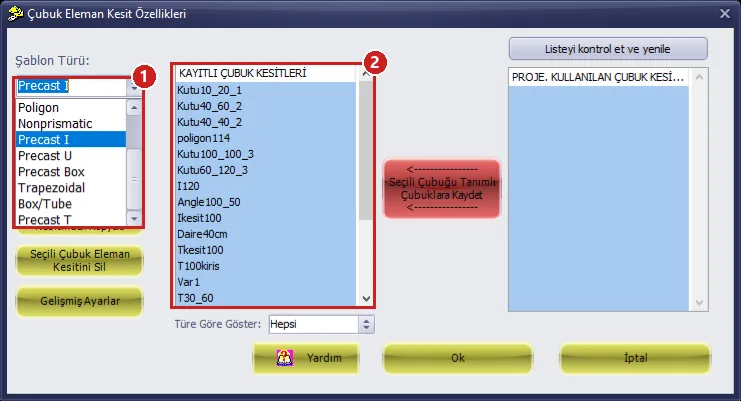
Figure 12 – Frame Member Section Properties: 1 template types, 2 saved sections
In the Precast I template (Figure 13), in the Section Parameters table (2) the flange widths B1–B4, the heights D1–D7 and the web thicknesses T1–T2 are entered in cm; the preview (3) is updated instantly with the dimension labels. The Section Properties tab shows the area, moments of inertia and shear areas. With Select Material, map the section material to the project material (C35); the section is saved with Save and can be selected as a beam section.
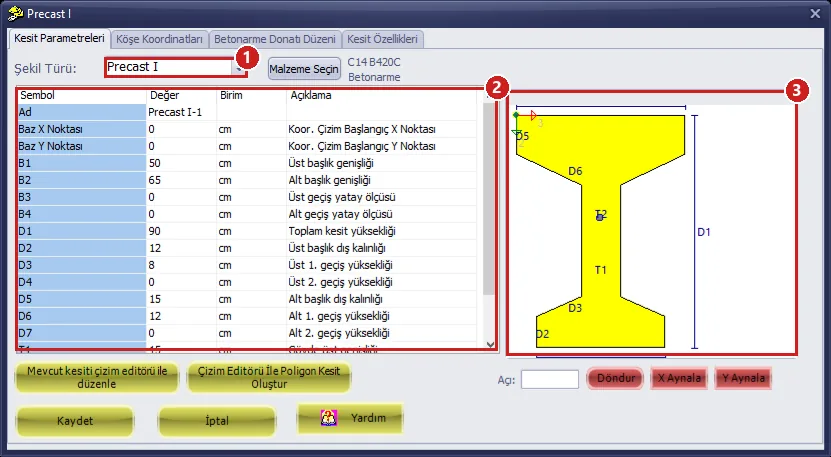
Figure 13 – Precast I template: 1 shape type, 2 parameters, 3 preview
When Nonprismatic is selected, the Nonprismatic Section Definition window opens (Figure 14): the section name (1), the segment table (2) and Add / Delete (3). For each segment, the start and end sections (from previously saved prismatic sections), the length (Absolute: cm; Variable: proportional) and the EI variation order (Linear, Parabolic, Cubic) are selected. A gable roof beam is defined with two segments: end section → middle section → end section.
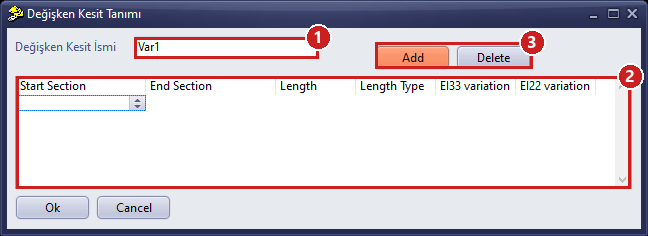
Figure 14 – Nonprismatic Section Definition
The nonprismatic section is taken into account only in beams. The reinforcement of reinforced concrete beams with polygon, precast and nonprismatic sections is calculated automatically in the analysis (see Modeling Precast Structures).
6.3 Pinned connections
At the ends of members that are pinned, such as roof beams, gutter beams, purlins and crane girders, the M2 and M3 moments are released. In the Hinge tab of the beam (Figure 15), the end seated on the column is checked in the Moment (M2Minor) and Moment (M3Major) rows (1); in the list below (2) the loadings for which the hinge is valid are selected (all of them).
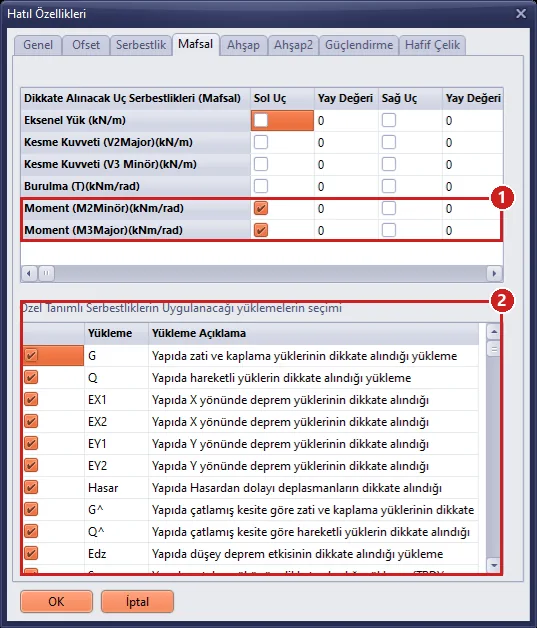
Figure 15 – Beam properties, Hinge tab: M2 and M3 released at the column end of HZ05
For a large number of members the hinges are not entered one by one: select the relevant beams (on all storeys) and run Macros › Make ends of selected beams pinned (M2+M3). The command does not open a window; it releases M2 and M3 at both ends of every selected beam, resets the spring coefficients to zero, makes the hinge active in all loadings and shows the message "n kirisin uclari M2+M3 mafsalli yapildi (tum yuklemelerde etkin)." (the ends of n beams were made M2+M3 pinned, active in all loadings) at the bottom left of the screen.
Tip: Check the selection before the command: members that remained selected from earlier clicks are also processed. To clear the selection, use the Hiçbiri (None) button on the right toolbar (Esc does not always remove the selection); the number of beams in the message must be the same as the number of members you selected.
In a divided roof beam, apply the command only to the end pieces seated on the columns. The command makes both ends of every selected beam pinned; if it is applied to the intermediate pieces, hinges form within the beam and the system turns into a mechanism. You can undo a wrong application with Undo (Ctrl+Z), or remove the inner end of the end piece in the Hinge tab.
7. Roof diaphragm: TBDY Annex 8B equivalent braces
The shear stiffness of the roof with trapezoidal sheeting is represented by equivalent braces pinned at both ends. In the Macros › Precast roof diaphragm equivalent braces (TBDY Annex 8B) window (Figure 16), the screw, sheet and material information (1) is entered and Calculate (2) gives the equivalent axial stiffness (EA)e, the comparison with TBDY Eq. (8B.1) and the equivalent square section (3). When there is no selection, the calculation makes a preliminary calculation with a 2.0 m purlin spacing and a 1.875 m step.
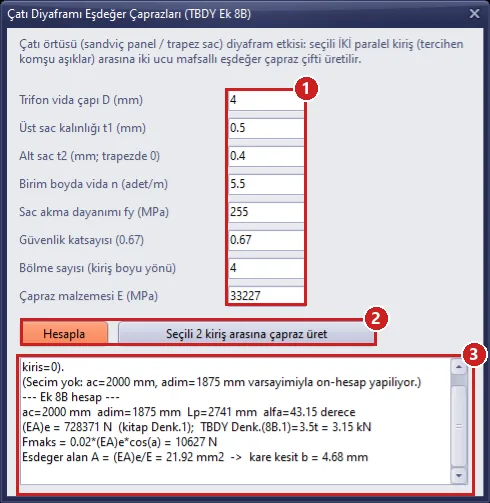
Figure 16 – Roof Diaphragm Equivalent Braces: 1 inputs, 2 Calculate / Generate braces between the 2 selected beams, 3 result
- In the plan, select the two parallel beams between which the braces will be installed (two adjacent roof beams or purlins).
- Press Generate braces between the 2 selected beams; the space between the two beams is divided into as many cells as the selected number of divisions, and an X pair (member type
prefcapraz, pinned at both ends, massless) is placed in each cell. - The generated braces and the source beams remain selected; with Macros › Split selected intersecting beams on all storeys, connect the brace ends to the purlins and beams at common nodes.
In the example model the braces are ready (1600 pieces); they are seen as thin brace lines in the 3D view and in the plan. Do not run Generate braces between the 2 selected beams again in this model; a second set of braces would be added to the same cells. Semi-rigid diaphragm must be selected for a roof with braces (Section 4.4).
8. Façade panel and crane masses (Additional Seismic Mass)
Façade panels hung on the columns participate in the structural system only as seismic mass. The mass of the crane bridge is also an additional seismic mass; this mass can be written either by hand as described here or with the crane window, but with only one of them. The crane wheel loads and the bridge self-weight, on the other hand, are written in the crane window as separate crane loadings (Section 9). A predefined joint is placed at the point where the mass acts, and the mass is written in tons in the Additional Seismic Mass box on the General tab of the Predefined joint properties window (Figure 17).
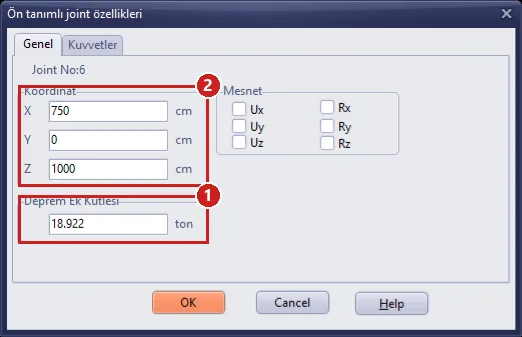
Figure 17 – Predefined joint properties: 1 Additional Seismic Mass (tons), 2 joint coordinates
- Select the columns on which the mass will act in the plan (e.g. the edge columns at the gutter beam elevation) and open the Macros › Add predefined node... window (Figure 17a). Check the On the axis of the selected posts/columns and Post/column top end options; for an intermediate elevation such as the crane corbel, select At the Z elevation below and enter Z as an absolute elevation (cm). Enter the mass in tons (= kNs²/m) in the Additional seismic mass box and press OK. A predefined node is created on the axis of each selected column and the mass is written; the nodes appear in the plan with an empty square symbol.
- To change the mass later, right-click the node symbol and select ... Change predefined joint properties; write the new value in the Additional Seismic Mass box (1) and press OK (Figure 17).
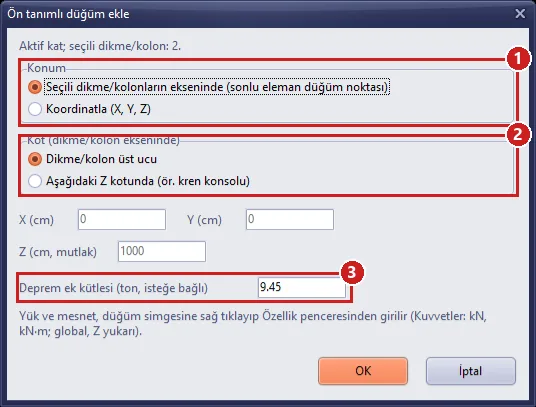
Figure 17a – Macros › Add predefined node: 1 location (axis of the selected columns or coordinates), 2 elevation (column top end or Z elevation), 3 additional seismic mass
In the analysis, the node is connected to the finite element node with the matching coordinates. The top end of the column is a column node; if the node is at an intermediate elevation within the storey height of the column and inside its section (e.g. the crane corbel), the column is divided at that elevation and the mass and the node loads are applied to the new node. The mass of a point that cannot be connected to any node enters only the storey total; the analysis reports this in the warning list.
The example model has 30 additional mass points: the panel half masses at the column tops at the gutter beam elevation (e.g. 18.9–23.6 t at the edge columns of grid line A) and half the weight of the crane bridge (166/2 = 83 kN, 8.46 t) at two points at the crane girder elevation (Z = 800 cm) on grid lines C and E, at the first intermediate grid line (x = 7.5 m). If the crane loadings are applied while Write bridge mass is checked in the crane window, this mass is written a second time (see the warning in Section 9). The additional mass participates in the seismic mass of the storey, in the modal analysis and in the θII indicator; since it is not a weight, it is not added to the vertical loads and the foundation.
9. Overhead travelling crane (crane) loads
In the Macros › Overhead travelling crane (crane) loads... window, the wheel reactions (R1/R2 max–min) from the manufacturer’s table, the wheel spacing, the dynamic factor, the crane girder span, the corbel elevation and the corbel eccentricity are entered (Figure 18). The crane loads are written to the model as separate predefined loadings; the program solves them separately in the analysis and generates the crane combinations itself (see Overhead Crane Loads, Additional Seismic Masses and Different R–D).
- Calculate (1): the crane girder design forces, the reactions transferred to the column (loaded rail / opposite rail) and the horizontal forces per column are listed in the result box (5).
- Options (2): the direction of the rails (X in the example), taking the horizontal force at the opposite rail with the min wheel load (book p. 31), the bridge self-weight entering the earthquake combinations as KG, and the crane combination factor γK (TS 500, 1.6). In this example, uncheck Write bridge mass: the bridge mass was entered by hand in Section 8 (the warning below Figure 18).
- Columns (3): in the plan, select the grid line C columns of the upper part and press Rail A ← selected columns, then select the grid line E columns and press Rail B ← selected columns; for the columns over which the bridge self-weight (KG) will be distributed, select the grid line C and E columns of the first intermediate grid line (x = 7.5 m) and press Mass ← selected columns.
- Apply crane loadings (4): a predefined node is created on the axis of each rail column at the corbel elevation (Z = 800 cm); the KV1/KV2, KHX1/KHX2, KHY1/KHY2 loadings are written, the KG loading if the KG option is checked, and the bridge mass if Write bridge mass is checked. Since the bridge mass already exists in the model in this example, read the warning below Figure 18 before applying. The loads that are written are seen in rows 13–19 on the Predefined joint properties › Forces tab of the node (Figure 18a).
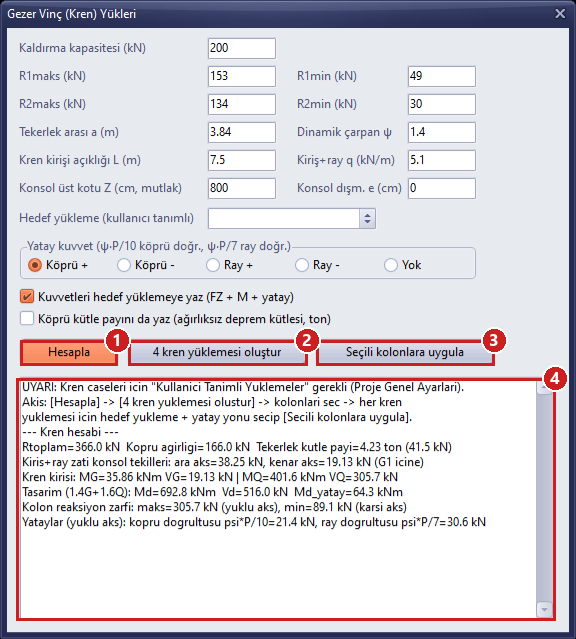
Figure 18 – Overhead Travelling Crane (Crane) Loads: 1 Calculate, 2 rail direction and options, 3 rail and mass columns with the Write bridge mass option (unchecked in this example), 4 Apply crane loadings, 5 result
Result in the example: bridge weight 166 kN (mass 16.92 t); the KG loading writes 83 kN to each of the two mass columns (if Write bridge mass had been checked, a mass of 8.46 t would have been written to each); crane girder Md = 692.8 kNm, Vd = 516 kN; column reaction 305.7 kN at the loaded rail and 89.1 kN at the opposite rail; horizontal forces per column in the bridge direction 30.6 / 8.9 kN (R/10) and in the rail direction 43.7 / 12.7 kN (R/7). The corbel eccentricity is taken as 40 cm in the example.
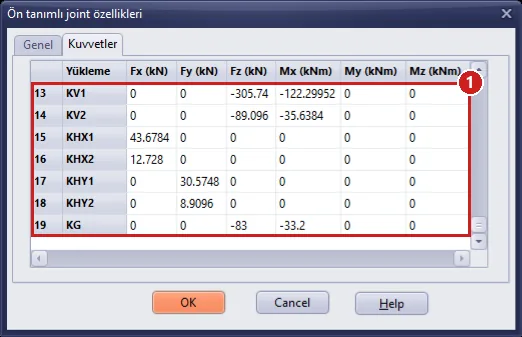
Figure 18a – Predefined joint properties › Forces: corbel node (Z = 800 cm) of the first intermediate grid line column on grid line C; 1 crane loadings. This column is on the loaded rail in KV1 (FZ = −305.74 kN, MX = −305.74 × 0.40 = −122.3 kNm) and on the opposite rail in KV2 (−89.1 kN); KHX1 braking force R/7 = 43.7 kN, KHY1 bridge-direction force R/10 = 30.6 kN; since it is a mass column, KG = −83 kN (MX = −33.2 kNm)
Do not count the bridge mass twice. In the example model the bridge mass was entered by hand as described in Section 8: at the two predefined nodes at the ends of the crane girder on grid lines C and E, at the first intermediate grid line (x = 7.5 m), 8.46 t of Additional Seismic Mass each. The crane window, on the other hand, writes the bridge mass to its own nodes that it creates on the column axis (at the section centre); these nodes do not merge with the ones entered by hand. For this reason, if the crane loadings are applied while Write bridge mass is checked, the same 16.92 t is added a second time; the additional mass total becomes 601.3 t instead of 584.4 t. In this example, uncheck Write bridge mass before applying the crane loadings (the KG loading is not affected by this option). If you will write the bridge mass with the crane window in your own project, do not also enter the mass by hand. The crane window replaces the existing value at the node where it writes the mass; applying again does not accumulate the mass, and Remove crane restores the previous value of that node.
Ten crane combinations are added at the end of the combination list in the analysis (1.4G+1.6Q+1.6·KVi ± 1.6·KHXi / KHYi); the crane loads do not enter the earthquake combinations, only KG (the bridge self-weight) is added with the G coefficient. The corbel point loads of the crane girder and rail self-weight (the Calculate list) are entered separately into the G loading only if the crane girder is not defined as a beam in the model. In the example model the crane girders are 30/63 beams with both ends hinged, on grid lines C and E, with a top elevation of 800 cm; since their self-weights (≈ 5.1 kN/m together with the Extra G Load of 40 kg/m, equal to the girder + rail load entered in the window) are already in the G loading, do not enter these point loads; if entered, they are counted twice. The crane corbel has not been checked in this example; if it is defined as a short corbel in the Corbel tab of the column properties window, its demand is taken automatically from the crane node and the seated beams (see Short Corbel Design). Remove crane is used to take the crane out of the model.
10. Different R and D in the upper/lower part (TBDY 4.3.6)
Since the structural system of the lower part with the mezzanine is different from that of the upper part, TBDY 4.3.6 is applied. In the Macros › Different R-D in upper/lower part (TBDY 4.3.6)... window (Figure 19):
- Check Apply different R and D coefficients in the upper/lower part; Last storey of the lower part = 1.
- Lower part R (X), R (Y) = 5; Lower part D (X), D (Y) = 2.5 (Table 4.1 values of the lower part system).
- If the nu_upper boxes are left at 0, νupper is calculated in the analysis from the storey weights and heights (w·H ratio). In this example, for the comparison with the book, the values in the book’s case B have been entered: νupper = 0.320 (X) / 0.261 (Y) (the book took νupper from the R = 1 modal analysis; Figure 22).
- Obtain a preview with Calculate / Show and press OK.
Calculate / Show also applies the entered values to the project; pressing Cancel afterwards does not undo this change. To back out, re-enter the old values.
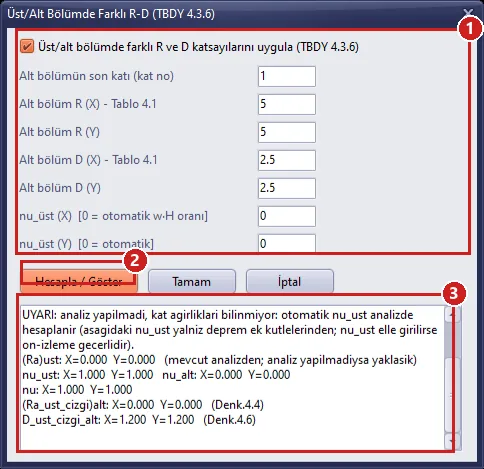
Figure 19 – Different R-D window, before the analysis: 1 inputs, 2 Calculate / Show, 3 preview
Since the storey weights are not yet known before the analysis, the preview begins with a "UYARI" (WARNING) line and shows νupper = 1; the exact values are seen in the same window after the analysis (Section 12.3, Figure 22).
11. Analysis
Analysis › PERFORM STATIC ANALYSIS (Shift+R) or the Analiz button on the top bar opens the Static Analysis window. The analysis starts with Start Analysis (3); the stages and the periods of the modal analysis are followed in the upper list (1), and when the analysis is finished, errors and warnings appear in the lower list (2) (Figure 20).
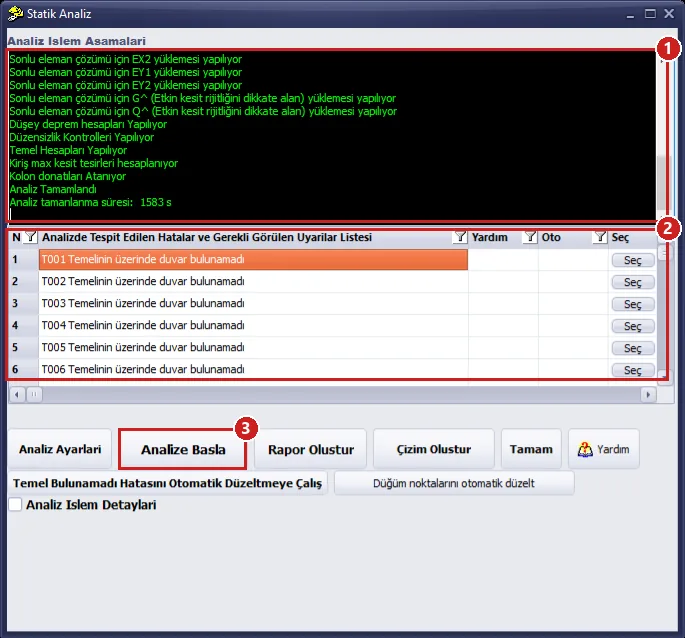
Figure 20 – Static Analysis: 1 analysis stages, 2 error/warning list, 3 Start Analysis
- Duration: In this example (1600 equivalent braces, 720 purlin pieces, fully rigid diaphragm) the analysis took about 26 minutes (1583 s). Do not do anything else in the program while the analysis is running; at the end, "Analiz Tamamlandı" (Analysis Completed) and the duration line appear in the list.
- Warnings: The lines "T001 … T006 Temelinin üzerinde duvar bulunamadı" (no wall found on foundation T001 … T006) are for information: there are no walls on the continuous foundation (tie) beams, which is the expected situation in a precast building. The seismic joint line (M.4.9.3) gives the minimum gap that must be left to the neighbouring building (storey 1: 3 cm, storey 2: 5 cm).
- After the analysis, the Section Inadequacy Colour Codes window opens and the inadequate members are shown in colour in the plan. The coloured display is turned on and off with the Yetersiz Kesitler (Inadequate Sections) button on the bottom bar.
Crane loadings: If the crane loadings were applied in Section 9, the analysis also solves these loadings (KV1, KV2, KHX1, KHX2, KHY1, KHY2, KG) separately and adds the crane combinations at the end of the combination list; the analysis time becomes somewhat longer. The duration in this section and the result, report and drawing images in Sections 12–15 were taken from the solution made without applying the crane loadings. When the crane is applied, the column, beam, foundation and connection design also covers the crane combinations; especially in the columns on grid lines C and E, the reinforcement and foundation results may come out different from those in the article.
Pressing OK in Project General Settings invalidates the analysis results (even if no setting has been changed). Run the analysis again before obtaining the report and drawings.
12. Examining the results and comparison with the book
12.1 Summary of the seismic calculation
The following values are taken from the solution in this article (fully rigid diaphragm, high ductility, different R-D on, νupper = 0.320 / 0.261). The book values are for comparison; the detailed discussion is in the article Precast Structures Verification Studies.
| Quantity | Book | StatiCAD | Assessment |
|---|---|---|---|
| SDS / SD1 | 1.384 / 0.477 | 1.384 / 0.477 | same |
| Tp in the equivalent method (1.4·TpA limit) | 0.787 s | 0.787 s | same |
| Total seismic mass | 3243 t | 3232.7 t | −0.3% (including additional masses: 584.4 t) |
| Storey force shares (storey 1 / storey 2) | 0.424 / 0.576 | 0.421 / 0.579 | same order of magnitude |
| Equivalent earthquake load VtE | 4852 kN (with R = 4) | 6404.7 kN (Ra,upper = 3) | the book used the rounded R of the lower part; the equivalent for R = 3 is ≈ 6430 kN |
| Dominant periods (modal) | Tx 1.107 / Ty 1.042 s | 0.821 (X) / 0.849 (Y) s; 1st mode 0.853 s (coupled) | the difference is due to the roof diaphragm idealization; the same model agrees within 1% in SAP2000 |
| Modal base shear Vt,dyn (X / Y) | – | 5744 / 6151 kN | β = 1.00 / 1.00 (book 1.09 in Y) |
| Second-order indicator θII,max | 0.049 | 0.015 / 0.021 | limit 0.16; no second-order effect |
| A1 torsional irregularity / B2 soft storey | – / EXISTS (2.59 / 2.27) | NONE (ηbi ≤ 1.16) / NONE | result of the rigid roof |
| Effective relative storey drift λΔ/h, storey 1 (X / Y) | 0.011 (Y) | 0.0078 / 0.0130 | limit 0.016 is satisfied |
| Effective relative storey drift λΔ/h, storey 2 (X / Y) | 0.012 – 0.013 | 0.0104 / 0.0166 | the limit (0.016) is exceeded in Y |
| ν, (R̄a)lower, D̄lower (X / Y) | Section 4.3 | 0.728 / 0.704; 4.12 / 4.26; 1.93 / 2.02 | same method |
12.2 Modal analysis
In the Tables › Modal analysis with finite elements window, select from the table list (e.g. Mass participation ratios) and press Display Selected Table (Figure 21). The first three modes are coupled modes with X, Y and torsional components; in six modes the mass participation reaches 100% in both directions.
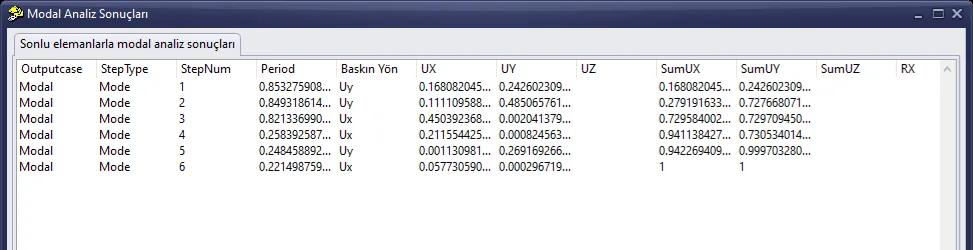
Figure 21 – Modal Analysis Results: mass participation ratios
12.3 Different R-D results
After the analysis, Calculate / Show in the Macros › Different R-D in upper/lower part window gives the exact values (Figure 22, 1): ν = 0.728 / 0.704, (R̄a)lower = 4.121 / 4.259, D̄lower = 1.929 / 2.018. The seismic internal forces of the lower part (storey 1) members are amplified by ν, and the shear capacity calculations are made with D̄lower.
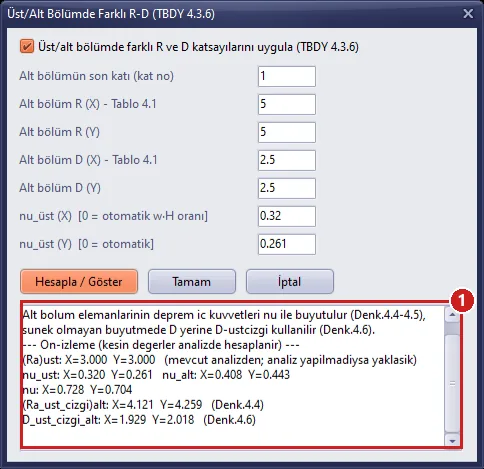
Figure 22 – Different R-D window, after the analysis: 1 ν, R̄a and D̄ values
12.4 Column reinforcement
The Tables › Column table lists the required and selected longitudinal reinforcement, the stirrups and the design combination of each column (Figure 23). The program selects the longitudinal reinforcement from the diameters that are enabled in the Column tab of the Tables › Reinforcement Selection window: diameters thinner than Ø14 are not used in columns (TBDY 7.3.2.1) and the clear spacing between the bars on one face must be at least max(1.5Ø; 40 mm) (TS 500 9.5.2); among the arrangements that satisfy these conditions, the one with the smallest area is selected. In the example, the required reinforcement in most of the 60/60 columns on storey 1 is 95–114 cm²; the program has selected 34–40 bars of Ø20 (107–126 cm², 3.0–3.5%).
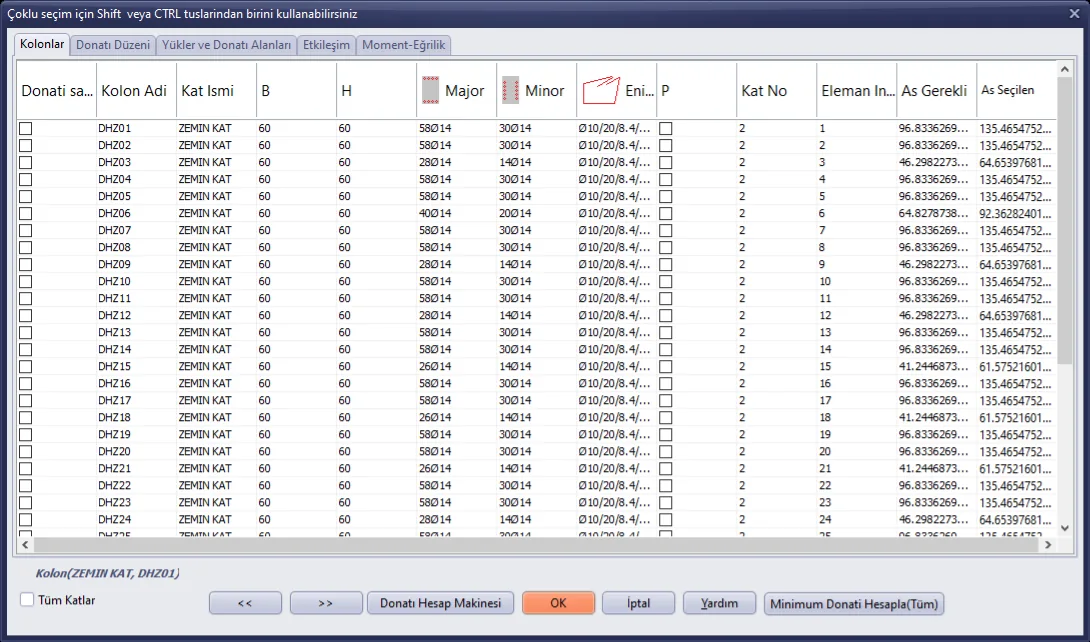
Figure 23 – Column reinforcement table
Results requiring engineering judgement:
- Storey 2, Y direction relative drift 0.0166 > 0.016: the message "Etkin göreli kat ötelemeleri sınırı aşılmaktadır" (the effective relative storey drift limit is exceeded) appears in the report. The book found 0.012–0.013 on the same storey; the difference comes from the roof diaphragm and frame idealization (see the verification studies). The column section needs to be enlarged, or a comparison with the semi-rigid roof solution is needed.
- Clear spacing of longitudinal reinforcement (TS 500 9.5.2): in the example file the column diameter list is Ø12–Ø20. At most about 88 cm² of reinforcement fits in a 60/60 section with Ø20; for columns that need more reinforcement none of the enabled diameters fits, the program uses the largest enabled diameter and gives the error message "TS500 9.5.2 … Donati kesite sigmiyor" (the reinforcement does not fit in the section) (Figure 35; in the example 33 columns on storey 1 and 24 on storey 2). To fix this, check Ø22–Ø32 in the Minor and Major rows of the Column tab of the Tables › Reinforcement Selection window, close with OK and repeat the analysis (Figure 23a), or enlarge the column section. In this example, when the large diameters are enabled, all of the clear spacing messages disappear; the program selects arrangements such as 28Ø22 (106.4 cm²), 24Ø24 (108.6 cm²), 18Ø28 (110.8 cm²) in the 60/60 columns. The seismic calculation and the relative drifts do not change.
- Lap splice: in columns whose reinforcement ratio exceeds 3%, if all bars are spliced by lapping in a single section, the ratio exceeds 6% (TBDY 7.3.2.2 error message; in the example 18 columns on storey 1 and 13 on storey 2). Stagger the splices, use mechanical couplers or enlarge the column section.
- DHZ34 and DHZ35: the required reinforcement reaches 4% of the gross section (TBDY 7.3.2.1 error message). If Ø32 is enabled, the bend length required for anchorage into the roof beam also exceeds the beam height (TBDY 7.3.3.2). The section of these two columns must be enlarged.

Figure 23a – Reinforcement Selection window, Column tab: 1 column longitudinal reinforcement rows (Ø12–Ø20 enabled in the example), 2 large diameters that can be enabled for the clear spacing (Ø22–Ø32)
Perform Earthquake Code Error Check in the Error Checks menu lists the wall checks specific to masonry buildings; in a precast building the column and drift checks are followed from the relevant pages of the report.
12.5 Interpretation of the comparison
- Period: In the book’s SAP2000 model the roof is semi-rigid and a single dominant mode gives a much more flexible frame behaviour. StatiCAD’s finite element model agrees with SAP2000 within 1% on the same model; the fact that β, θ and B2 come out smaller than in the book also stems from this difference.
- R = 3 and R = 4: the book calculated the equivalent load with the rounded coefficient of the lower part; StatiCAD applies TBDY 4.3.6 directly. When scaled, the storey force distribution is the same.
- What the program does not have: the tie beam force Nb (TBDY 16.8.5) and the check of a socket foundation are not in this edition.
13. Connection design (TBDY Chapter 8)
The Macros › Precast connection design (TBDY Chapter 8)... window has five tabs: Pinned (MFB), Wet on Top – Welded at Bottom (MAB3), Purlin / Gutter Beam Connections, Façade Panel (Chapter 6) and Foundation Sliding (Cl. 16.8.4). The input boxes come filled with the values of the book example; you can write your own values or take them from the analysis. Each Calculate creates a record that goes into the connection page of the report.
13.1 Pinned connection (MFB): taking the demands from the analysis
- Select the beam whose connection will be designed. Since there are many members in the plan, the most reliable way is the Layout › Find Object (Ctrl+F) window: type the member name (e.g.
HZ05), check Search on All Storeys if necessary and press Find and Select. - In the MFB tab, bring the end selector to the end seated on the column (Right end for HZ05) and press Take from selected beam (analysis result) (1): the connection mass, the beam weight, the vertical support load and the beam axial force are filled in; the details are written in the text area below (2).
- Press Calculate MFB.
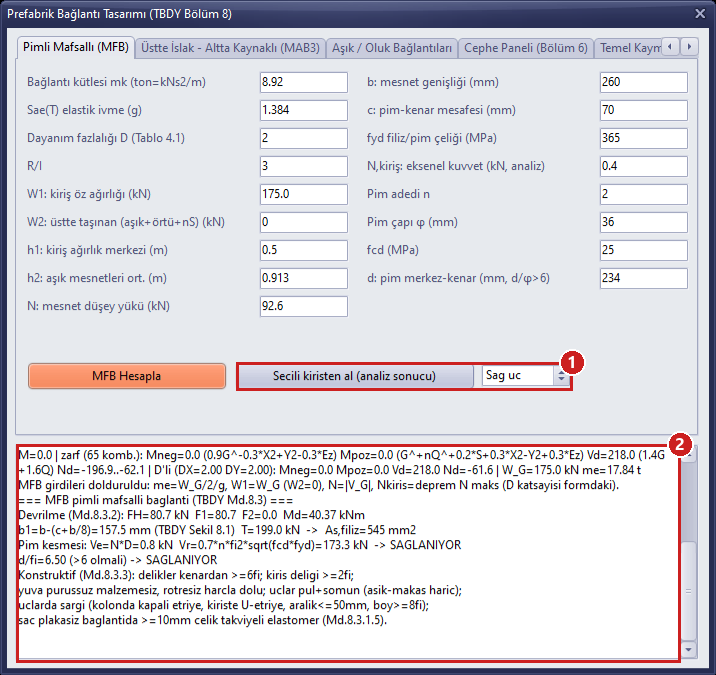
Figure 24 – MFB tab: 1 Take from selected beam + end selection, 2 demands taken from the analysis and calculation result
For HZ05 (right end): mk = 8.92 t, W1 = 175.0 kN, N = 92.6 kN, Nbeam = 0.4 kN. Overturning tension T = 199.0 kN → dowel As = 545 mm² (2Ø36 = 2036 mm² is sufficient); pin shear Ve = 0.8 kN ≤ Vr = 173.3 kN; d/φ = 6.5 > 6 → SAĞLANIYOR (SATISFIED).
Why Nbeam ≈ 0? In a fully rigid roof diaphragm, the seismic axial force of a pinned roof beam is close to zero (the inertia of the roof mass is carried by the diaphragm). For the pin shear, a meaningful Nbeam must be entered from the semi-rigid (Annex 8B braced) model or from hand calculation. Calculation with the book’s value Nbeam = 80 kN: Ve = 160 kN ≤ Vr = 173.3 kN (ratio 0.92).
13.2 Wet on top – welded at the bottom connection (MAB3)
When the mezzanine beam HB03 is selected and taken from the analysis for the Left end (grid line B), Md− = 1525.5 kNm. The program calculates the top continuity reinforcement (5104 mm²), the welded bottom reinforcement and plate, the horizontal shear dowels and the stirrups of the 2h region. If the Provided boxes are left at 0, the required values are used; here all checks are satisfied by entering a bottom reinforcement of 2600 mm² and 3 stirrup legs (Figure 25).
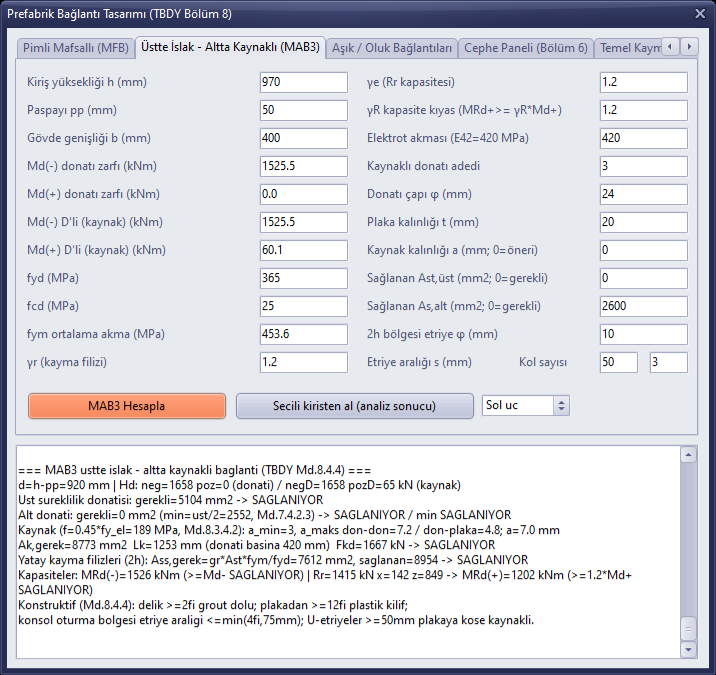
Figure 25 – MAB3 tab: moment envelope taken from the analysis and design result
13.3 Purlin/gutter beam, façade panel and foundation sliding
In these tabs, Calculate was run with the book values (Figures 26–28). For the purlin/gutter beam, pin shear friction, fillet weld and purlin buckling; for the façade panel, the TBDY Chapter 6 equivalent earthquake load (Fie = 102.4 kN, lower limit 41.1 kN); and for foundation sliding, Vth = 103 kN ≤ Rth = 107.5 kN are checked.
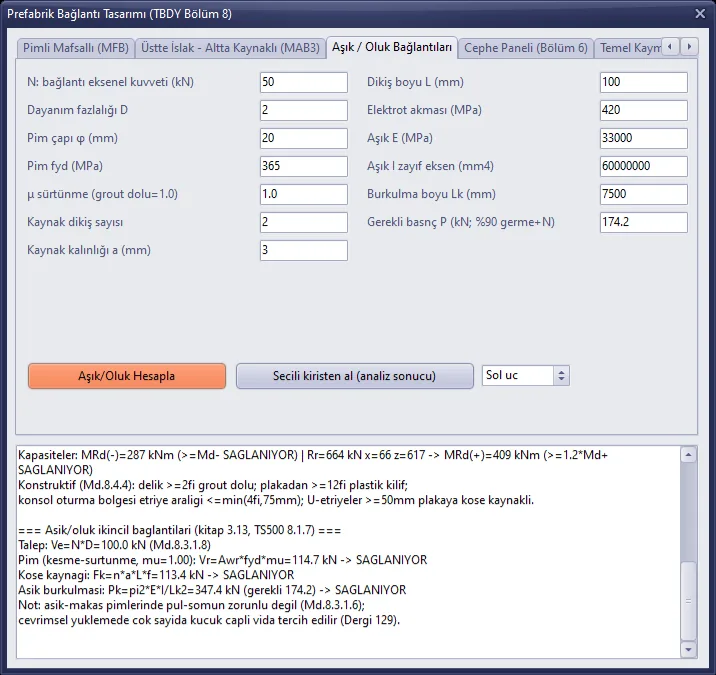
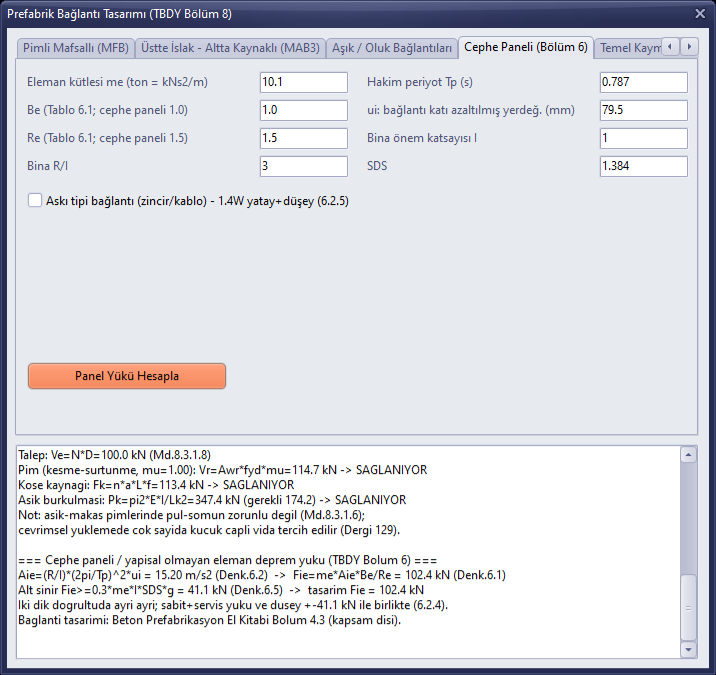
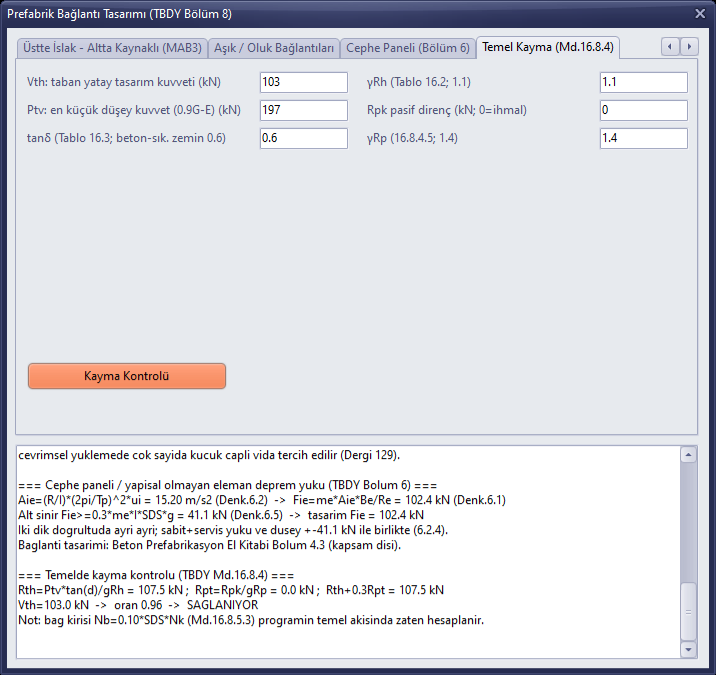
The input values of the window are not saved with the project; only the calculation records are stored. If recalculated with the same type and member name, the record is updated.
14. Report
- Save the project (Section 16): the report is prepared with the saved file information.
- Open the Report Selection window with the Rapor (Report) button on the top bar (Alt+R). Check the sections that will go into the report; when you open the Foundation Calculations node, Precast Connection Design (TBDY Chapter 8) appears as a sub-page (1). The page comes checked automatically if the project has a connection record.
- Press Generate All Selected Reports (2). When the report is ready, the Preview window opens (Figure 30).
- In the preview, export the report as PDF/Word with the PDF or Save icon on the toolbar; close with Close.
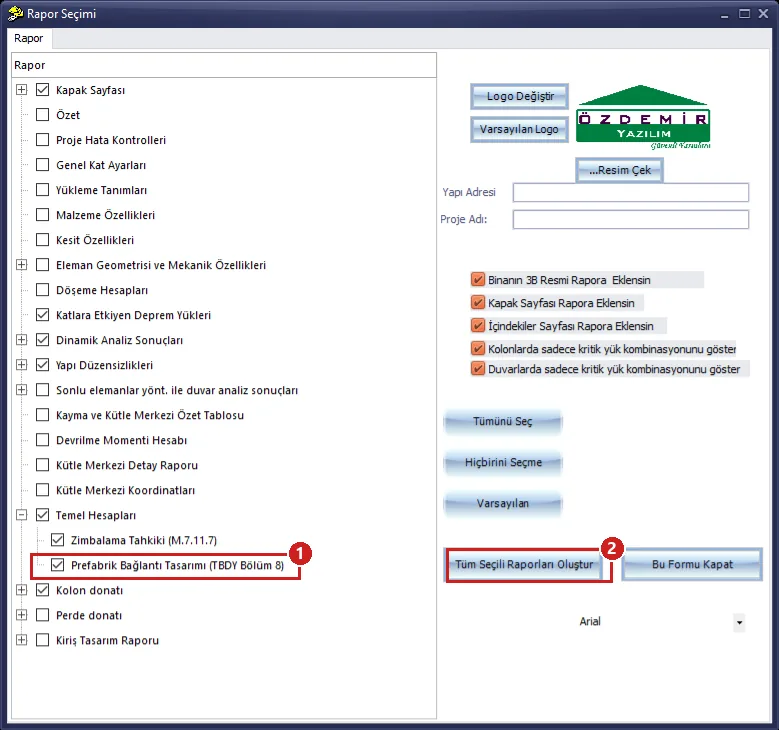
Figure 29 – Report Selection: 1 Precast Connection Design page, 2 Generate All Selected Reports
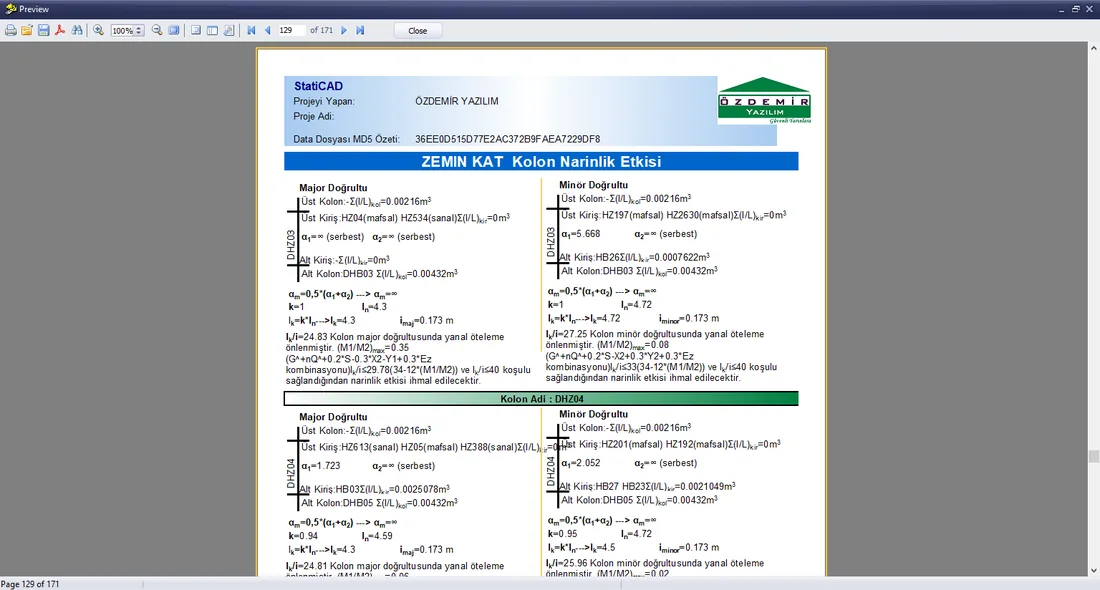
Figure 30 – Report preview (Preview): ground storey column slenderness page
In this example the Cover, Earthquake Loads Acting on the Storeys, Dynamic Analysis Results, Structural Irregularities, Foundation Calculations and Column reinforcement sections were selected, and a 171-page report was produced. Sample pages from the report are given below.
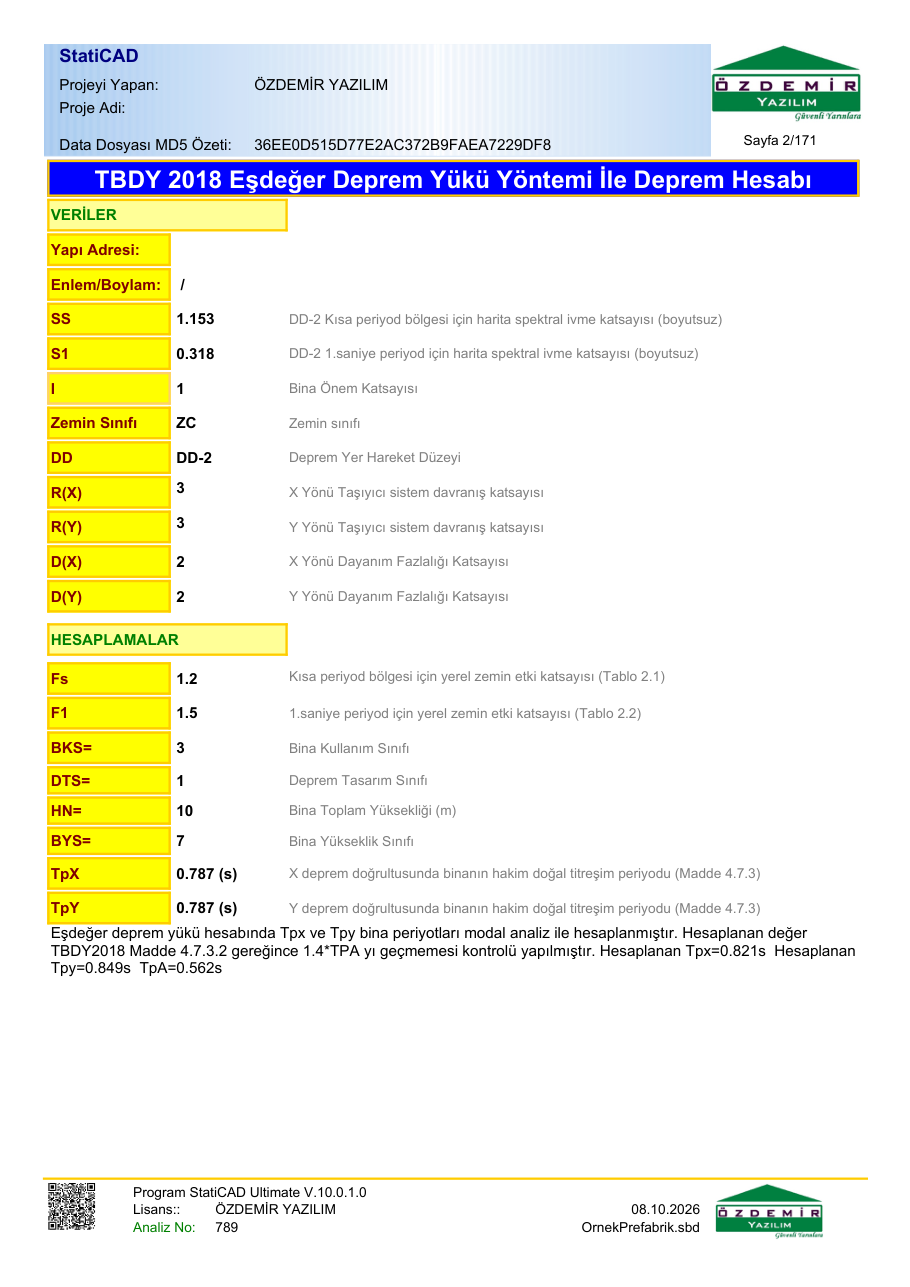
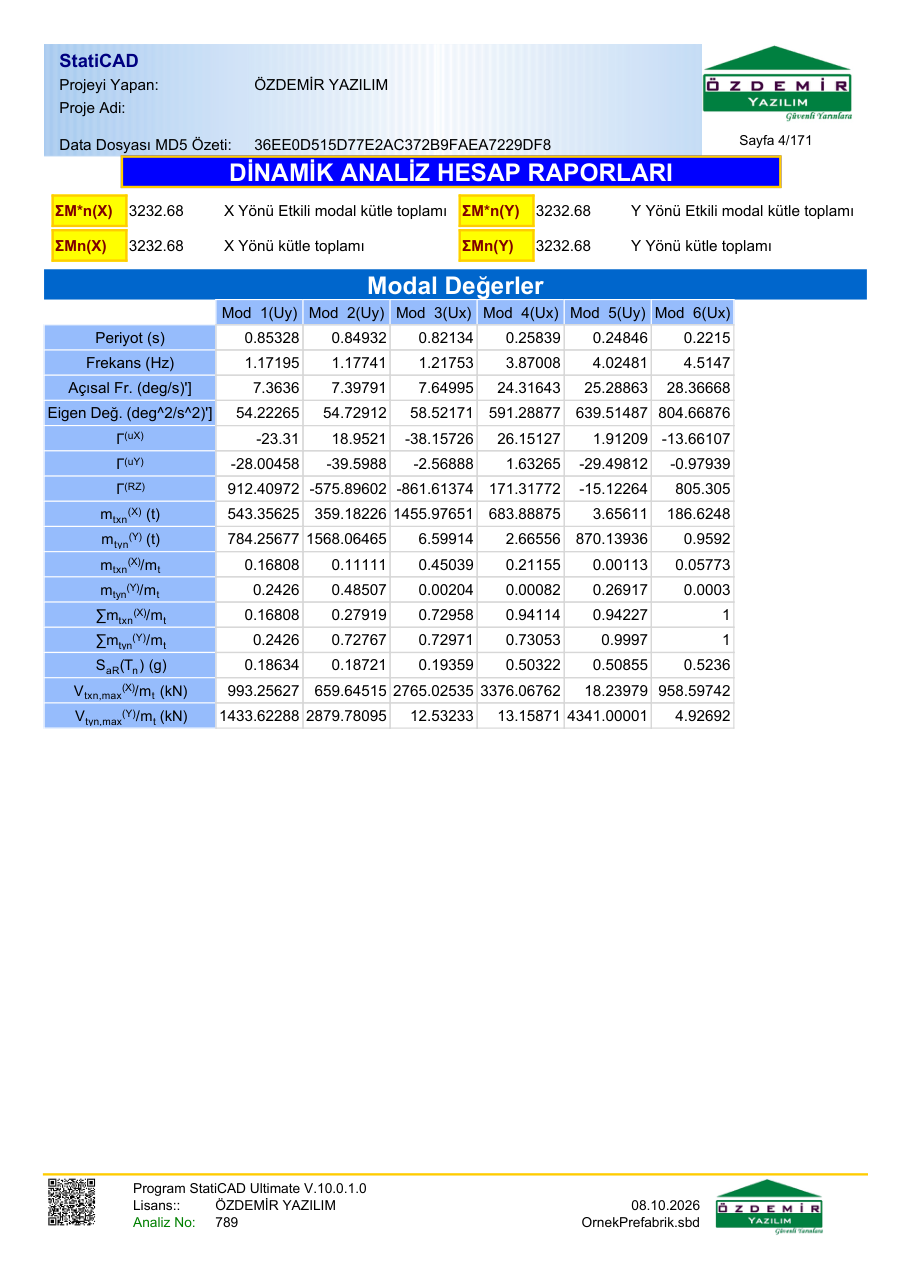
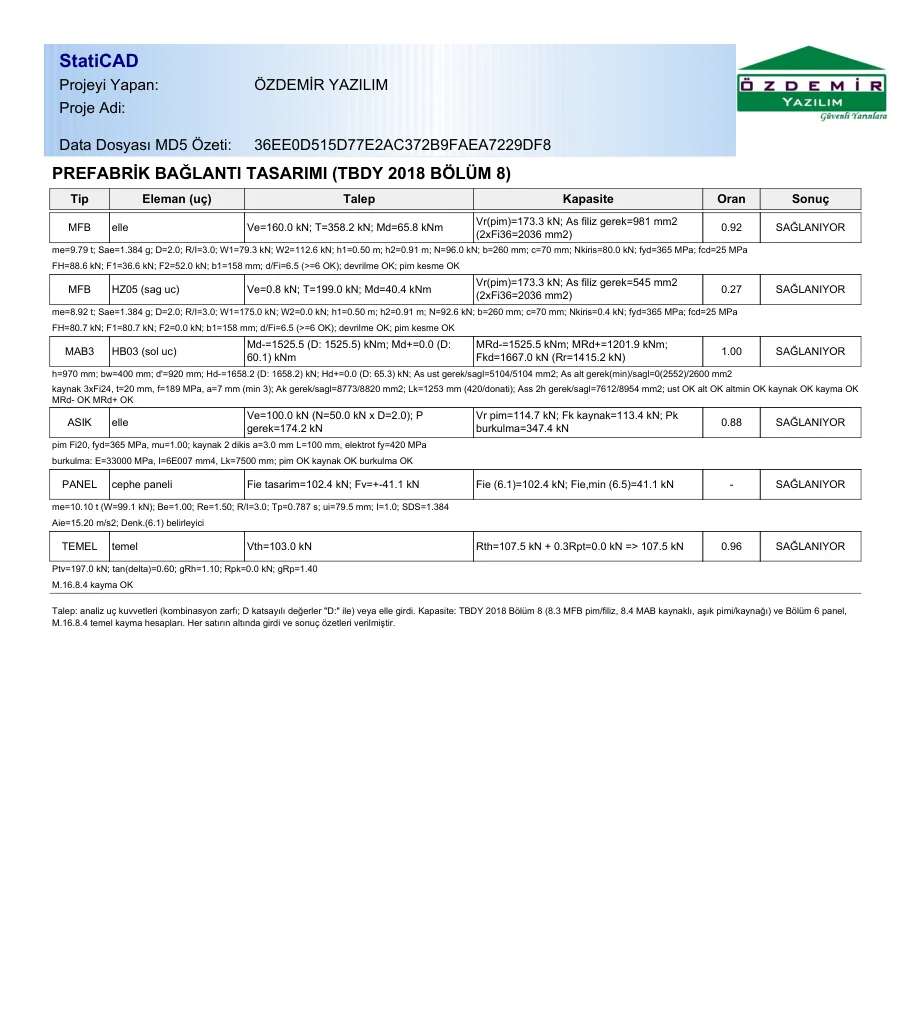
Figure 33 – Precast Connection Design (TBDY 2018 Chapter 8) page: type, member (end), demand, capacity, ratio and result for each record
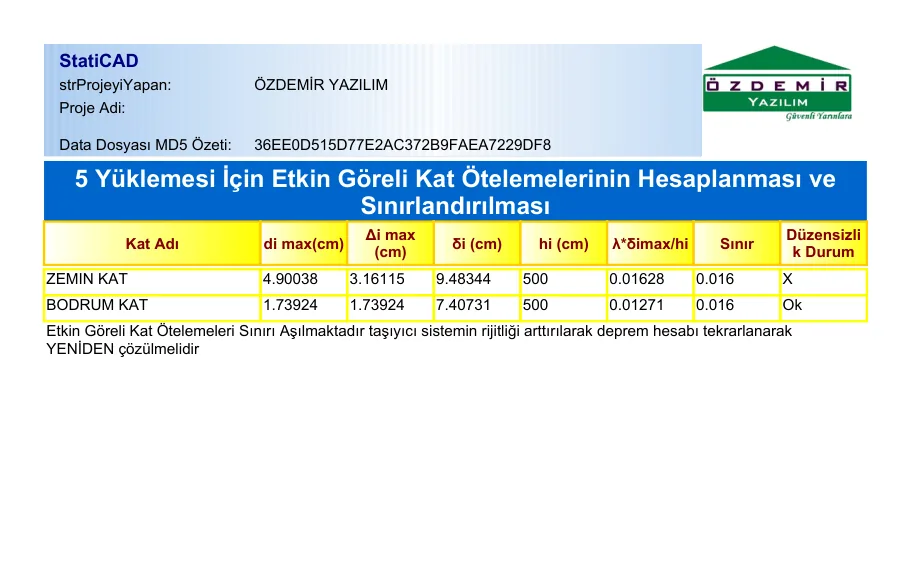
Figure 34 – Calculation and limitation of the effective relative storey drifts
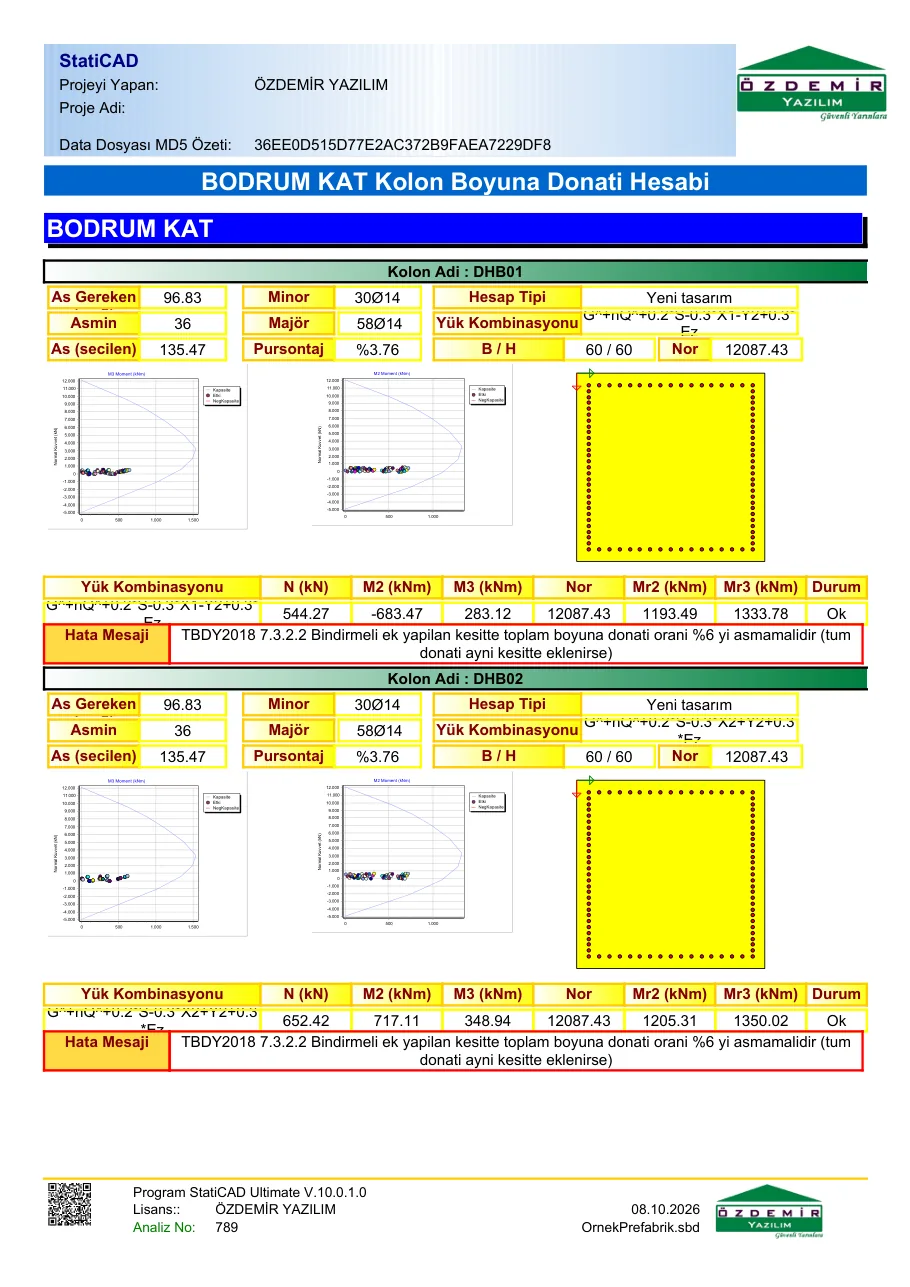
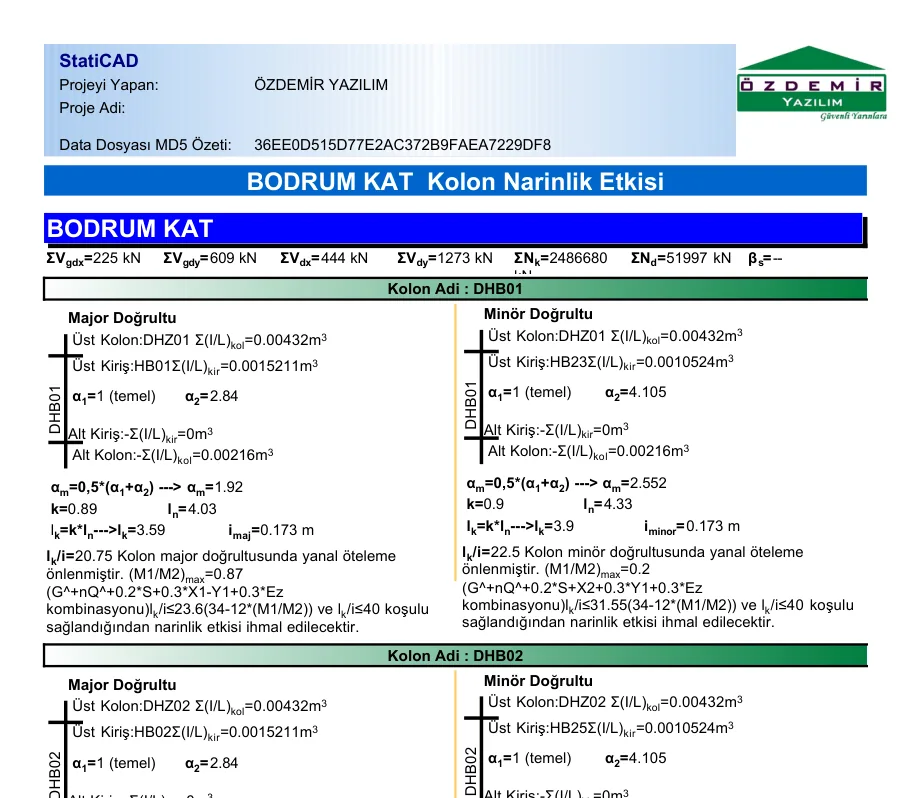
There is no separate report section for the different R-D intermediate values, the crane, Annex 8B and the additional masses; these values are read from the relevant windows.
15. Drawings (sheets)
The Çizim (Drawing) button on the top bar (Alt+C) opens the Drawing Selection window. In the Reinforced Concrete Drawing tab, select the sheet types (1) and the storeys to be drawn (2) and press Draw Project with Developments (3). The analysis must have been performed for drawing. The sheets open in the StatiCAD-TechnicDraw editor (window title StatiCAD-CivilDraw) (Figure 38); from there they are saved as DWG/DXF and printed. In this example the drawing took about 10 minutes.
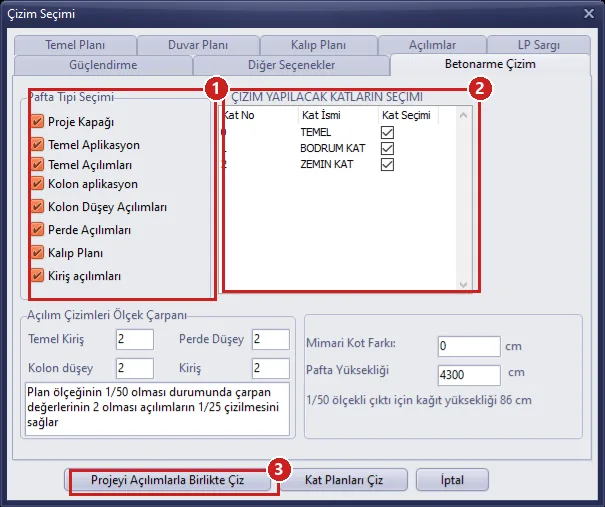
Figure 37 – Drawing Selection: 1 sheet types, 2 storeys, 3 Draw Project with Developments
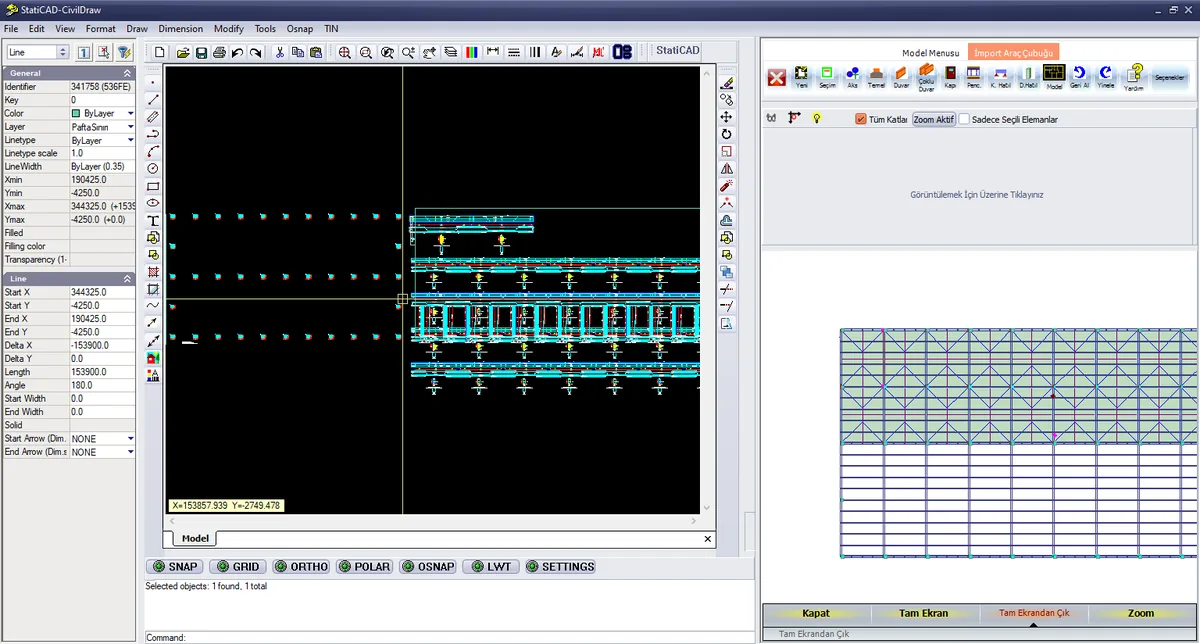
Figure 38 – StatiCAD-TechnicDraw drawing editor: column setting-out plan and beam developments
The images below are taken from sheets saved as DXF from the editor.
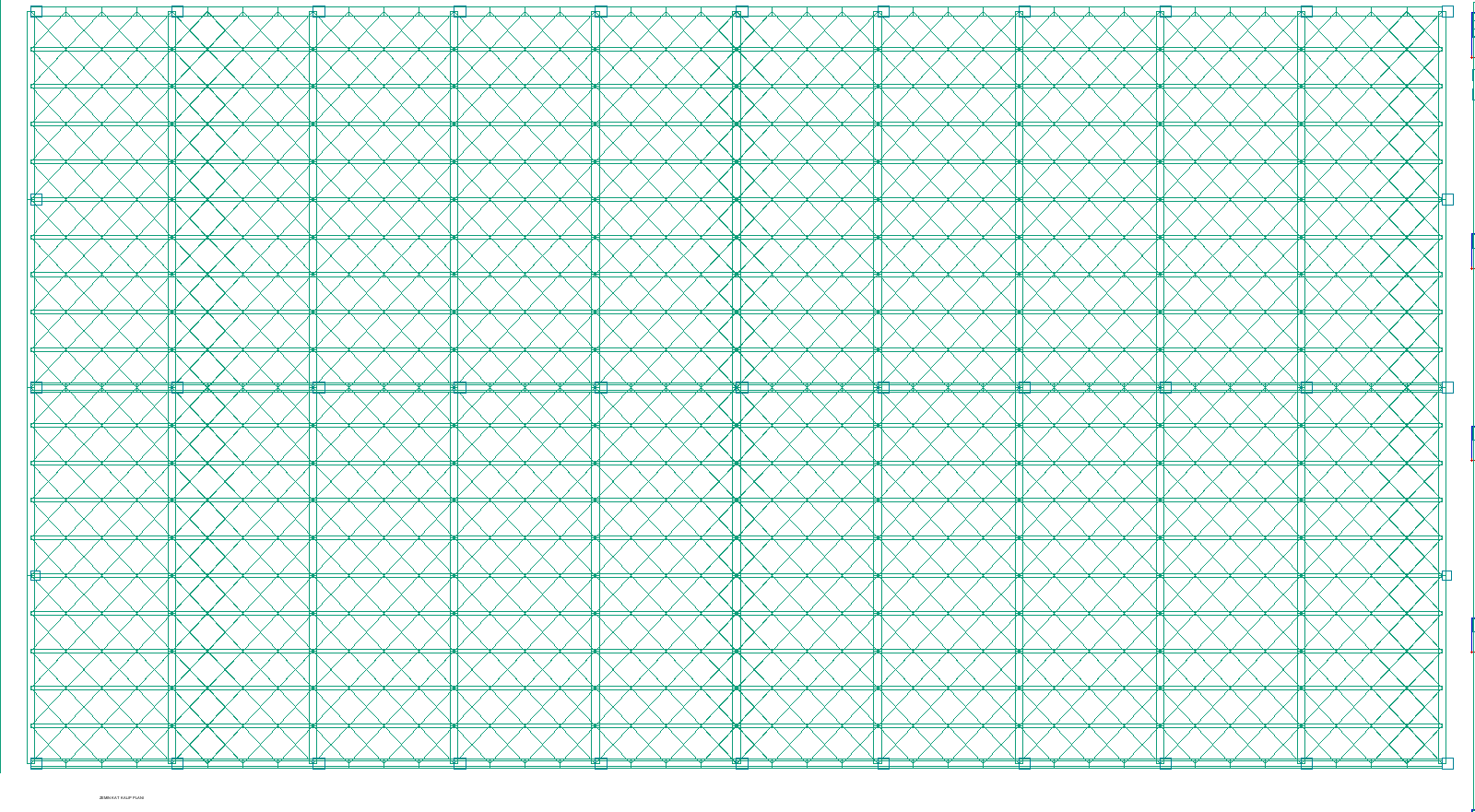
Figure 39 – Roof (storey 2) formwork plan: roof beams, gutter beams, purlins and TBDY Annex 8B equivalent braces
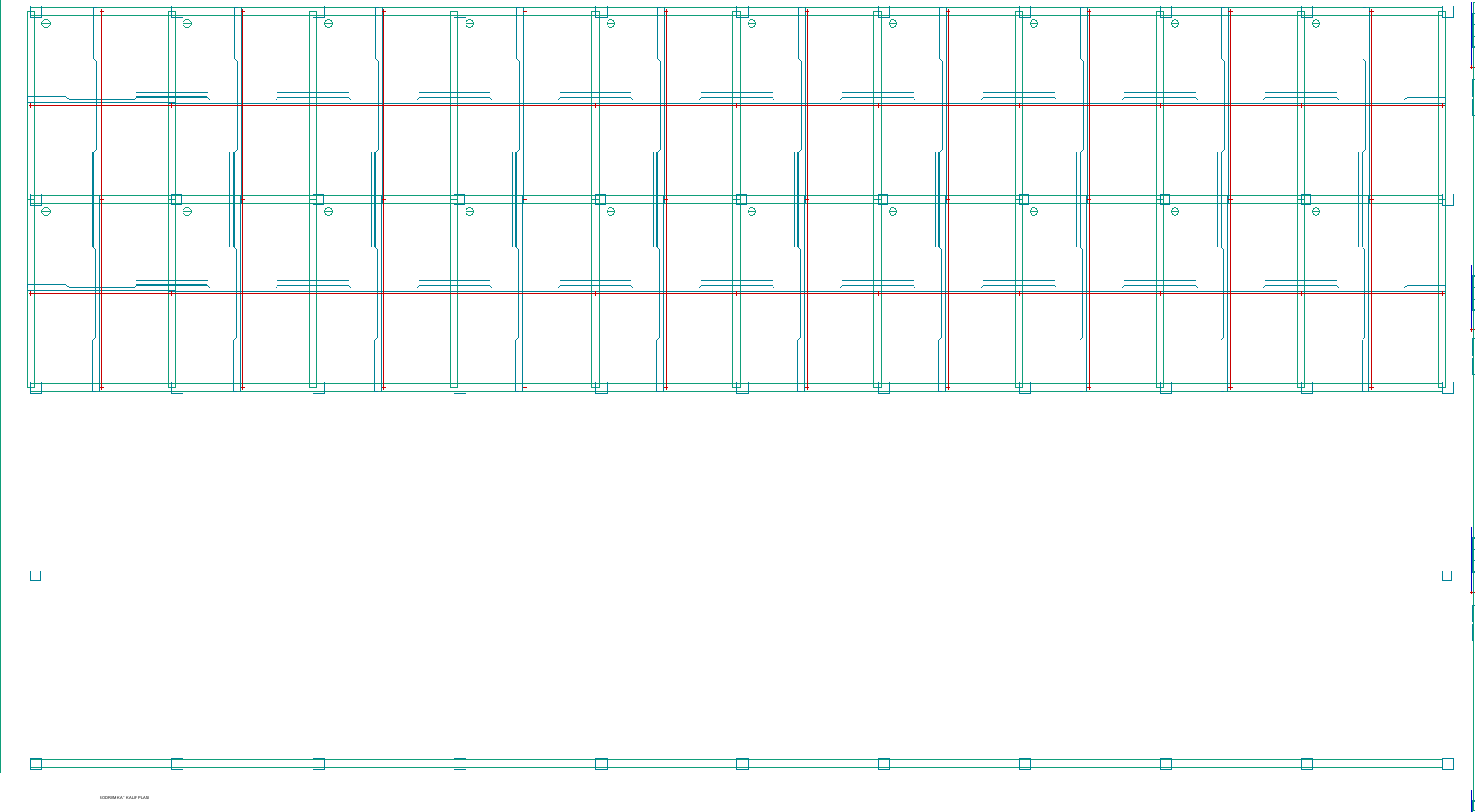
Figure 40 – Mezzanine (storey 1) formwork plan and mezzanine beam developments
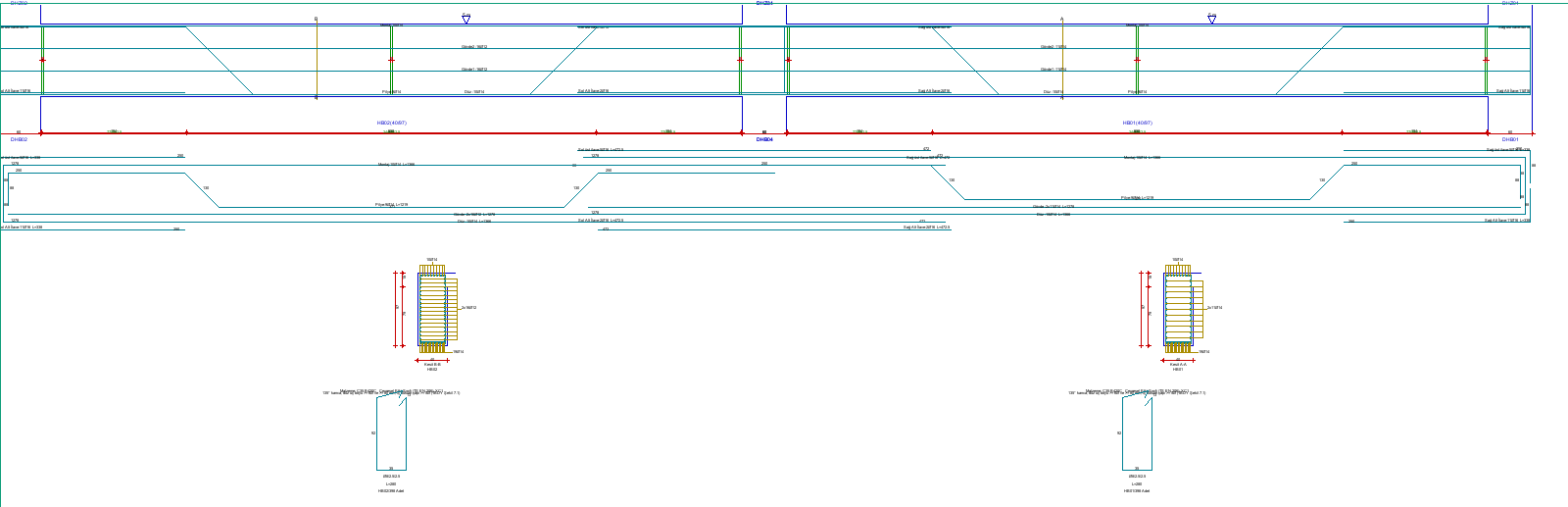
Figure 41 – Mezzanine beam development: longitudinal reinforcement, bent-up bar and stirrup arrangement, cross-sections
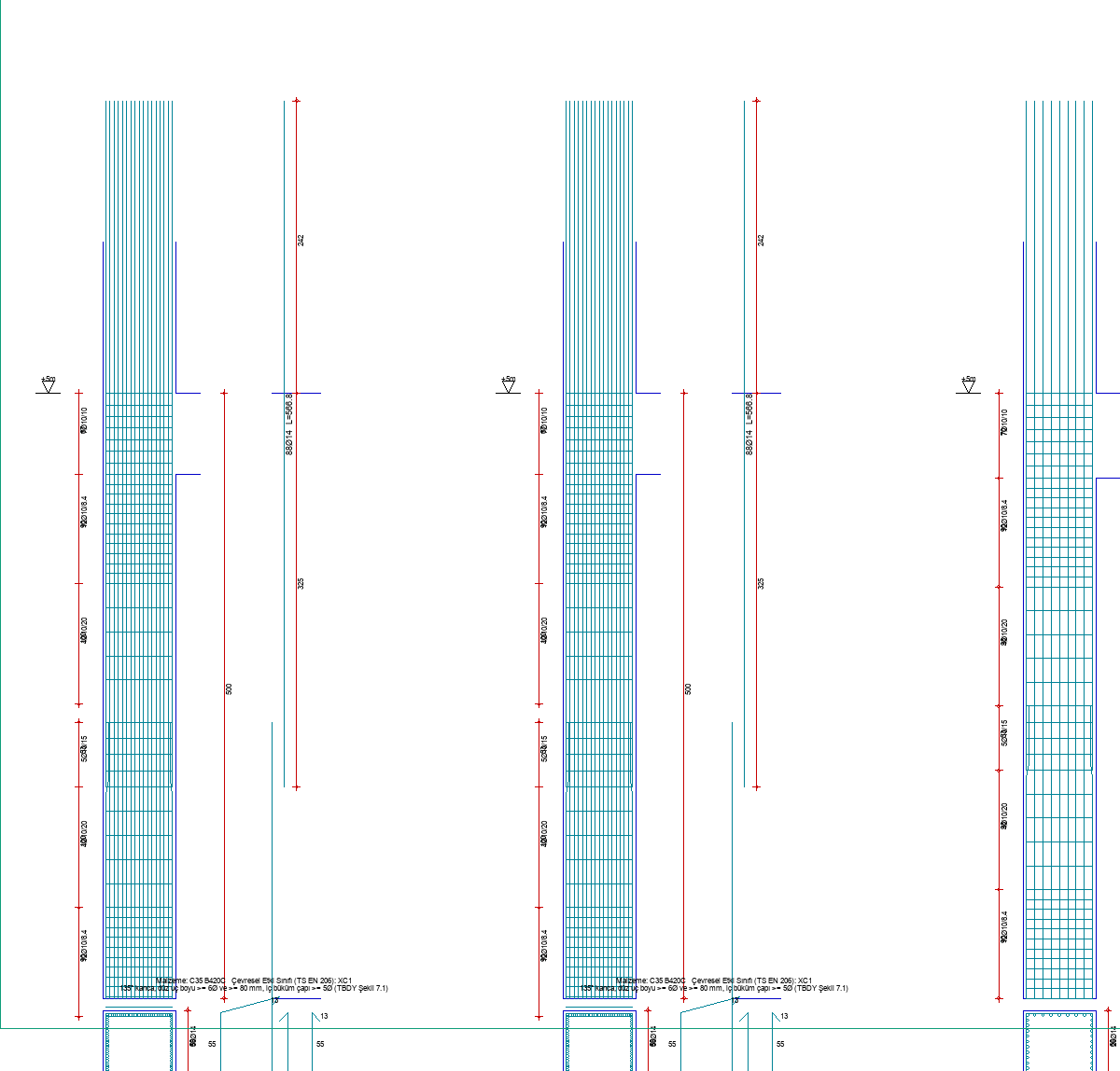
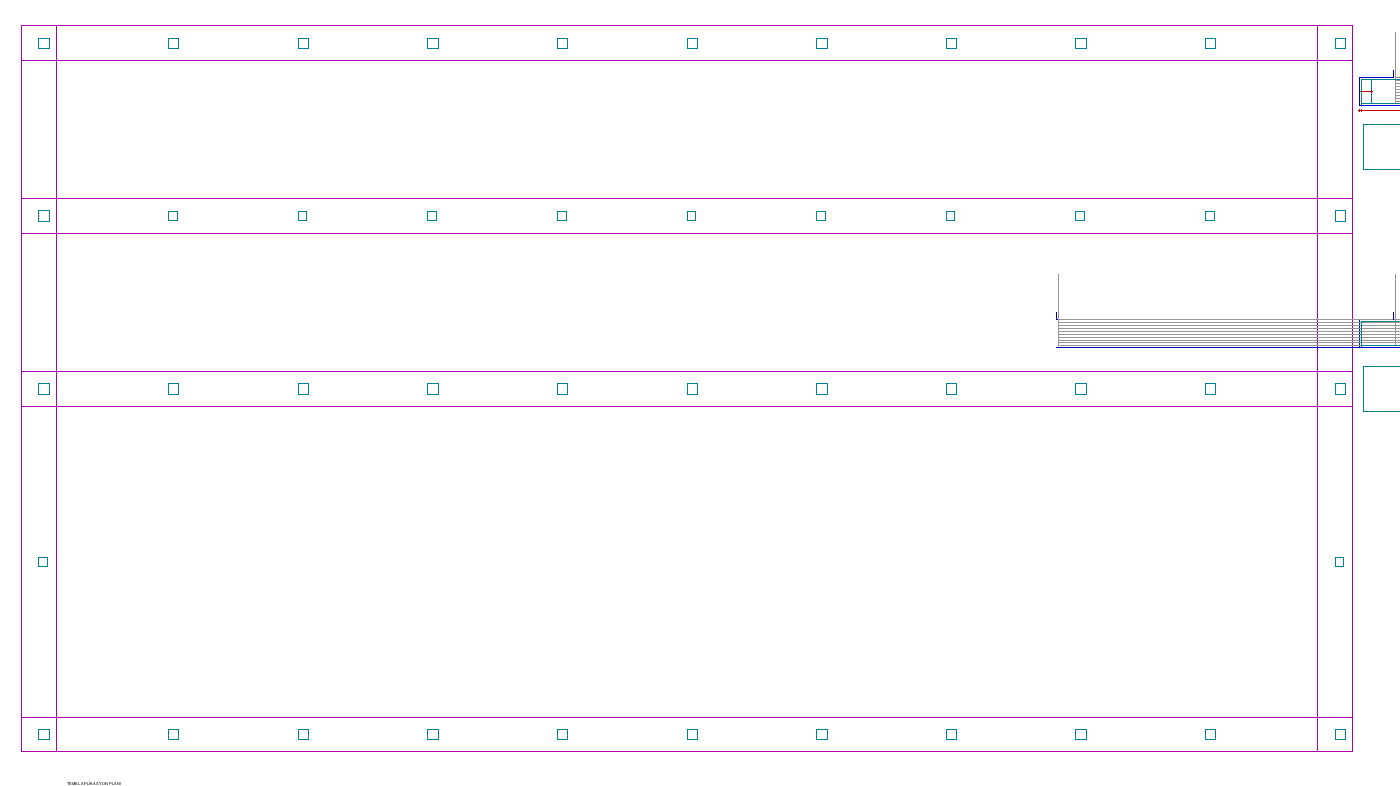
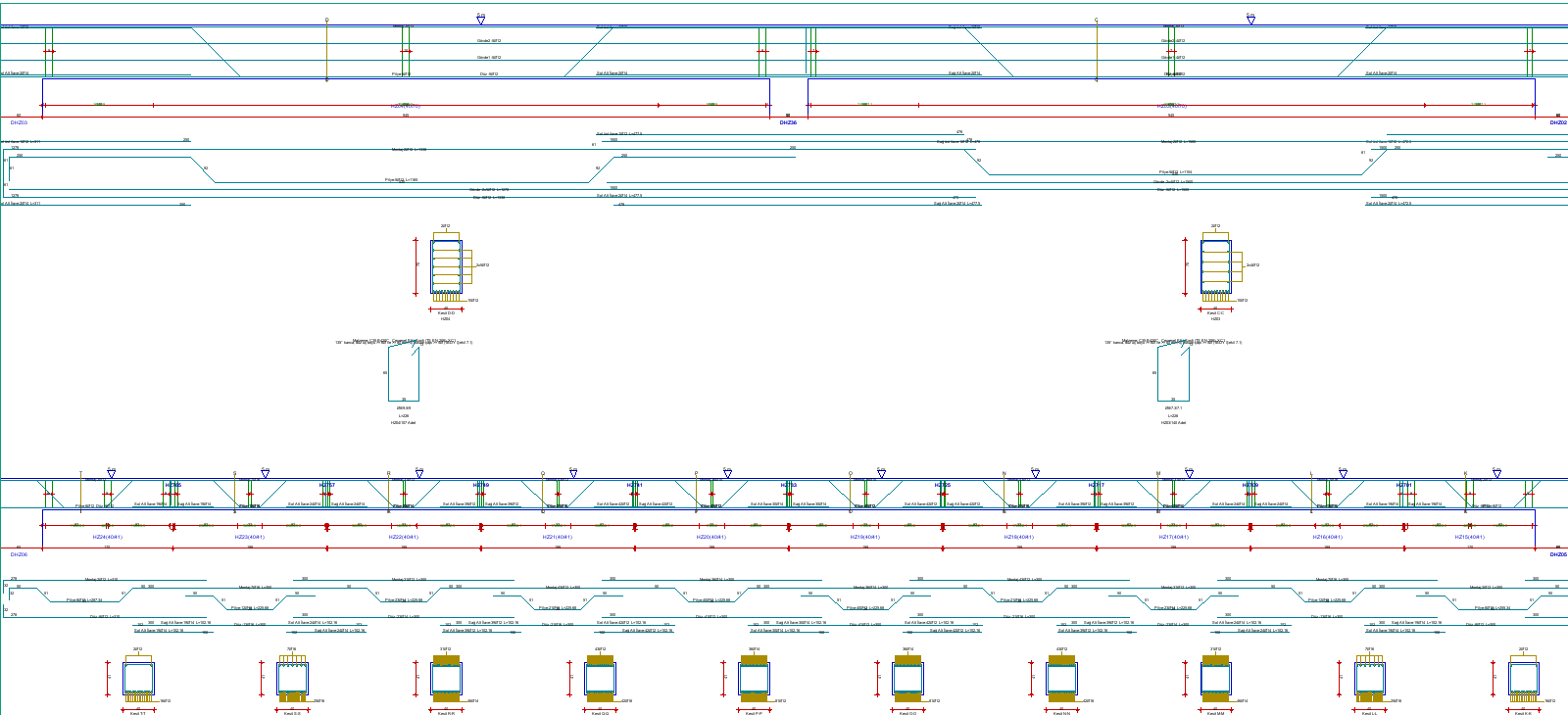
Figure 44 – Roof storey beam developments
The “Malzeme” (Material) text on the sheets is taken from the Material Name column of the Project General Settings › Material tab; the concrete and reinforcement classes used in the calculation are the Concrete Class Strength and Reinforcement Class columns next to it. Check that the two are consistent (Figure 9).
In the development drawings of beams with polygon and precast sections, the actual section outline and the reinforcement points are drawn instead of a rectangle; the station sections of the nonprismatic section and the development with a sloped top edge are not drawn.
16. Saving
Save the project before obtaining the report and before closing the program: File › Save As (Ctrl+Alt+S). Type the full path in the file name box (for example C:\Projeler\OrnekPrefabrik.sbd) and press Save. The program also writes a .sy4 text copy next to the .sbd file. Verify that the new path appears in the title bar and the text Data Kaydedildi (Data Saved) in the tip line.
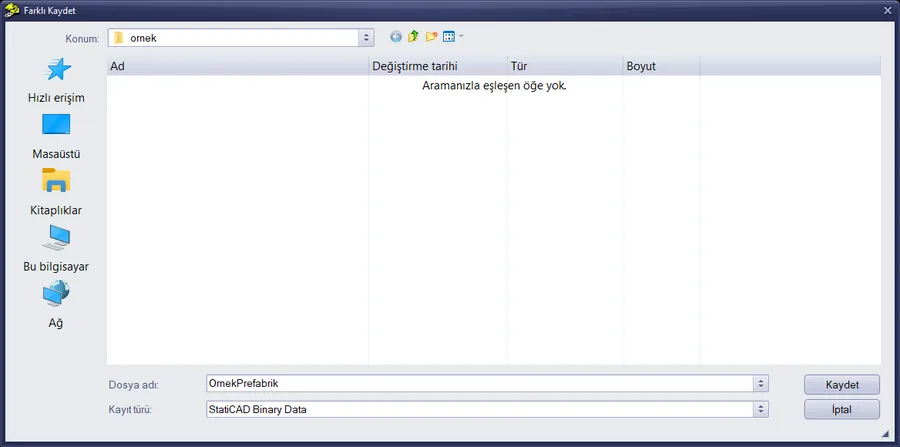
Figure 45 – Save As window (StatiCAD Binary Data, .sbd)
| Saved precast data | Note |
|---|---|
| Hinges, additional seismic masses, nonprismatic section definitions, precast template parameters | In the project structure |
| Different R-D setting | File version 9281 and later |
| Connection calculation records, column-based drift and other diaphragm options | File version 10003 and later |
| Crane definition (window inputs, rail and mass columns, the pre-crane masses of the nodes to which the bridge mass was written) and the crane loadings | File version 10017 and later |
The example file was saved with an old version (9281); when opened, the new options come with their default (off) values. In your own save these options are preserved. The input values in the connection and Annex 8B windows are not saved; only the connection calculation records are stored.
17. Checklist, limitations and common situations
17.1 Checklist
- Project General Settings: building type (Precast Reinforced Concrete or Reinforced Concrete Building), ductility level, DD-2 SS/S1, soil class, R and D coefficients of the upper part, γE, material.
- Sections: precast/nonprismatic sections saved and assigned to the beams; if an equivalent section is used, mass equivalence ensured.
- Pinned connections: M2+M3 released at the ends of roof beams, gutter beams, purlins and crane girders; no hinges in the intermediate pieces.
- Roof diaphragm: Annex 8B braces generated and connected to the nodes with Split selected intersecting beams on all storeys; in the semi-rigid solution Semi-rigid diaphragm and column-based drift are selected; the rigid diaphragm solution was also run as the design reference.
- Additional masses: the panel masses were entered as Additional Seismic Mass; the crane bridge mass was entered only once, either by hand or with the Write bridge mass option of the crane window.
- Crane loads: Use Reinforced Concrete–Masonry Load Combinations is selected in Project General Settings; the rail and mass columns were assigned and Apply crane loadings was pressed; if the crane girder is not in the model as a beam, the corbel point loads of the girder + rail self-weight were entered into the G loading.
- Different R-D: the last storey of the lower part, R and D were entered; after the analysis the ν and D̄ values were checked.
- Analysis: the warning list was reviewed; modal mass participations, base shear and relative drifts were checked.
- Column reinforcement: the Tables › Column table and the error messages in the report were reviewed; if there is a TS 500 9.5.2 clear spacing message, the Reinforcement Selection › Column diameter list was expanded or the section was enlarged.
- Connections: Take from selected beam + Calculate was done for each connection type; the record list was formed.
- The project was saved; the report was obtained together with the Precast Connection Design page.
17.2 Limitations of this edition
- Crane loads: modeled with a single crane position (all the rail columns loaded at the same time); there is no position scan and no multiple cranes. The crane loadings do not enter the beam deflection check or the slab shell internal forces (Section 9). The crane loads are solved only with the predefined loadings and combinations: they do not enter the analysis if Use Timber Structure Load Combinations is selected in Project General Settings; no crane combinations are generated with the risky building (RBTE) load combinations. Both cases are reported in the analysis warning list.
- Report: there is no separate report section for the different R-D intermediate values (ν, R̄a, D̄), the crane, Annex 8B and the additional masses; the values are read from the relevant windows.
- Nonprismatic section is taken into account only in beams; the column headings in the section table are in English.
- Semi-rigid roof: the shear stiffness of a roof with Annex 8B braces is not calibrated to the diaphragm behaviour in the book; it is recommended that you also run the rigid diaphragm solution as the design reference (see the verification studies).
- The short corbel and the crane corbel are defined in the Corbel tab of the column properties window, and the demand is taken from the analysis (see Short Corbel Design); checks of the socket foundation and erection stage are not in this edition.
- The precast windows (Annex 8B, different R-D, connection) are in Turkish only; Turkish characters are not used in the result texts. The overhead travelling crane (crane) window follows the program language (Turkish/English).
17.3 Common situations
| Situation | Reason / solution |
|---|---|
| There are no precast commands in the Macros menu. | The precast tools are enabled only in the Ultimate edition. |
| Clicking the Main Screen icon opens the 3D window or nothing happens. | It was clicked while the project was still loading; click the centre of the icon again when loading has finished. |
| The OK button of Project General Settings is not visible. | The window does not fit on the screen; drag it upward by its title bar. |
| νupper = 1 in the different R-D preview before the analysis. | The storey weights are calculated in the analysis; read the values after the analysis or enter νupper manually. |
| The "Take from selected beam" boxes are not filled in. | The analysis has not been run or a single beam is not selected in the plan. |
| The pin shear demand is zero in MFB. | In a rigid roof diaphragm the seismic axial force of a pinned roof beam is zero; enter Nbeam from the semi-rigid (Annex 8B) model or from hand calculation. |
| "TS500 9.5.2 … Donati kesite sigmiyor" error in columns. | With the enabled diameters the required reinforcement does not fit in the section with the clear spacing; enable large diameters in the Tables › Reinforcement Selection › Column tab and repeat the analysis, or enlarge the section (Section 12.4). |
| There is no connection page in the report. | There is no connection record, the page is not checked in Report Selection, or the project has not been saved. |
| The joint seated on a column cannot be selected with a right click. | If the additional mass point coincides with the column, the right click catches the column; define the joint at a point that does not coincide with the column, or enter it as a storey additional mass. The nodes created by the crane window, however, must remain on the column axis; do not move them, change the crane loads and mass in the crane window and rewrite them with Apply crane loadings. |
| The line "Projede gezer vinç (kren) yüklemeleri tanımlı ancak analize katılmadı" (overhead travelling crane loadings are defined in the project but did not take part in the analysis) is in the analysis warning list, or Apply crane loadings is disabled in the crane window. | The crane loads are solved only with the predefined loadings and combinations (Use Reinforced Concrete–Masonry Load Combinations in Project General Settings) and in the Ultimate edition. If Use Timber Structure Load Combinations is selected, select Use Reinforced Concrete–Masonry Load Combinations and repeat the analysis; if the crane has not been applied before, apply it first from the crane window. |
| The total seismic mass is more than expected (in the example the additional mass total is 601.3 t instead of 584.4 t). | The bridge mass has been written both by hand (Additional Seismic Mass) and with the crane window. Uncheck Write bridge mass in the crane window and press Apply crane loadings again, or remove the mass entered by hand (Section 9). |
17.4 Related articles
- Modeling Precast Structures: sections, pinned connections, roof diaphragm and analysis options.
- Overhead Crane Loads, Additional Seismic Masses and Different R–D: additional masses, crane loads and TBDY 4.3.6.
- Precast Connection Design: TBDY Chapter 8 connection calculations and the report page.
- Short Corbel Design: TS 500 Clause 8.4 short corbel calculation and the KONSOL rows in the report.
- Precast Structures Verification Studies: numerical examples of the book and SAP2000 comparisons.