File Save/Open Problems
1-To open an existing file in the program, you must first launch the program and then use the Open File command from within it to open your existing project. If your program does not open, make sure the dongle is plugged in and check the installation steps at kurulum. If you have not installed it yet, install the lock files.
2- If you are getting a "provider not found" error in the 64-bit version of the program, apply step 3 at Installing the 64-Bit Version.
3- If you cannot reopen a file you have saved, or if it opens with missing data, you can follow the steps below.
When StatiCAD saves a file, it creates a total of 3 files. The main file has the extension sy3, and the backup files have the extension sy4 or syg. Additionally, while you are modeling in the program, every significant operation step is saved as a backup data file with the sy4 extension in the C:\StatiCAD\ [program version]\gerial folder (for undo/redo operations).
a) To open a file with the *.sy4 extension, you can try to recover the data by changing the file type to "backup data file" in the Open File dialog box and opening the file with the same name. A file with the sy4 extension saves and opens the entire project completely, just like a file with the sy3 extension.
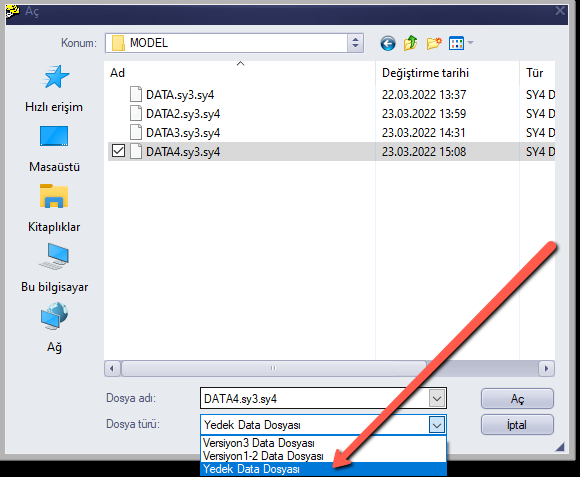
b) Another way to recover data from a backup is to open it as a version 1-2 data file. Change the extension of the last saved *.syg file to syp. Then, in the Open File dialog box, change the file type to "version 1-2 data file" to open the file with the syp extension. Note that TBDY2018 parameters and some program settings are not saved or read in syg and syp files. Therefore, after the file is opened, object properties and general project settings must be checked and any necessary changes must be made.
c) If the corrupted project is the last project you worked on, the "Recover Last Project" option under the File menu on the main screen will automatically restore your last project. If there are errors or error messages in the opened file, after using the Recover Last Project command, you can press the Undo button multiple times to go back to previous operation steps of the project (or use Redo to go to later steps) and save the project with a different name at an appropriate step.
d) If the corrupted project is not the last project, but you know the time when you were working on it on the computer where the modeling was done, the backup files saved by the program are located in the C:\StatiCAD\+[program version type]+\Gerial folder.
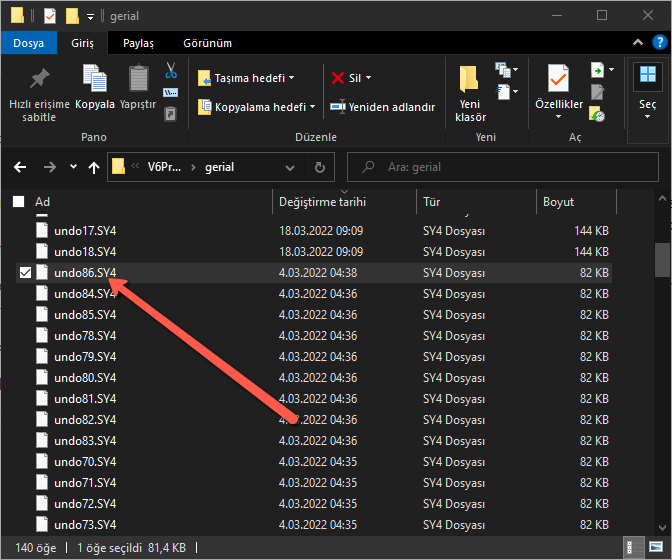
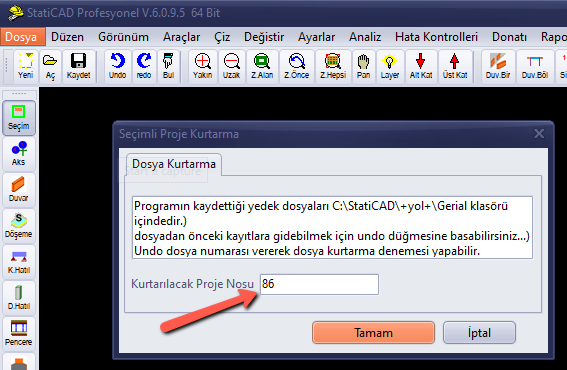
In the relevant folder, you can recover your project by using the "Recover Project by File Number" option in the File menu, entering the file number corresponding to the last time you worked on the project. If necessary, you can use the undo/redo commands to reach the state of your project at different points in time.
e) Alternatively, from the Open File dialog box, change the file type to "backup data file", navigate to the gerial folder inside the folder of the version you were working with under C:\StatiCAD, and try to open the file that matches the date and time.
