StatiCAD with Claude Code
1. About this article
Claude Code is Anthropic's AI agent that runs on your computer. It is used from the Code tab of the Claude desktop app. It can read files, run PowerShell commands and send commands to StatiCAD through the terminal channel; when needed, it sees the screen and uses the mouse and keyboard (computer use).
With StatiCAD it can: set up a new project or open an existing one, draw elements, enter the code and earthquake parameters, run the analysis, read the warnings and results and summarize them for you in your own language, produce reports and drawings, and save the project. The difference from the built-in assistant is that it can carry out long, multi-step jobs from start to finish and reads the help files itself.
Which StatiCAD edition? The terminal channel is available in the Ultimate and Hybrid editions. In the Profesyonel, Standart, Betonarme and Yığma editions, Claude Code can use the program only through the screen; in that case, follow this article and then go on to the computer use article.
2. Requirements
| Requirement | Description |
|---|---|
| Computer | Windows 10 (version 1809 or later) or Windows 11, 64-bit; at least 4 GB of memory; internet connection. |
| Claude subscription | Pro or Max. The Code tab does not open with a free account. |
| Git for Windows | The free tool that Claude Code uses to run commands on Windows (Step 3). |
| StatiCAD | Ultimate or Hybrid for the terminal; hardware key (dongle) plugged in. |
3. Step 1 — Claude account and subscription
- Open claude.ai in your browser. Open an account with Continue with Google or with your email address; verify it with the link sent to your email.
- Click your profile name at the bottom left › Settings › Billing, or click the Upgrade button directly.
- Choose the Pro plan (monthly or annual), enter your card details and confirm.
Which plan? Pro (about USD 20 per month, ~USD 17 per month with annual billing) is enough to start with. Pro has a usage limit that resets every few hours; if you work for long hours every day, Max (USD 100 or 200 per month) is more comfortable. Current prices: claude.com/pricing. Claude Code does not need separate API credit.
4. Step 2 — Install the Claude desktop app
- On the claude.com/download page, download the installer with Download for Windows. (There is also an ARM64 version for computers with ARM processors; if you are not sure, download the normal version.)
- Run the downloaded installer. When the installation is finished, Claude opens.
- Sign in with the account from Step 1.
5. Step 3 — Install Git for Windows
- Download the 64-bit installer from the git-scm.com/download/win page.
- Run the installer and press Next with the default options on every screen; at the end, Install and Finish.
- Close the Claude app and open it again.
If Git is missing when you open the Code tab for the first time, the app warns you; if you see the warning, do this step and restart the app.
6. Step 4 — Prepare a working folder
Create a separate folder so that the notes Claude writes, the helper scripts and the files it prepares for you are collected in one place:
- Open the
C:\StatiCADfolder in File Explorer. - Right-click an empty area › New › Folder; name it
AI_Projeler.
Why not the program folder? Working in the program folder (e.g. C:\StatiCAD\Ultimatex64) is also possible; the CLAUDE.md file in the Ultimate folder makes Claude read AGENTS.md automatically. However, a separate folder prevents the agent from leaving files among the program files. The prompt below already tells it to read AGENTS.md from the program folder.
7. Step 5 — Open StatiCAD with the terminal channel
For Claude to be able to send commands to StatiCAD, the program must be opened with the --term parameter. There are two ways:
Way A — Set up the desktop shortcut once (recommended)
- Right-click the StatiCAD Ultimate (or Hybrid) shortcut on the desktop › Properties.
- Click at the very end of the Target box, leave a space and type
--term. The box should look like this:"C:\StatiCAD\Ultimatex64\StatiCAD.exe" --term(for Hybrid,C:\StatiCAD\Hybrid\StatiCAD.exe). - Press OK. From now on, open the program with this shortcut; it makes no difference to your normal use.
Way B — Let Claude open the program
If the program is closed, Claude starts StatiCAD with --term itself, following the instruction in AGENTS.md (it asks for your permission). Start-up takes 10–40 seconds.
Caution:
- The hardware key (dongle) must be plugged in. If the “Kilit Bulunamadı” (Lock Not Found) warning appears, plug in the hardware key and restart the program.
- If the program is open without
--term, there is no terminal channel: save the project, close the program and open it again with the shortcut. - Do not start a second StatiCAD while the program is open; the hardware key session breaks.
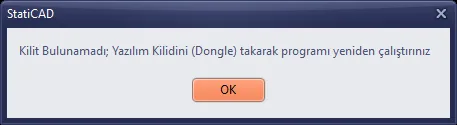
Figure 1 – The warning shown when the hardware key is not plugged in (OK closes the program)
8. Step 6 — Start a session in the Code tab
- In the Claude app, click the Code tab at the top centre.
- Choose
C:\StatiCAD\AI_Projeleras the working folder. - Write your first prompt in the message box at the bottom (Step 7).
If the Code tab asks you to upgrade: Your account is on the free plan; switch to Pro as in Step 1.
9. Step 7 — The first prompt
Type the following in the message box, or copy and paste it:
Read the AGENTS.md and YARDIM_AI_KOMUTLAR.md files in the C:\StatiCAD\Ultimatex64 folder. I want you to create my projects by using the program (StatiCAD.exe) through the terminal and, when needed, with computer use.
If you want to state your rules from the start, use this more detailed version:
Read the AGENTS.md and YARDIM_AI_KOMUTLAR.md files in the C:\StatiCAD\Ultimatex64 folder. You will use StatiCAD.exe through the terminal channel (--term) and, when needed, with computer use.
- If the program is open, do not start it a second time; if it is closed, start it with --term and wait for it to open.
- Save the projects in the C:\StatiCAD\AI_Projeler folder; ask me before overwriting an existing file.
- Do not change section, material or earthquake values unless I tell you to; ask me for any value you do not know.
When you are ready, test the connection with PING and ask me what I want to do.
If you use Hybrid, change the folder name. Since AGENTS.md is not included in the Hybrid installation, have it read the command reference:
Read the YARDIM_AI_KOMUTLAR.md and AI_Terminal_yardim.md files in the C:\StatiCAD\Hybrid folder (this edition has no AGENTS.md). I want you to create my projects by using the program (StatiCAD.exe) through the terminal and, when needed, with computer use.
What happens next?
- Claude reads the files. It may ask for permission to read a file outside the working folder: Allow.
- It checks whether StatiCAD is open; if it is closed, it asks for permission to start it.
- It sends
PINGto the terminal channel; if the answerpongcomes back, the connection is ready. - It asks you what you want to do.
10. Step 8 — Describe your project
Write what you want, together with its dimensions, in a single message. Example:
Create a new project:
- Masonry building, TBDY 2018, 2 storeys, storey height 280 cm.
- Outer dimensions 10 m × 8 m; bottom-left corner (0,0). Exterior walls 25 cm.
- Interior wall: on the line x = 500 cm, from bottom to top, 20 cm.
- Slabs 12 cm reinforced concrete; 80×40 continuous foundation under the exterior walls.
- Earthquake: soil class ZC, SS = 1.2, S1 = 0.35 (example values).
First list what you will do, point by point, and wait for my approval. Then build the model, run the analysis, summarize the warnings and save the project as C:\StatiCAD\AI_Projeler\deneme1.sy4.
- Claude writes its plan; if it is suitable, say “I approve, go ahead”. If there are corrections, say so at that point.
- After every important step, it summarizes the status. You can follow the changes on the StatiCAD screen.
- When the analysis is finished, it explains the warnings and insufficient elements in your language; it makes corrections with your approval.
- More examples: Ready-to-use prompt examples.
- If you have an architectural DXF plan, the agent can read it itself and turn it into a model: Structural project from an architectural DXF plan.
11. Permissions and security
Claude asks for permission before it runs a command, changes a file or starts a program. The permission box states what it is going to do.
| Request | Recommended answer |
|---|---|
| Reading the help files (AGENTS.md, YARDIM_AI_KOMUTLAR.md, AI_Terminal_yardim.md) | Allow it. |
Checking whether StatiCAD is running, starting the program with --term | Allow it (if the program is already open, it should not restart it). |
Sending commands to the terminal channel (piletisim.term with PowerShell) | Allow it; you can use the “always allow in this session” option so that it does not ask every time during the session. |
| Saving the project file | Check the file name and folder, then allow it. |
| Deleting files, overwriting an existing file, closing the program | Do not allow it without understanding what it is; if necessary, ask “why?”. |
Stopping: If Claude is going in the wrong direction, interrupt the job with the stop button next to the message box and write again what you want. You can undo the changes made in StatiCAD with Ctrl+Z.
12. Together with computer use
Some jobs have no terminal command: settings in dialog windows, selecting and moving, visual checks and so on. Claude can do these by seeing the screen. For this, turn on the computer use feature in the Claude app: Settings › Desktop app section › Computer use toggle. Details and security notes: Computer use article.
13. Tips for daily use
- Start a new session in the Code tab for each project or job; the long history of old sessions slows things down.
- Add the sentence “First write your plan and wait for my approval” to your requests.
- Write dimensions and units clearly (the length unit in StatiCAD is cm; storey 0 is the foundation).
- While long jobs such as the analysis and reports are running, do not use StatiCAD; Claude monitors the completion itself.
- If Claude says it “cannot do” something, either there is no terminal command for it (computer use is needed) or it is disabled in your edition (e.g. demo).
- If you reach the Pro usage limit, the app shows when it will reset; wait or switch to Max.
14. Advanced: the command line (CLI) version
Instead of the desktop app, you can also use Claude Code in PowerShell:
-
Open PowerShell from the Start menu and run this command:
irm https://claude.ai/install.ps1 | iex -
Close PowerShell and open it again, then go to the program folder and start Claude:
cd C:\StatiCAD\Ultimatex64claude -
At the first start, sign in with your Claude account in the browser.
When it is started in the Ultimate folder, CLAUDE.md makes it read AGENTS.md automatically; still, there is no harm in telling it to read the files in your first prompt. Git for Windows is also required for this route.
15. Troubleshooting
| Symptom | Cause and solution |
|---|---|
| The Code tab asks you to upgrade | Free plan. Switch to Pro or Max. |
| “Git for Windows required” warning | Do Step 3 and restart the app. |
| Claude says “pipe not found” or “PING failed” | StatiCAD is not open with --term, the start-up has not finished yet (wait up to 40 s), or your edition has no terminal (Profesyonel, Standart, Betonarme, Yığma: use computer use). |
| “Kilit Bulunamadı” (Lock Not Found) warning | Plug in the hardware key; OK closes the program. Open the program again. |
| Two StatiCAD instances are open | Do not close either of them without saving; save the copy you are working in and close the other one. Add “do not restart the program if it is open” to your prompt. |
| Claude waits and gets stuck at a step | An open warning or question window in StatiCAD may be holding up the commands. Close the window yourself or, if computer use is turned on, tell Claude “check the window on the screen”. |
| Claude cannot find the files | Check the folder path (Hybrid: C:\StatiCAD\Hybrid). AGENTS.md is only included in the Ultimate installation. |
| “Usage limit reached” | Pro's periodic limit has been used up. Wait for it to reset or switch to Max. |
The plan, price and menu names of Anthropic, OpenAI and Google services may change over time; for up-to-date information, see the linked official pages. The model built and the results produced by the AI must be checked by the responsible engineer.