Using the AI Assistant in StatiCAD
The StatiCAD AI Assistant ("StatiCAD AI Assistant") is a natural-language assistant embedded directly in the program. You can guide your model by typing or speaking; the assistant can create elements, run analysis, adjust views, and perform import/export operations on your behalf.
Which editions? The AI Assistant is available in the Hybrid and Ultimate editions. In the Demo edition the assistant runs, but some operations (e.g. IFC export) are disabled and saves are made in demo format.
1. Opening the Assistant
Click the "AI" button on the top toolbar. The StatiCAD AI Assistant window opens.

[Image: "AI" button on the toolbar]
2. Setting the API Key
An API key is required for the assistant to connect to the AI service. Click the "API Key Settings" button in the window and enter your key. Once the key is saved it will be remembered on subsequent launches.
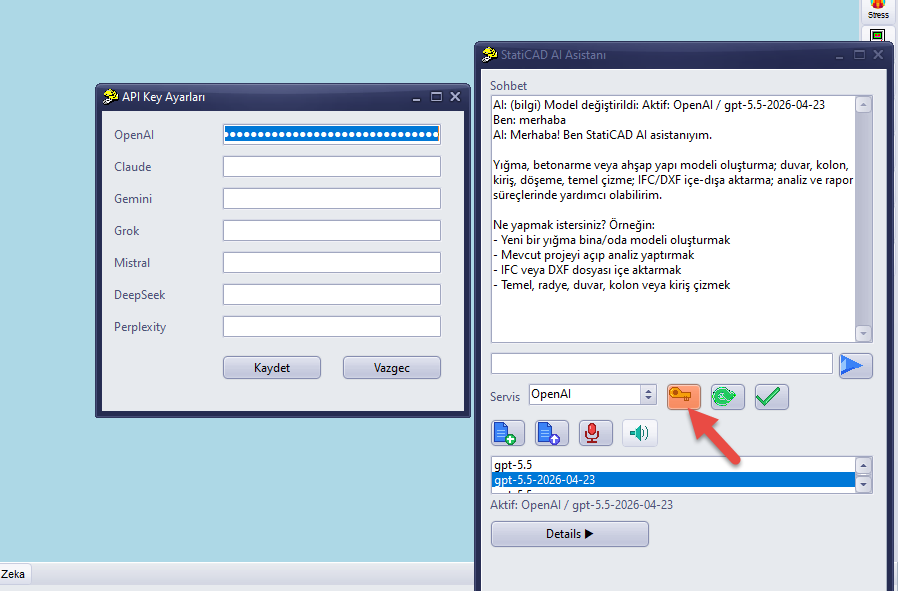
Note: If a message is sent without an API key entered, the assistant will display an "No API key" warning. You can learn the steps for obtaining a key from the page listing the available AI models.
3. Getting to Know the Interface
- Chat — The conversation area with the assistant (previous messages are shown here).
- Message box + "Send Message" — The area where you type and send your request.
- Service / "Fetch Models" / "Use Model" — Select the AI model to use.
- Commands and Results — Operations executed by the assistant and their statuses.
- Files — Attached/generated files ("Attach File", "Send File to AI", "Download AI File").
- "Push-to-Talk (Voice Recording)" for voice use.
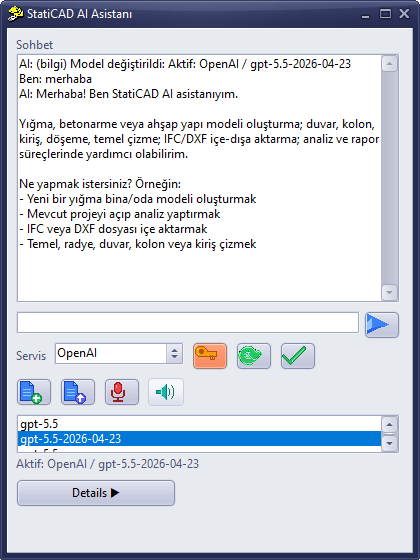
[Image: StatiCAD AI Assistant window]
4. Using by Typing
Type what you want to do in the message box using everyday language and click "Send Message". Example requests:
- "Add a wall 3 metres high to the ground floor."
- "Create a column and set its section to 30x30."
- "Switch the model to 3D view."
- "Run the analysis and summarise the result."
- "Save the project."
5. Using by Voice
You can speak your request into the microphone using the "Push-to-Talk (Voice Recording)" button; your speech is converted to text and sent to the assistant. To listen to the assistant's responses out loud, tick the "Vocalise responses" checkbox.
6. Attaching Files and Images
Select a file or image with "Attach File", then send it to the assistant with "Send File to AI". This allows the assistant to evaluate the content of the file or image.
7. What Can the Assistant Do?
- Element creation: wall, column, beam, slab, axis/grid line, door, window, reinforcement/rebar, foundation.
- Storey operations: adding, copying, and modifying storeys.
- Analysis: starting the analysis run and querying its status.
- View: 2D/3D switching, zoom, pan, storey view.
- Project settings: soil, earthquake, and code parameters.
- Import/export: IFC/DXF import; export (if edition supports it).
- Saving and running macros.
8. Assistant Language
If the program interface is in Turkish, the assistant replies in Turkish. If the interface is in another language, the assistant starts in English and adapts to the language you write in.
9. Demo Edition Restrictions
- The assistant and IFC import are available.
- IFC export is disabled.
- Saves are made in demo format.
Tip: If you write your requests clearly and step by step (specifying storey, dimensions, and section), the assistant will work more accurately. If an unexpected operation occurs, you can revert it with Undo.
Frequently Asked Questions
Is the assistant available in all editions? No; it is available in the Hybrid and Ultimate editions.
Is an internet connection required? Yes; the assistant connects to an online AI service.
Does the assistant replace the engineer? No; it is an assistant. The resulting model and outputs must be checked by the responsible engineer.